
How to Remove Restrict Editing in Word Without the Password (.doc and .docx)
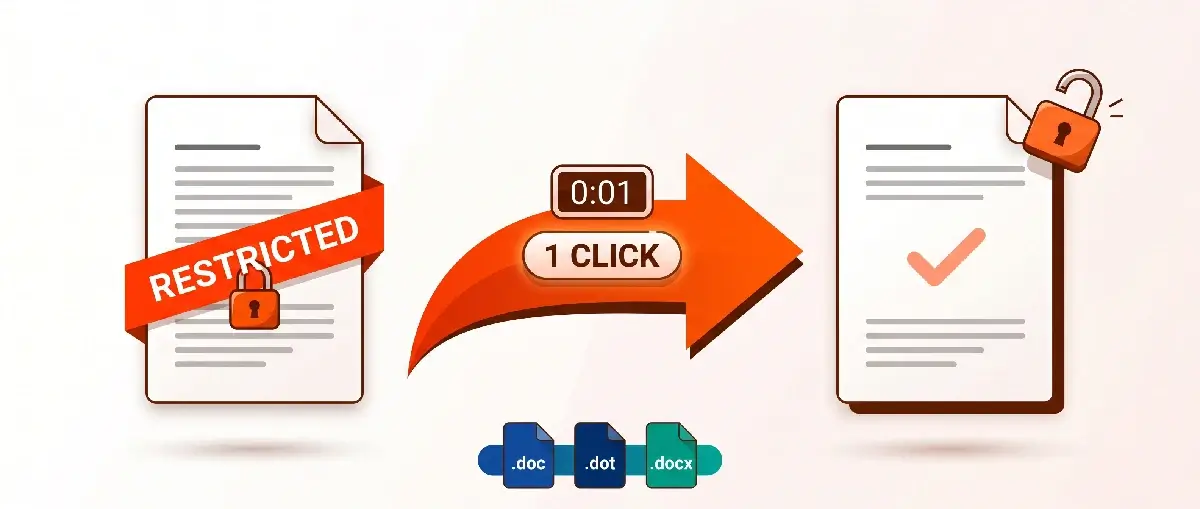
Restrict Editing in Word comes off instantly — no matter how long or complex the password is. It isn't encryption, it's a flag in the document's settings: a program just deletes it in a second, no search involved. Unlike the "Password to Open," there's nothing here to guess. Below I'll show you two routes: through Accent WORD Password Recovery and through free methods.
Four Free Methods Remove Restrict Editing in .docx (Word 2007+)
Yes, removing Restrict Editing for free and without third-party programs is doable. There are a few workarounds, each with its own quirks, but for the basic case (.docx, Word 2007+) they'll do the job.
Delete the w:enforcement Tag in settings.xml (the Most Reliable Free Method)
Editing the XML directly is the most reliable free way to strip Restrict Editing from a .docx. Rename the .docx file to .zip, open the archive,
find settings.xml in the word folder, and delete the <w:enforcement/> tag. The protection is gone. It sounds scary, but in
practice it's a couple of minutes of work.
Copy the File into Google Docs to Reset the Restriction
Google Docs resets Restrict Editing with no utilities at all, and it might even be simpler. Upload the document to Google Drive, open it in Google Docs, and make a copy through the "File" menu. Editing restrictions don't carry over to the copy. Download the copy back as a new .docx. Done!
Run It Through WordPad as .rtf
WordPad is a last-resort option, and it doesn't always work. Open the protected file in WordPad (it's built into Windows), save it as .rtf, then open it in Word and save it as .docx. Whether it works depends on the Word version and the restriction type.
Run wfeb from the Command Line
If a terminal doesn't scare you, wfeb can be one of the quickest free options. It's an open-source Python utility (github.com/KRWCLASSIC/wfeb), so it runs
anywhere Python does — Windows, Linux, or Mac: the command wfeb document.docx strips the restriction in a second. Heads-up, though: the author
notes it can be flaky, so keep a backup of the original handy.
What the Free Methods Can't Do
Honest about the limits of these methods: none of them work with .doc files (the old Word 97-2003 format), and none will help if the document is protected with a "Password to Open." That's encryption already. Accent WORD Password Recovery covers all of those cases in one click: it supports every Word version from 2.0 to 2024, the .doc and .docx formats, plus the "VBA Password" and the "Password to Open." I'll explain the difference between the protection types below.
Word Has Four Protection Types — Only the Password to Open Encrypts
Not all Word passwords are the same. Some are just a flag that comes off instantly. Others are full-blown encryption, where there's no getting around a search. The table below shows what you're dealing with and what to expect.
| Protection type | Word version | Encryption strength | Removal method | Speed |
|---|---|---|---|---|
| Password to Open | 2-97 (French Edition) | Weak proprietary protection | Instant recovery | < 1 second |
| Password to Open | 97-2003 | RC4 40-bit | Password search, encryption-key search, or rainbow tables (precomputed hash chains for fast password lookup) | Minutes to a few hours |
| Password to Open | 2007-2024 | AES-128/256 | Password search with GPU acceleration* | Hours to years — depends on password complexity |
| Password to Modify | 2-2024 | Simple protection, no encryption | Instant removal | < 1 second |
| Restrict Editing | 2-2024 | No encryption (a flag in the settings) | Instant removal | < 1 second |
| VBA Password (Password to view VBA project) | 97-2024 | Simple protection | Instant removal | < 1 second |
| * GPU-accelerated search for the Password to Open is in Accent OFFICE Password Recovery. AccentWPR itself is simpler: it searches on the CPU, and for Word's simple protection that's plenty. | ||||
Three of the four types come off in a second: no knowing the password, no search. Restrict Editing, the Password to Modify, and the VBA Password don't encrypt the contents. They just store a flag in the settings that any utility removes instantly. The Password to Open is a different story: it's RC4 or AES-128/256 there, and you can't get by without specialized software.
Restrict Editing works like a "Don't touch!" sticky note on someone else's cake in the office fridge. Technically, nothing stops you from having a slice with your coffee. People just see the note and respect the request. AccentWPR peels off that sticky note in a second. The Password to Open is more like a fridge with an AES-standard lock: no key, no cake — and no opening that fridge without a password search.
The Password to Open Can't Come Off Instantly — It's Encryption
The "Password to Open" (also called "Encrypt with Password") works differently. It encrypts the entire contents of the file: RC4 in old .doc files, AES-128/256 in .docx. There's nothing to delete here — only a password search helps.
Accent WORD Password Recovery searches passwords on the CPU at high speed and cuts down the number of checks: a positional mask sets the allowed characters for each position separately, while dictionary merging and mutation feed in realistic passwords instead of a blind full search.
How to Remove Restrict Editing with AccentWPR: Three Steps
Open the file in AccentWPR and the program removes Restrict Editing instantly, without knowing the password. It works with every version of Microsoft Word: from Word 2.0 to Word 2024 and Microsoft 365, in the .doc and .docx formats.
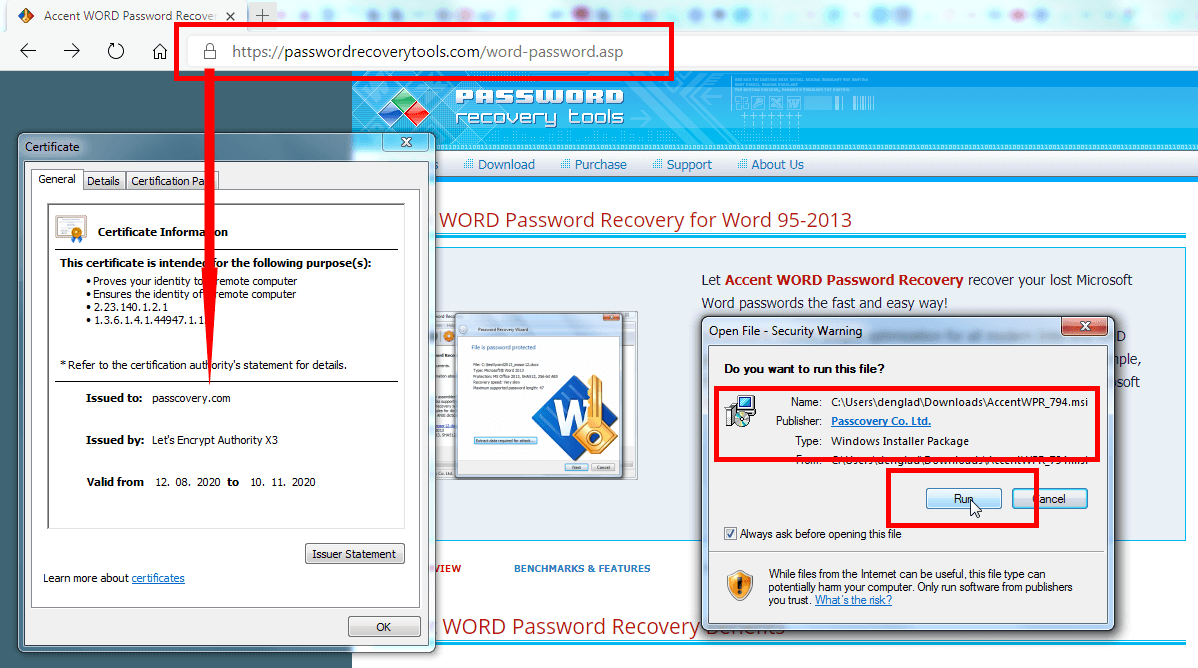
Step 1. Download and Install the Program from the Official Site
The installer is signed with a Passcovery certificate — your guarantee there's nothing extra bundled in. The installer is about 7 MB.
Step 2. Launch Accent WORD Password Recovery
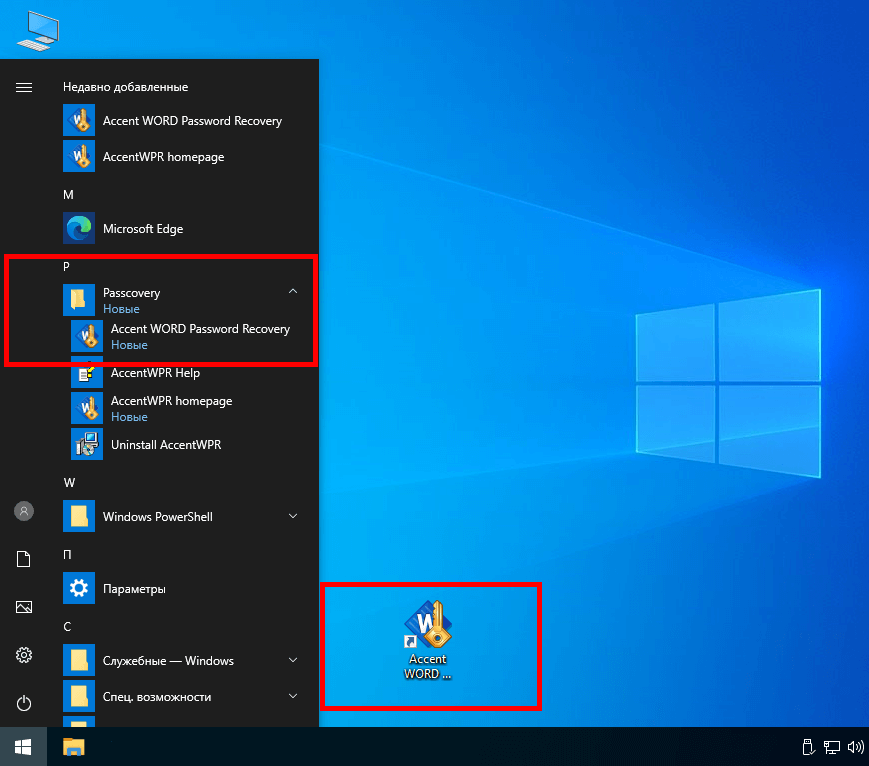
You'll find the icon in the Start menu, on the desktop, or in the quick-launch bar.
Step 3. Open the Protected File in the Program
Through the "File" menu, or by dragging the document into the window. From here, two scenarios depending on the format:
- .doc (Word 97-2003): the program immediately shows a recovered collision password. You can copy it with a click or type it into Word by hand.
![Instant password recovery for Word 6-2003]()
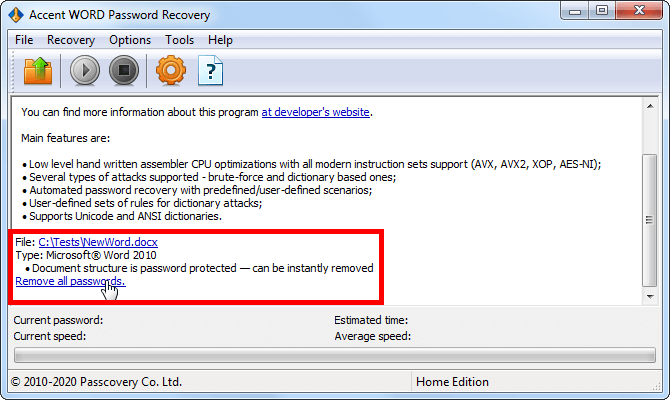
Instant password recovery for Word 6-2003 - .docx (Word 2007-2024): the program offers to save a copy of the document without protection.
![Instant password removal for Word 2007-2024]()
Instant password removal for Word 2007-2024
The Trial Shows Only the First Two Characters of the Password
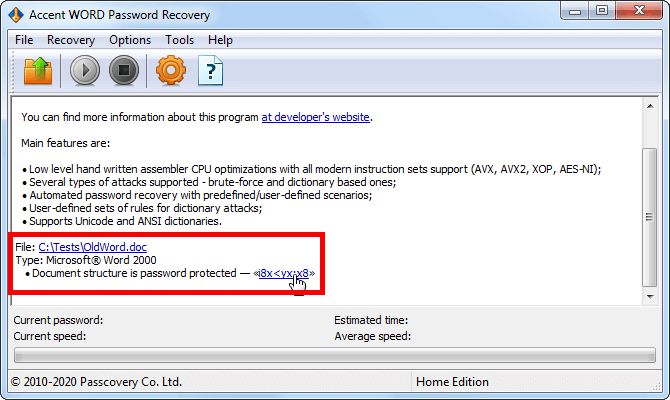
Honest about the demo version: the trial shows only the first two characters of the password, or tells you the protection can be removed. A full result needs registration. But even in demo mode, you can see right away how fast this works.
The bottom line is simple: Restrict Editing comes off in a second, whether through AccentWPR or free methods. The free options work, but each one has a ceiling on the format and Word version. AccentWPR covers all such cases in one click. And if the document is also protected with a "Password to Open" or a "VBA Password," there's no getting by without the program. You can download it here: Accent WORD Password Recovery.
About the Author

Denis Gladysh, co-owner and head of Passcovery, a maker of high-speed, GPU-accelerated password recovery software for popular file formats. Denis wrote the first versions of Accent OFFICE Password Recovery back in 1999.


Frequently Asked Questions About Word Document Protection
What restrictions does Restrict Editing impose?
It's a set of rules for what exactly you're allowed to do with the document. You turn it on through "Review" → "Protect" → "Restrict Editing," and there are four options: "No changes (Read only)," "Comments," "Tracked changes," and "Filling in forms." You can, for instance, allow only comments, or only filling out form fields.
What matters for removal: whichever mode is set, it's still the same flag in the settings, not encryption. It comes off instantly, with any of the methods.
Word Says "Some Types of Changes Are Not Permitted in This Document" — How Do I Turn That Off?
That's Restrict Editing: the author allowed only some changes, and Word blocks the rest. It isn't encryption — it's protection against edits by other people. Here's where to find it: "Review" → the "Protect" group → "Restrict Editing," and the pane on the right will show you what's blocked. At the bottom of the pane there's "Stop Protection," but Word will ask for the password. Enter it, and the protection comes off. If the password is lost, Restrict Editing can be removed outside of Word: four free methods for .docx, or AccentWPR for both .doc and .docx.
Are online services safe for removing Word protection?
They're as safe as your level of trust. Online services require uploading your file to someone else's server, and you lose control over where it's stored and who sees it. For an ordinary document, that's acceptable. For an NDA, personal data, or a financial report, it's a real risk. Local utilities process the file on your own computer: the data goes nowhere, and the chance of a leak is minimal.
Why does editing settings.xml by hand sometimes break the file?
Word is picky about XML syntax. Accidentally nudge a neighboring tag or repack the ZIP archive wrong, and the file stops opening. The method works, but the cost of a mistake is high. If you want to figure it out yourself, make a backup copy first. A must, not a "nice to have": these rules are written in other people's frayed nerves.
Can Google Docs remove "Password to Open" protection?
No. Google Docs handles only Restrict Editing: there's no encryption there, the flag just gets reset. The Password to Open is built differently: .docx files are protected with AES-128 or AES-256 (modern, strong encryption), while older .doc files use RC4 (outdated encryption). Without the password, Google Docs won't open such a file. The only way to remove "Password to Open" protection is to find the password by search. And that's a job for a password recovery program, not for cloud services.
Will converting to PDF remove Word restrictions?
Yes, it will. Word restrictions don't carry over into a PDF, and the document becomes editable. But converting back to .docx can bring a different problem: the formatting suffers, tables shift, fonts change. This route is fine for simple documents without complex formatting. The more complex the document, the more time you'll spend restoring the layout. It's easier to remove Word protection directly with dedicated utilities.