
GPU Temperature: What's Normal and How to Prevent Overheating
You opened your monitoring tool and saw 85°C. Relax, you're probably fine. A safe GPU temperature simply means your graphics card is running below the maximum threshold set by the manufacturer. As long as there are no random reboots or FPS drops, your card is working as intended. This article is here to give you actual numbers, not another vague "somewhere between 60 and 85°C."
Jump to NVIDIA max temperature table
Jump to AMD max temperature table
Jump to Intel Arc max temperature table
What is a "normal" GPU temperature
Why there's no magic number
Normal GPU temperature is a relative concept. Forum advice like "it should be 70°C" deserves a healthy dose of skepticism: the person who wrote that is most likely just echoing what someone else said. The only hard data we have are the maximum temperatures published by manufacturers. Everything else is a generalization.
Modern graphics cards are tuned to run properly right out of the box. If your PC isn't rebooting and you're not seeing throttling (forced performance reduction due to overheating), your GPU is running at a normal temperature.
It's not just gaming that pushes a GPU hard. Rendering, AI workloads, video processing, and password recovery software can stress your GPU just as much, and often for far longer. In scenarios like these, your card runs at full load for hours, and knowing your thermal ceiling matters a lot.
Overclockers have it even trickier: the cooler the die, the more headroom you get for boost clock and overclocking in general. But cooling a GPU below ambient temperature is risky because condensation can form on the PCB.
Factors that affect GPU temperature
GPU temperature is shaped by several groups of factors at once.
Cooling and airflow:
- Case type, fan count, and fan placement
- Air cooling vs. liquid cooling
- GPU cooler design: blower-style or open air
Environment and system condition:
- Room temperature (ambient)
- Dust buildup on heatsinks and fans
- Type and age of the thermal interface material (thermal paste) between the die and heatsink
Hardware specifics:
- Device type: laptop or desktop
- GPU brand and model
So "my friend gets 75°C" tells you nothing about your system. There are too many variables to compare numbers without context.
Maximum GPU temperature: the only reliable benchmark
The maximum GPU temperature (TJ Max) is the threshold above which the card starts protecting itself. As long as the GPU stays below this value, performance is unrestricted. Go over it, and thermal throttling kicks in: the card forces down clock speeds and adjusts the power limit.
NVIDIA publishes max temperatures on their product pages. AMD doesn't always list this data publicly; you may need to check support docs or contact them directly. Intel publishes full specs on their product pages for the Arc series.
Throttling: what happens when a GPU overheats
Thermal throttling means the GPU is forced to reduce its clock speeds once it hits a temperature threshold. It's a safety mechanism, not a malfunction.
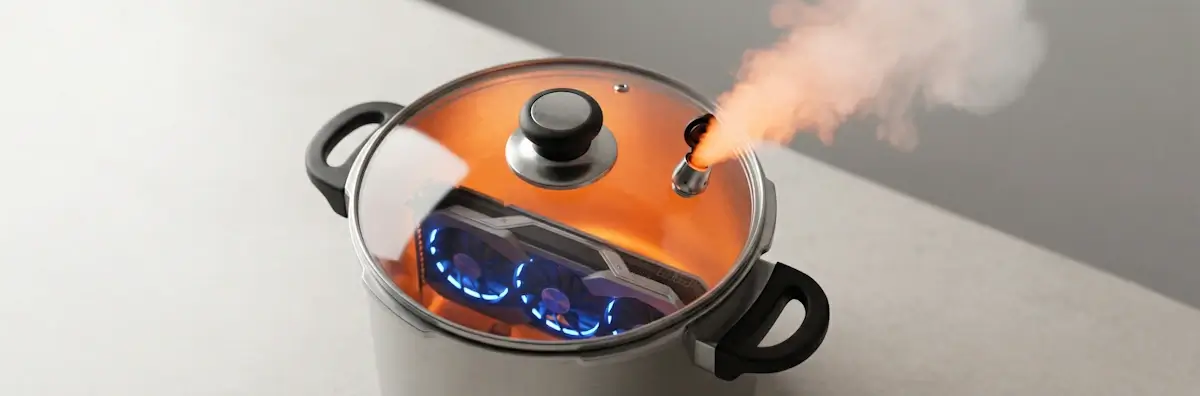
Throttling works like the pressure valve on a cooker: pressure builds up, the valve releases steam, your meal takes longer, but the pot survives. Same deal with a graphics card: FPS drops, but your GPU lives to fight another day. If the "valve" keeps going off constantly, it's time to address your cooling.
When throttling kicks in, GPU clock speed drops below the advertised boost, and FPS in games or computation speed takes a hit. If overheating gets critical, the system shuts down entirely. NVIDIA, AMD, and Intel all use similar protection mechanisms; only the specific temperature thresholds differ.
Sure, throttling cuts performance. But it's a genuinely useful feature. Without it, your GPU would just burn itself out, and then you'd be shopping for a new one.
How to tell if your GPU is throttling
Use MSI Afterburner: it's a free monitoring tool that shows temperature, clock speed, and load in real time. If the temperature is near the max and the clock speed isn't reaching the advertised boost or has dropped below the base clock, your card is throttling.
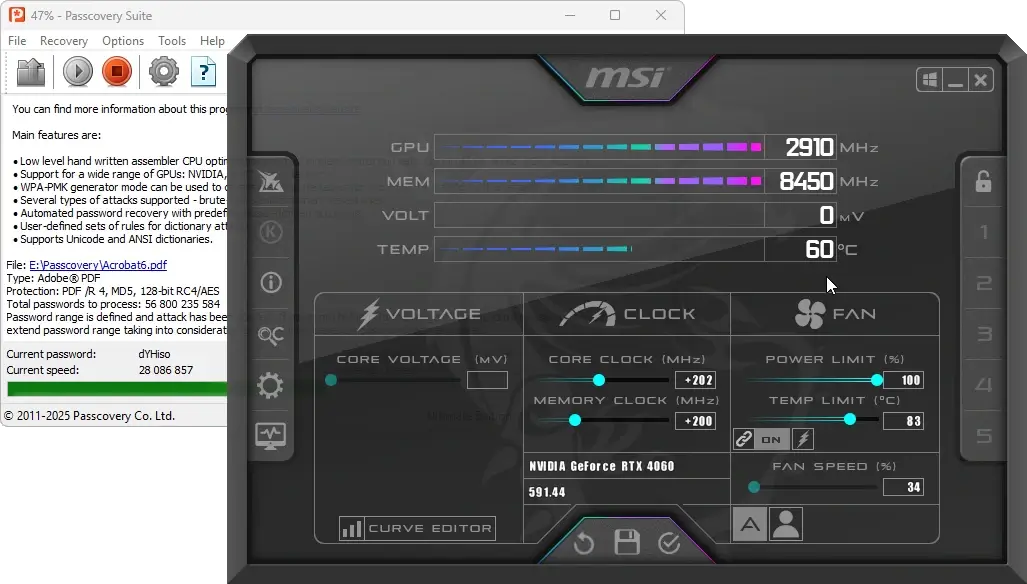
Thresholds vary across the board: one card starts throttling at 90°C, another at 83°C. It depends on the manufacturer, series, and even the specific batch.
Laptops: a high-risk zone
Laptops throttle far more often due to their compact chassis and limited cooling capacity. If a review mentions heavy throttling, real-world performance will be well below the specs on paper. Over time it only gets worse: thermal paste degrades, dust builds up, fans wear out.
Don't buy a laptop that throttles out of the box.
Maximum GPU temperature tables
NVIDIA: GTX 1000 through RTX 50
These figures are for reference (Founders Edition) cards. Third-party AIB models may differ slightly. For the exact specs of your particular card, check the specifications section on nvidia.com.
| GPU | Max °C |
|---|---|
| GTX 1060 | 94 |
| GTX 1070 / 1070 Ti | 94 |
| GTX 1080 | 94 |
| GTX 1080 Ti | 91 |
| GTX 1650 | 92 |
| GTX 1660 / 1660 Ti | 95 |
| RTX 2060 | 88 |
| RTX 2070 | 89 |
| RTX 2080 | 88 |
| RTX 2080 Ti | 89 |
| RTX 3070 / 3080 / 3090 | 93 |
| RTX 4090 | 90 |
| RTX 5080 | 88 |
| RTX 5090 | 90 |
AMD RX and Ryzen APUs
With AMD cards, it's important to understand the two temperature sensors your monitoring software reports. Edge temperature is the temperature at the edge of the die; that's what most tools show by default. Junction temperature (Hotspot) is the temperature at the hottest point on the die. It's always higher than Edge, and that's by design: a delta of 15–30°C between the two is built into the RDNA architecture (RX 5000 series and newer).
AMD officially sets the Junction limit at 110°C for all RDNA-based cards. This has been confirmed by independent investigations from Igor's Lab and Tom's Hardware. Above that threshold, automatic thermal throttling kicks in.
The RX 9070 / 9070 XT (RDNA 4, 2025) run surprisingly cool on GPU Core: 50–55°C in games, with Hotspot at 80–83°C, which is perfectly fine. The catch is that VRAM heats up to 88–95°C under load. AMD doesn't publish an official TjMax for memory; telemetry data in HWiNFO suggests a limit of around 108°C. Micron's GDDR7 specs allow up to 115°C, so there's headroom. Still, keep an eye on memory temps, especially in poorly ventilated cases.
AMD publishes all thermal limits for its APUs on the product pages at amd.com.
| GPU | Edge (°C) | Junction (°C) | Source |
|---|---|---|---|
| RX 460 / 470 / 480 | 85 | — | AMD |
| RX 560 / 570 / 580 / 590 | 85 | — | AMD |
| RX 6000 series | ~75 | 110 | AMD |
| RX 7000 series | ~70 | 110 | AMD |
| RX 9070 / 9070 XT | ~50–55 | 110 | Igor's Lab / Tom's Hardware |
| Ryzen 5 8600G (APU) | — | 95 | AMD |
| Ryzen 7 8700G (APU) | — | 95 | AMD |
| Ryzen 7 9700X | — | 95 | AMD |
| For the RX 6000, RX 7000, and RX 9000 series, a Junction of 110°C is a normal operating parameter, not an emergency threshold. | |||
Intel Arc
Intel is the third player in the discrete GPU market. The Arc A series (Alchemist) launched in 2022, and Arc B (Battlemage) followed in late 2024. Full specs: Arc B580, Arc A770 16GB.
| GPU | Max °C |
|---|---|
| Arc A750 | ~90 |
| Arc A770 | ~90 |
| Arc B580 | ~90 |
Intel confirms that up to 90°C on the Arc A770 is within spec. In independent tests, the B580 sits around 65–70°C in games. Noticeably cooler than most competitors in the sub-$300 segment.
By the way, if you're curious how NVIDIA, AMD, and Intel GPUs stack up for password recovery workloads, check out the GPU benchmark from Passcovery.
Air cooling: blower vs. open air
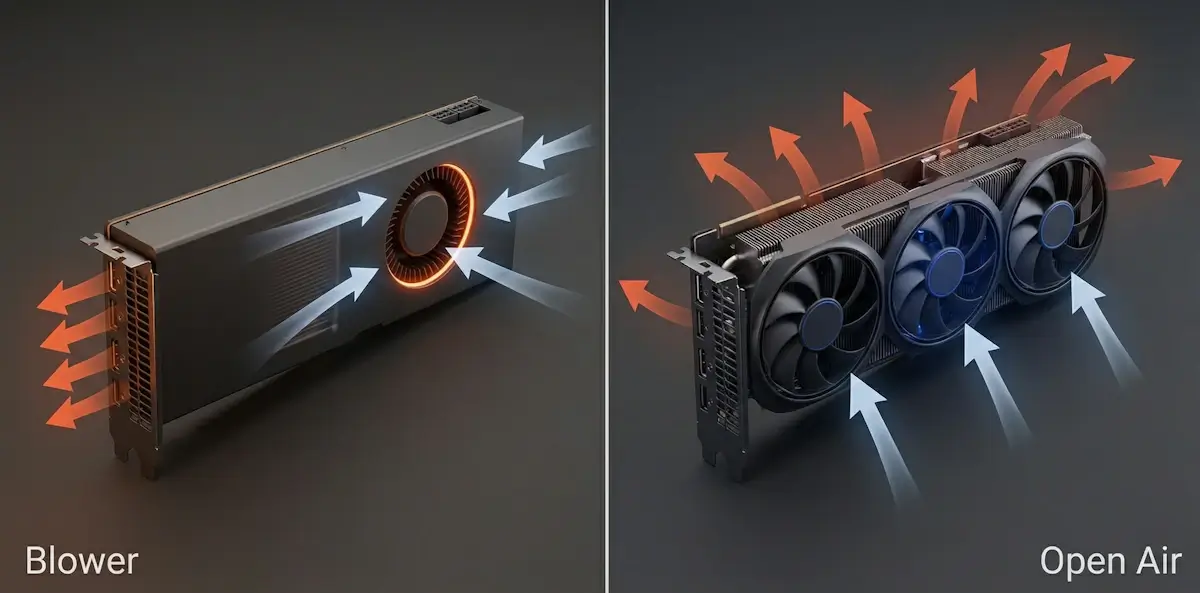
A blower-style cooler uses a single fan and exhausts hot air out the back of the case through the rear bracket. It was the standard design for AMD reference cards and NVIDIA Founders Edition models before the RTX series. Blowers run louder and generally produce higher temps, but they don't recirculate hot air inside the case.
So why does it even exist? In a poorly ventilated or compact case, a blower can actually be the better option because it pushes hot air straight out instead of dumping it back onto the other components.
An open air cooler uses two or three fans that blow air through the heatsink and into the case. It's the standard for third-party (AIB) cards. Open air is significantly more effective than a blower, as long as your case has decent airflow. NVIDIA switched to open air for Founders Edition starting with RTX 20 series; AMD followed with the RX 6000 series. If needed, you can adjust the fan curve through MSI Afterburner or your card manufacturer's software.
If your case has poor ventilation, an open air cooler will just recirculate hot air in circles. In that scenario, either improve your case airflow or accept the higher temps.
How to lower GPU temperature: a step-by-step guide
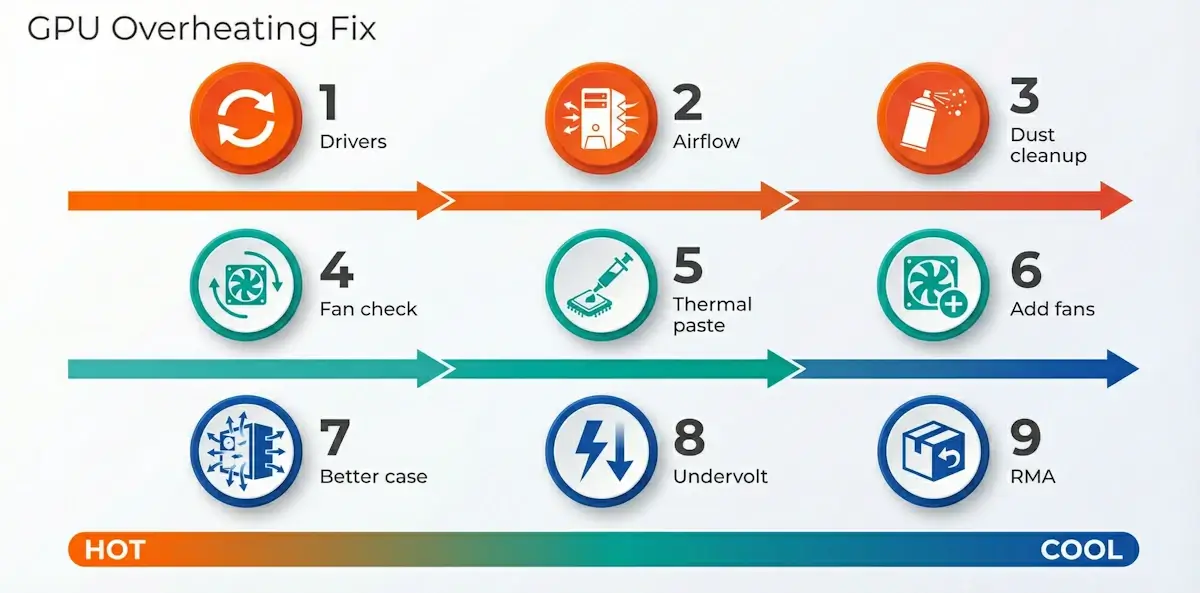
If your card is overheating or throttling, work through these steps from simple to advanced:
- Update your drivers. Sounds obvious, but outdated drivers can affect how the card manages its thermal design power (TDP) and clock speeds.
- Clear space around your PC. Make sure there's enough room around your tower or laptop vents for hot air to escape.
- Clean out the dust. Use a can of compressed air, not a household vacuum: static electricity from a vacuum can damage components.
- Check the GPU fans. Make sure all GPU fans are spinning freely and aren't blocked by cables or debris.
- Replace the thermal paste. Check with the manufacturer first: repasting can void your warranty in some cases.
- Add case fans. Install additional fans or rearrange existing ones for optimal airflow.
- Improve case ventilation. Consider a case with better airflow, or temporarily remove the side panel to diagnose the issue.
- Try undervolting. Reducing GPU voltage while maintaining clock speeds lowers heat output without sacrificing performance. For experienced users only.
- File an RMA claim. If nothing else worked, contact the manufacturer for a warranty return (RMA). A properly functioning card shouldn't throttle under normal conditions.
Wrapping up
GPU overheating is a solvable problem in most cases. Dust, dried-out thermal paste, poor case ventilation: these three culprits account for the majority of issues, and you can fix all of them yourself in a couple of hours. In rare cases, you'll need a warranty replacement.
Keep your system clean, give it room to breathe, and stay on top of maintenance. May your temps stay low and your FPS high.