
How to Unlock a Word File: With a Known Password or When It's Lost
A Word password unlocker is a whole class of programs for recovering passwords to Microsoft Word files when the password is forgotten or lost. Here's what a decent unlocker has to have:
- support for every version of Microsoft Word
- instant removal of simple protection passwords
- a high-speed search for strong "Passwords to Open"
- GPU acceleration on NVIDIA/AMD/Intel Arc graphics cards
- flexible control over the search range
Try Accent OFFICE Password Recovery — a Windows program that unlocks password protection on Microsoft Word 6-2024/Microsoft 365 files, and it has everything on that list.
The "Password to Open" in Word 2007-2024: Can It Be Removed?
There's no removing this password without a search — for Word 2007 and later, decryption without the password doesn't exist. The reason is the length of the encryption key. The key grew to 128/256 bits, and a range that size can't be brute-forced. Classic Word 97-2003 has a short key, 40 bits. That one gets searched in full — and the file opens without the password, guaranteed. For Word 2007-2024 there's no shortcut. You're left searching for the password itself.
How the password search actually works and how long it takes — we break it down below.
Password Protection in Microsoft Word: Strong vs. Weak
Password locking in Microsoft Word comes in two kinds: strong protection against public access to your data ("Password to Open") and simple protection against accidental changes (every other kind of password protection) (details).
- Protection against public access to your data (strong protection):
- Password to Open
- Protection against accidental changes (weak protection):
- Password to Modify
- Restrict Editing password
- VBA macros password
The Password to Open: Strong, Encryption-Based Protection
Setting a "Password to Open" encrypts all the data in a Word document (in Word 2007 and later that's AES, the same industry-standard cipher used everywhere else), and there's no unlocking an encrypted file without the password. Searching for that password (recovering it, which really means cracking it — running through combinations) takes time, and how much depends on the Word format version and the complexity of the password that was set.
Editing-Restriction Passwords: Weak Protection, Removed Instantly
Every other password type doesn't encrypt the data. It only blocks certain actions with it. You can still open the Word file and work with the data in a restricted mode — the password is only needed to save (or apply) changes. The thing about this kind of protection: it can be removed instantly in any version of Word.
Password protection in Word controls access to information, and it's been a useful feature since the very first versions of Office. But time passes, and sometimes those passwords stop being useful and need to go.
Gotta do it? Then let's do it. Time to learn how to unlock a Word file and clear out the passwords you don't need.

- How to Unlock a Word File When You Know the Password
- How to Unlock a Word File When the Password Is Lost
- Limitations: What a Word Unlocker Can't Do
With the password in hand, it's easy — you can strip it in a minute. Lost or forgotten it? Then it all comes down to which password is set. We'll cover both cases.
How to Unlock a Microsoft Word File When You Know the Password
If you know the password, you're all set. Unlocking a Word file is just locking it in reverse: enter the password, delete it, and save the file without one.
Here's how it works in Microsoft Word 2016.
How to Remove the Password to Open (Document Open Password)
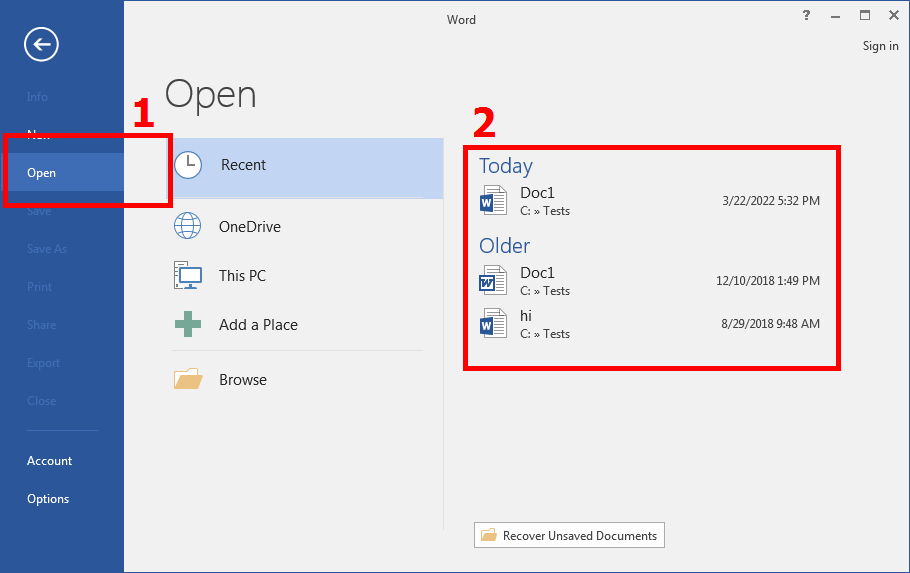
1. Launch Word, go to "Open," and just click the file you need. That selects it and starts opening it.
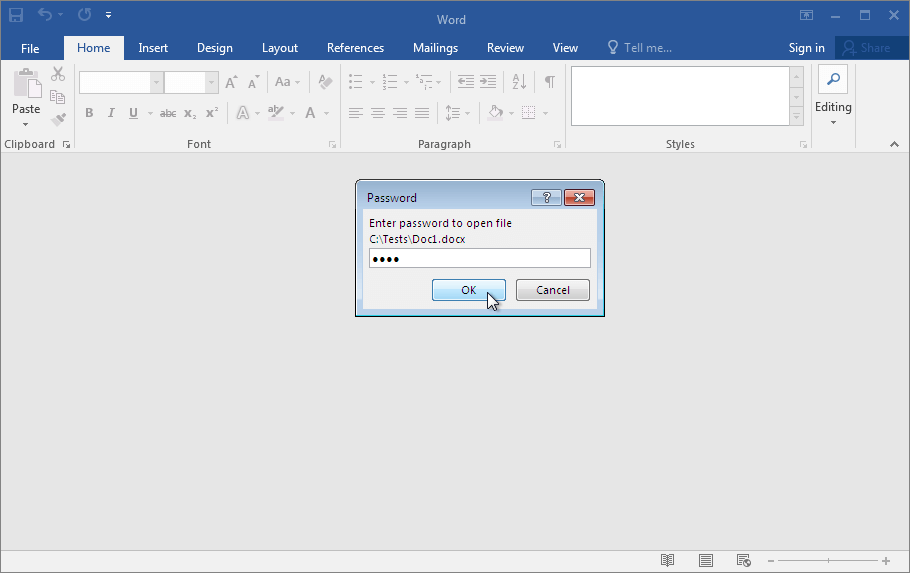
2. Enter the password you know and open the Word file (if you don't know it, here's the guide on recovering it)
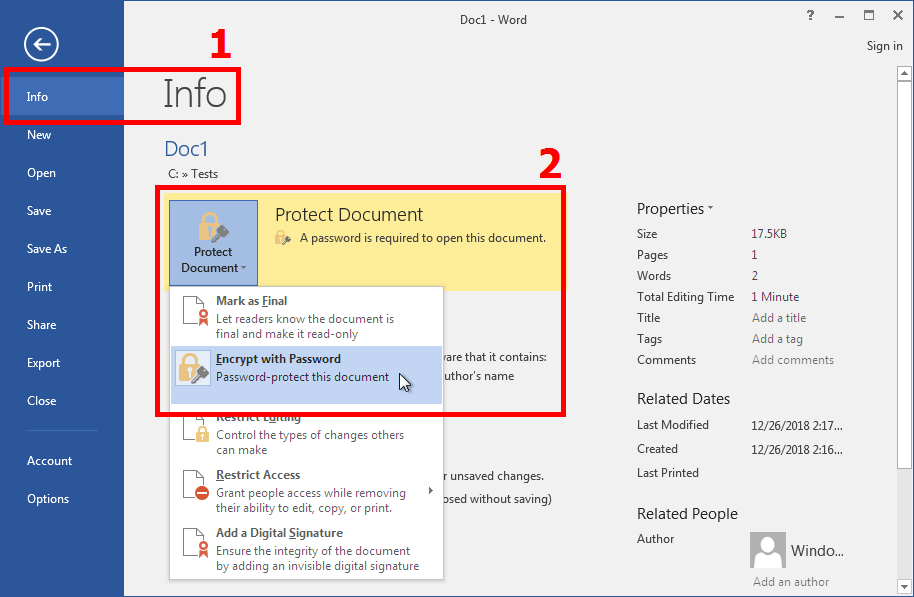
3. Go to "File" → "Info," open the "Protect Document" menu, and select "Encrypt with Password."
4. In the new window, delete the password you set, click "OK," and re-save the file. You can also save it under a new name. That way you'll have two Word files: the original with password protection, and a new, unlocked one.
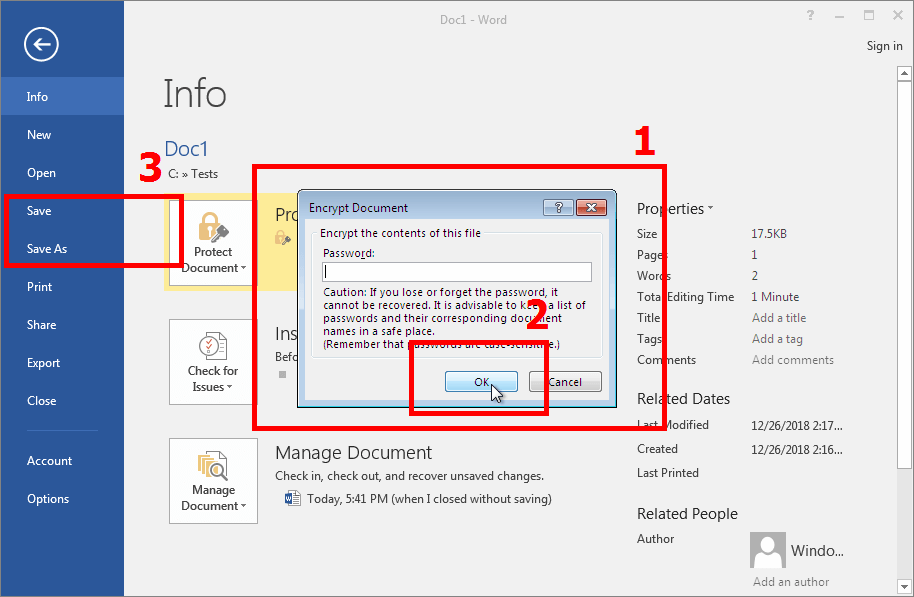
That's it. Your data is decrypted and the "Password to Open" is gone. The next time you open the file, no password needed. …assuming you re-saved the original and didn't save a new file without a password, of course. 😜
How to Remove the Password to Modify (General Options)
1. Start Word and begin opening the file you need, enter the "Password to Modify," and continue.
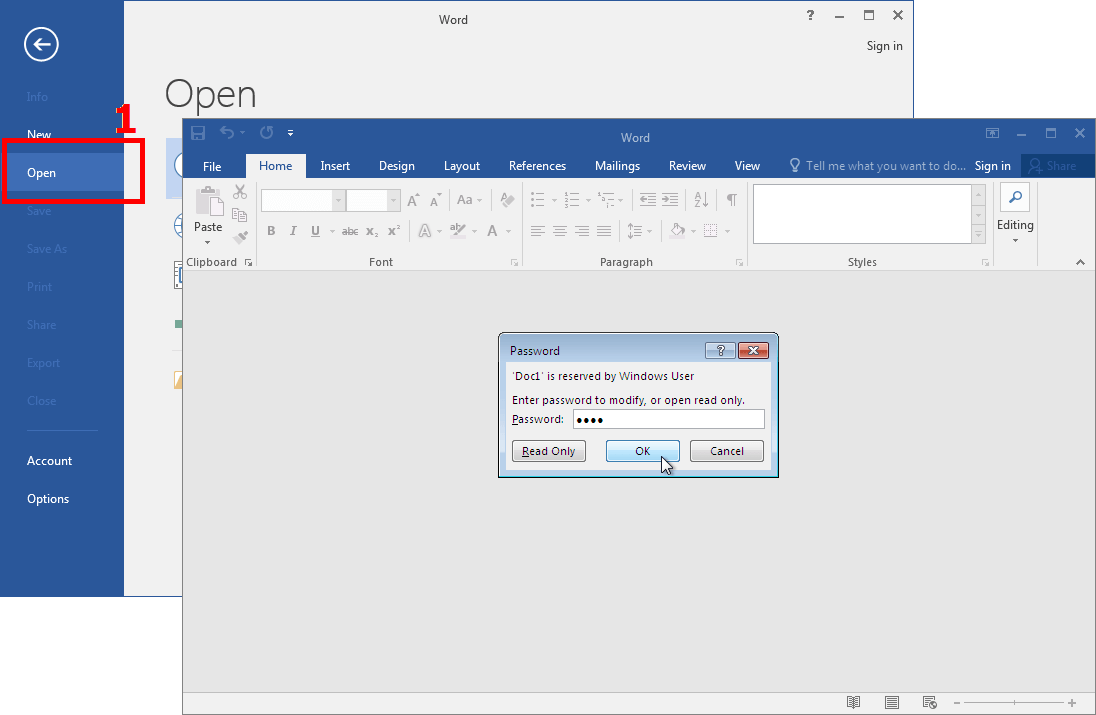
2. In the "File" menu, click "Save As," then open the "Tools" menu and select "General Options…"
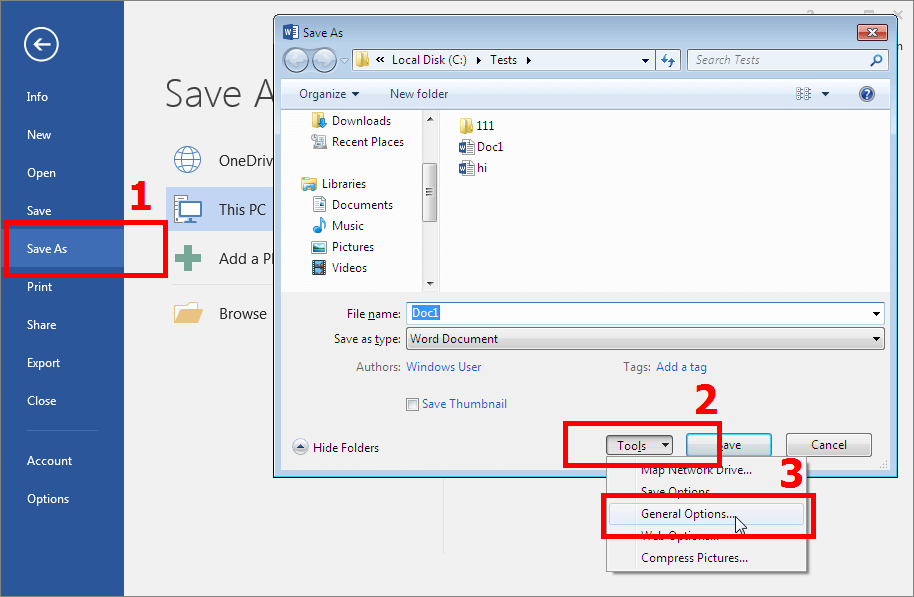
3. In the new window, delete the "Password to Modify," click "OK," and save the unlocked file.
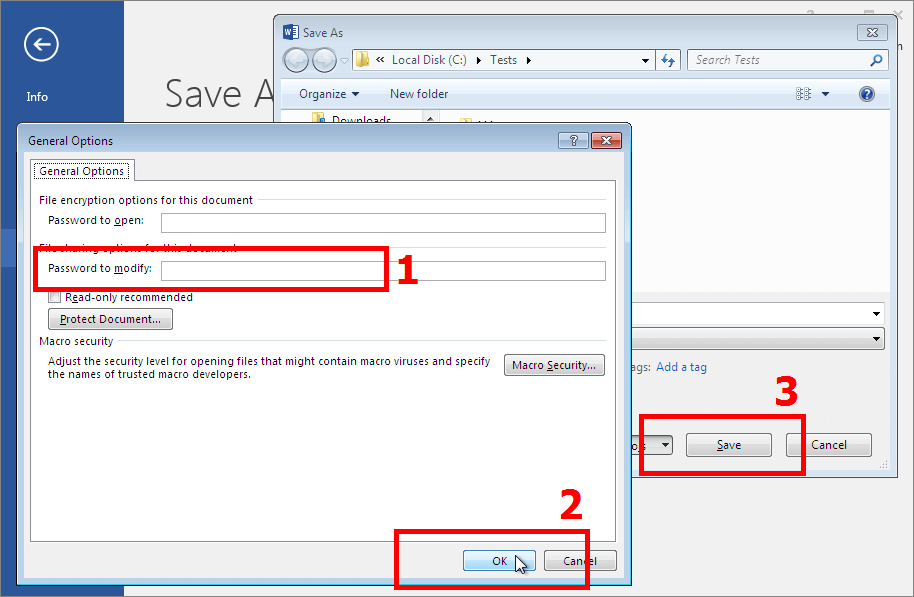
The "Password to Modify" is gone!
Alternative: Remove the Password to Open via the Same Save Options
Here's the thing: the "Password to Open" comes off the same way. Besides the "Password to Modify," this options window lets you delete that password too. And right here you can not only remove but also change either of them.
How to Turn Off the Restrict Editing Password
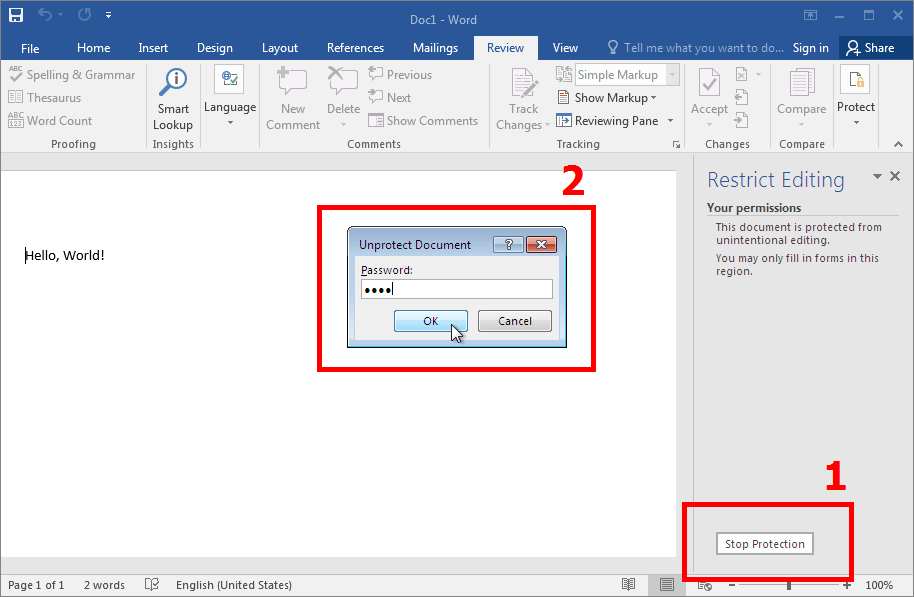
1. Open the Word file you want to unlock, go to "Review," click "Protect," and then "Restrict Editing."
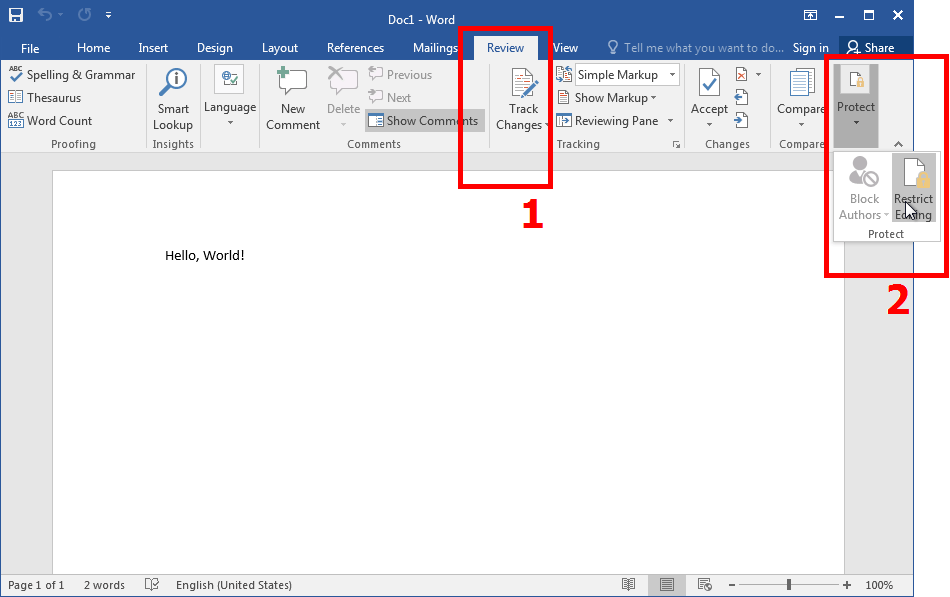
2. In the window that appears, click "Stop Protection," enter the password you know, and click "OK" — that turns off the editing restrictions set on this Word document.
How to Remove the VBA Macros Password in a Word File
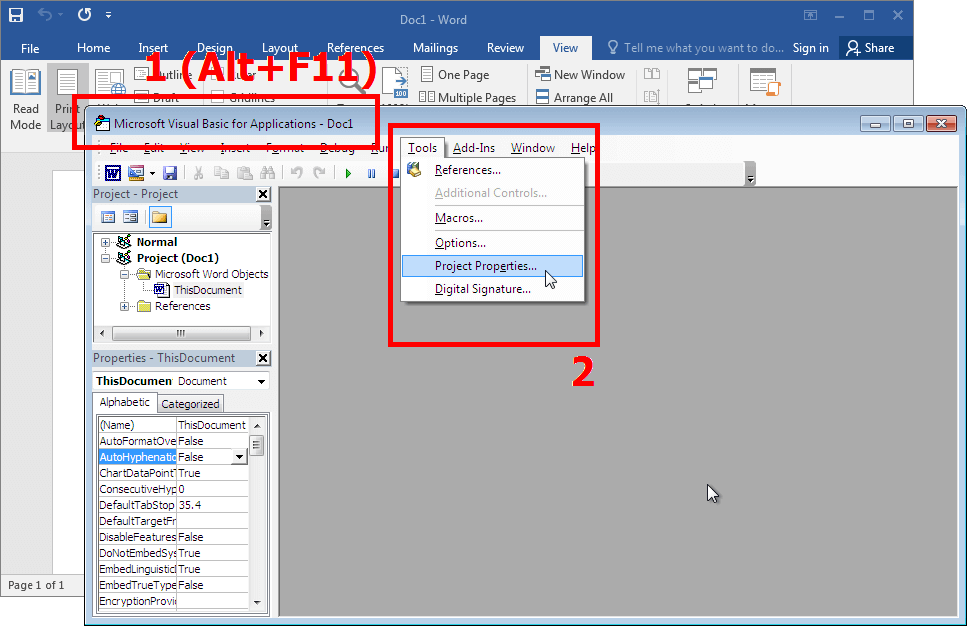
1. Open the Word file with the VBA password as usual, and press "Alt+F11." This launches the VBA code editor. Open the "VBAProject Properties…" window through the editor's "Tools" menu.
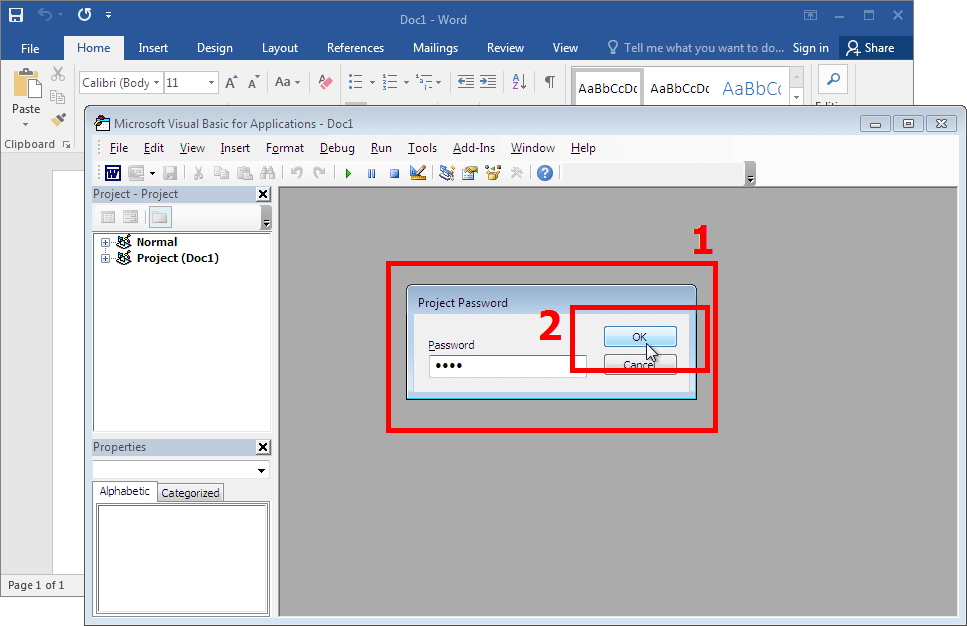
2. The editor will ask for the VBA password to access the Word file's data. Enter it and click "OK."
3. In the VBA project properties window that appears, go to the "Protection" tab, uncheck "Lock project for viewing," and delete the VBA password from the "Password" and "Confirm password" fields. That's it. Now click "OK" and save the file.
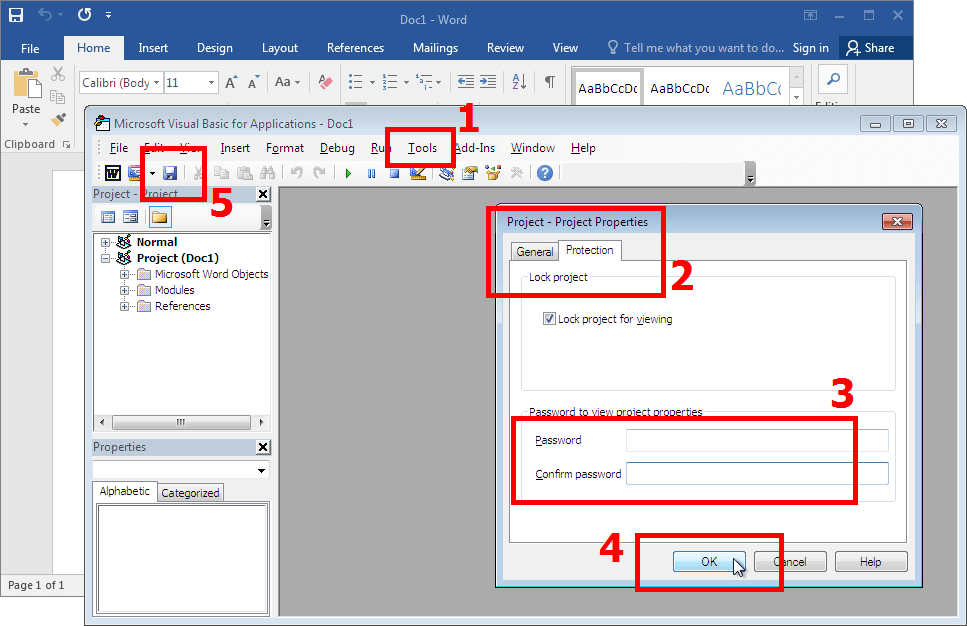
You've successfully removed the VBA macros password, and the VBA code is now saved unprotected in your Word file.
How to Unlock a Word File When the Password Is Lost
Weak Word Protection Is Removed Instantly, No Password Needed
All of Word's weak protection is removed instantly, without even knowing the password. That's possible with three password types: Restrict Editing, the Password to Modify, and VBA macro protection. They don't encrypt the file — they only block certain actions, which is why you don't need the original password for them. Such a password is either simply deleted or replaced with any working one, not necessarily the original. Here's how it's done, by protection type: Restrict Editing and the Password to Modify, the VBA macros password. The "Password to Open" is another story: that's encryption, and there you need the original password.
What a Word Unlocker Actually Does
The fix for a forgotten or lost Word password is a Word password unlocker. Most often these are Windows programs for recovering or removing passwords (though there are online services too).
Microsoft has its own tool as well — DocRecrypt. But there's a catch: it only removes a password in organizations where the admin handed out an escrow key ahead of time. If you forgot the password to an ordinary file "just because," DocRecrypt isn't for you and won't help at all.
Accent OFFICE Password Recovery: GPU Acceleration, 3 Attack Types, Word 6-2024
My pick is Accent OFFICE Password Recovery. Here's why:
- AccentOPR recovers or removes weak-protection passwords (the kind guarding against accidental changes) instantly, in every version of Word.
- For strong, encrypted passwords, AccentOPR always searches at your computer's maximum speed.
- Brute-forcing the "Password to Open" on Word 2007-2024/Microsoft 365 (.docx files) gets a big speed boost from NVIDIA, AMD, and Intel Arc graphics cards.
 |
Accent OFFICE Password Recovery for Microsoft Office and OpenOffice/LibreOffice files, all versions |
Everything AccentOPR Can Do
- support for Microsoft Word 6-2024/Microsoft 365 formats (plus Access, PowerPoint, Excel, and LibreOffice/OpenOffice)
- instant recovery or removal of simple protection passwords
- high-speed brute force against strong, encrypted passwords (ASM-optimized source code)
- GPU acceleration on NVIDIA/AMD/Intel Arc cards for Word 2007-2024/Microsoft 365 .docx files
- 100% guaranteed decryption of Word 6-2003 files (by finding the 40-bit encryption key)
- three password attacks (brute force, extended mask, and dictionary attacks)
- custom attack scenarios (chained sequences of multiple attacks)
- flexible search range controls (positional masks, dictionary merging and mutation)
- auto-saved attack status (resume right where you left off)
- a Windows GUI plus command-line support
How Password Recovery Works: Setting the Search Range
Using this Word password unlocker boils down to opening the password-protected file and, if needed, setting the search range for the "Password to Open."
Weak-Protection Passwords Are Removed Instantly, No Setup
Every other weak-protection password, Accent OFFICE Password Recovery recovers or removes instantly, no setup required, in every version of Word.
See how it works (the video shows examples with Excel, but it all works the same for Word):
Once you've recovered your password in Accent OFFICE Password Recovery, you can go ahead and unlock the Word file using the guide above.
Limitations: What a Word Unlocker Can't Do
Guaranteed Decryption Only for Word 6-2003 (40-bit Key)
The one case with a 100% guarantee is the one we already covered — Word 6-2003. There, you're not searching for the password but for a short 40-bit key, searched across a finite range. Past that line, the word "guaranteed" ends.
The Password to Open in Word 2007-2024 Can't Be Removed, Only Recovered
Starting with Word 2007, that short key is gone — the data is locked with AES using a 128-bit key (up to 256 in recent versions). You can't brute-force a key like that, so you have to search for the password itself. And that means a full brute-force search.
Recovery Time for Strong Passwords Isn't Guaranteed
And since it comes down to a search, nobody can name an exact timeframe. It depends on the format version and the password's complexity, and each new version of Word makes the search slower: Microsoft keeps raising the number of hashing iterations, so checking a single password costs more and more. In practice, a simple password on Word 97-2003 is found in minutes, a random 6-character one in newer versions takes days, and 10 characters takes months. But "not guaranteed" doesn't mean "hopeless": three attack types, smart scenarios, and GPU acceleration on NVIDIA, AMD, and Intel Arc cards turn brute force from a lottery into actual work. Hard — but doable.
Accent OFFICE Password Recovery
for Microsoft Office 6-2024/Microsoft 365 and OpenOffice/LibreOffice
The AccentOPR demo is free and runs at full speed: it removes simple protection instantly, finds the key for Word 97-2003, and puts a complex password through every attack with GPU acceleration.
About the Author

Author:
Denis Gladysh,
co-owner and head of
Passcovery,
a maker of high-speed, GPU-accelerated password recovery software for popular file formats.
Denis wrote the first versions of Accent OFFICE Password Recovery back in 1999.


Microsoft Word Password Protection: FAQ
Can Encrypted Word Files Be Cracked?
The answer depends on the Microsoft Word format version:
- Word 2-95 (through the French edition of 97) — uses very weak protection and gets cracked instantly, no matter how complex the password is
- Word 97-2003 — uses a short 40-bit encryption key; guaranteed to crack by finding the encryption key, with the password itself staying unknown
- Word 2007-2024/Microsoft 365 — reliable, strong protection with no loopholes: a 128/256-bit encryption key, and the password itself is run through tens of thousands of hashing iterations before each check — which is exactly what slows the search down. Cracking is only possible by running through combinations (brute-force attack, dictionary attack), with GPU acceleration as an option
But there's always room for human carelessness, and for simple passwords in the protection. 😉
Is .docx Protection as Strong as .doc?
No. DOCX (the Office Open XML format — that's where the X in the extension comes from) is a more modern, more reliable format with improved data protection algorithms (the AES cipher instead of the old RC4).
A password-locked DOC file can be decrypted without the password. Its short 40-bit key is either brute-forced in full (240 combinations is no problem for modern hardware) or found ready-made via rainbow tables, as at AccessBack.com (that's a lookup — a search through precomputed values, not a run through everything). That won't work with DOCX: there the key is 128/256-bit, and 2128/2256 combinations can't be searched in any reasonable time. So you're left searching for the password itself, one at a time. And each new format version makes that search slower.
The upside: passwords for DOCX files can be searched on NVIDIA, AMD, or Intel Arc graphics cards. That turns out much faster.
Is a Long Password Like "My$uper$ecretPassw0rd" Safe?
Yes and no. 🙃
It looks like everything's fine. No brute-force attack will crack a password this long in any reasonable time. That much is true. But…
Length is deceptive. Strength comes not from length itself but from entropy — unpredictability (length is only one part of it). "My$uper$ecretPassw0rd" is long but predictable: dictionary words plus the usual letter swaps.
A mask attack catches that structure, and the words themselves fall to dictionary merging and mutation. And that's much faster than a straight brute-force search.
Can You Unlock Word Without the Password?
Sometimes yes, sometimes no — it all depends on the protection type. Weak editing protection can be removed by hand and for free: rename the .docx to .zip and clean out the protection inside, or run the file through Google Docs — step by step for each method. But these are loopholes only for weak passwords. An encrypted "Password to Open" can't be sidestepped this way: neither renaming nor online services can crack it, so you're left searching for the password itself.
Can You Remove a Word Password Online and for Free?
Online, yes; free, no. With services like these, "free" ends at "password found, now pay" — so choose based on the job. A classic doc or xls with 40-bit encryption gets decrypted online, guaranteed: a few dollars per file, nothing to install. For a single file that's cheaper than a license. But online has a cost beyond money: the document goes off to someone else's server. If the file is confidential, the same result comes from AccentOPR right on your own computer — slower, but private. And DOCX (Word 2007 and later) won't decrypt online at all: there the encryption is strong, and the only option left is brute-forcing the password on your own GPU.