How to Open, Remove, or Recover a Password for RAR and Zip Archives
It's a popular question. It keeps coming up, here and there, in all kinds of contexts. And the context is exactly what shapes the answer.
- What kind of archive is it: Zip or RAR?
- Do you know the password, or is it lost?
- If it's lost, what's the easiest way to find it?
Here I'll tell you (and show you) how to work with password-protected archives efficiently and how to find lost passwords as fast as possible — as fast as strong protection allows, anyway.
Let's dive in.
How to Open a Password-Protected Archive
Modern archives all protect data the same way: they use proven, well-studied, strong algorithms for password hashing and data encryption. The contents get packed, the password gets hashed into a key of solid length, and then the archive is encrypted with that key. Opening and decrypting a protected archive runs in reverse: you enter the password, the archiver computes the key from it, decrypts the container, and unpacks your files. Simple!
Opening a Password-Protected RAR Archive in WinRAR
Launch the WinRAR archiver, then select and open your password-protected archive in it. Start extracting the contents, and the program will ask for the password:
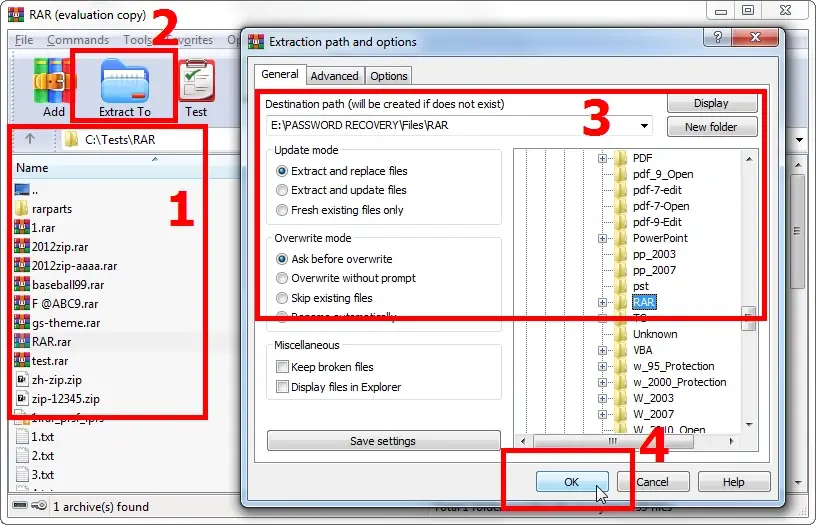
Enter the password and get to your archived data:
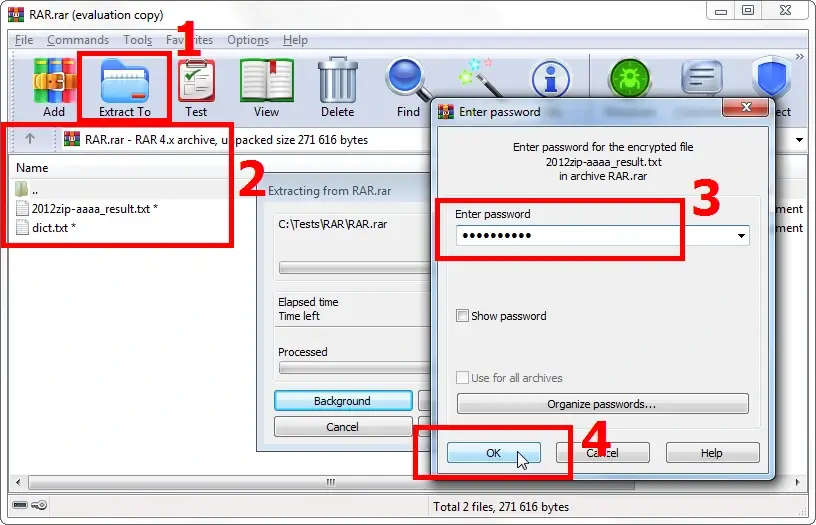
From there, work with the contents as usual. Once you close the archiver (or the archive file), WinRAR encrypts the data again, and the next time you open the file, you'll need the password once more.
Opening a Password-Protected Zip Archive in 7-Zip
It all works exactly the same for Zip archives.
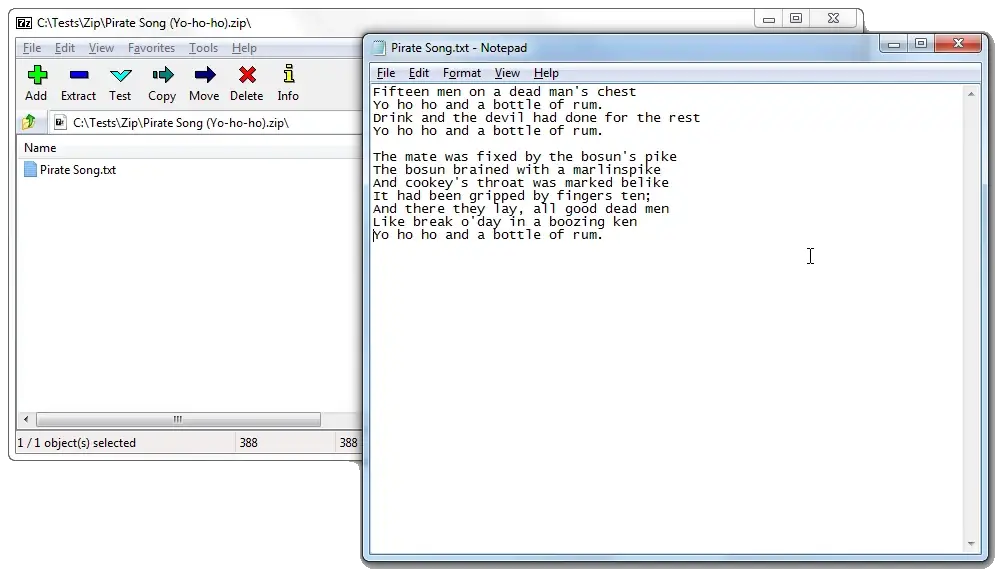
Launch the 7-Zip archiver, for example (just like the commercial WinZip, it lets you create Zip archives with classic encryption (the ZipCrypto method) or stronger archives with AES-256 encryption). In 7-Zip, find the folder with the archive you need and double-click it. That opens the archive. Start extracting it, or click the file you want, just like in Explorer. The program will ask for the password:
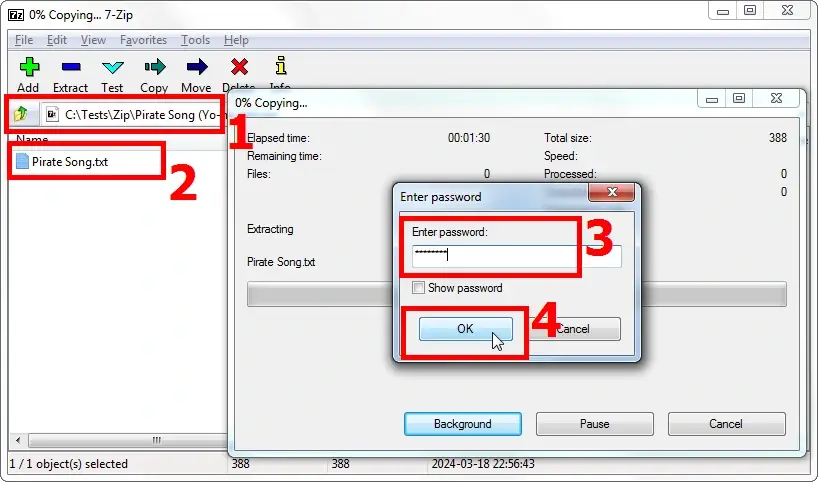
Once you've entered the password, the archiver unpacks the archive and you can work with your data:
How to Remove a Password from an Archive
If you no longer need password protection, it's better to remove the password — that way you avoid losing it and the headaches that follow.
Except... one does not simply remove a password from an archive. 😜

The only way to strip the password is to create a new archive — a copy of the protected one, just without the protection. In other words, you'll open the password-protected archive (as shown above), extract its contents, and repack them from scratch.
Here's how to do it.
Removing a Password from a RAR Archive (WinRAR)
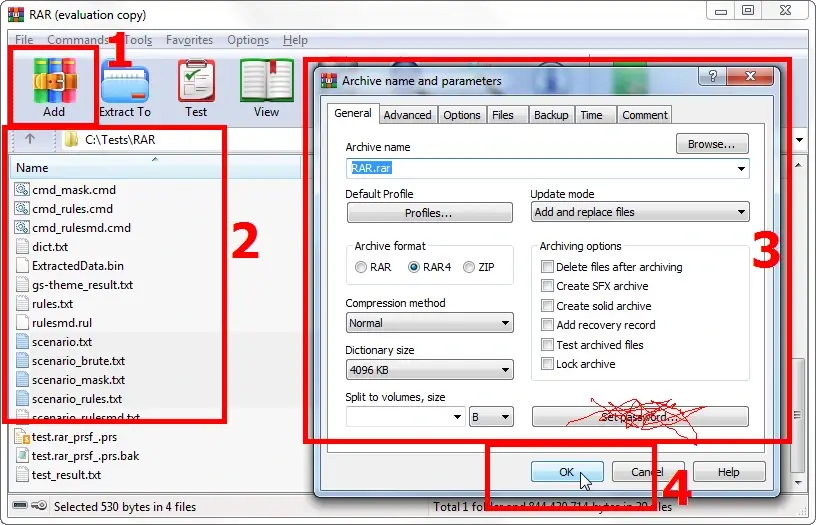
Select the files or folder you extracted from the password-protected archive.
You don't need to grab them all at once. Start with any of them — you can add the rest to the archive later.
Click the "Add" button. This starts creating a new archive (or adding files to an existing one).
In the window that pops up, set the parameters for the new archive: where it goes on the drive, its name, format, compression methods, and so on. No need to set a password — you remember that, right? 😉
If you want to add files to an existing archive, just select it by clicking the "Browse…" button.
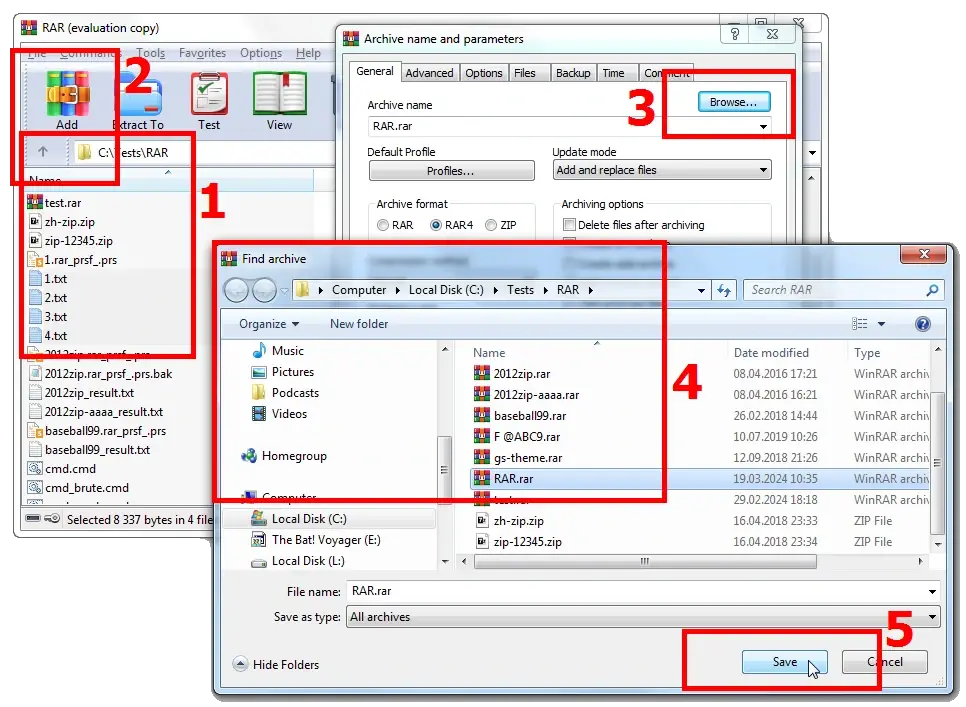
And that's basically it: click the "OK" button, and the archiver creates a password-free archive with the files pulled from the protected one. Now you can finally forget that password. 😜
Removing a Password from a Zip Archive (7-Zip)
For Zip, I'd again go with the 7-Zip archiver. Same logic for removing a password from a Zip archive: unpack the protected one, then repack into a new archive without a password.
Same logic, similar interface 😉
Select the extracted files you need and click the "Add" button.
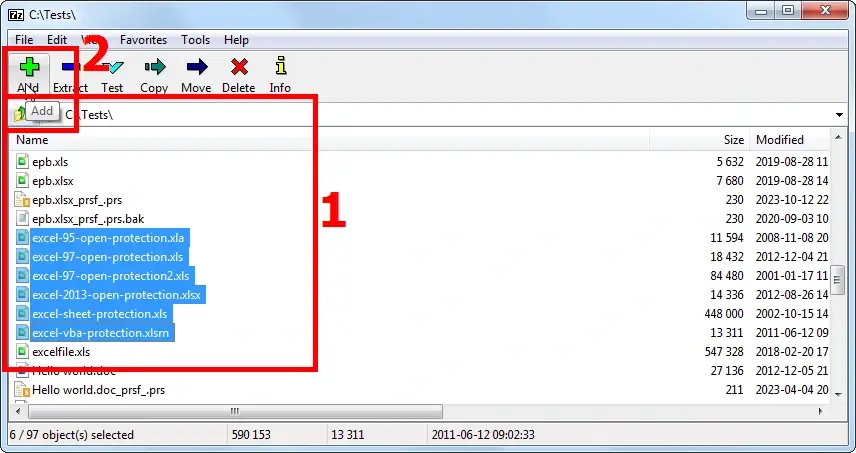
Set the archive parameters (yep, the options are mostly the same as in WinRAR).
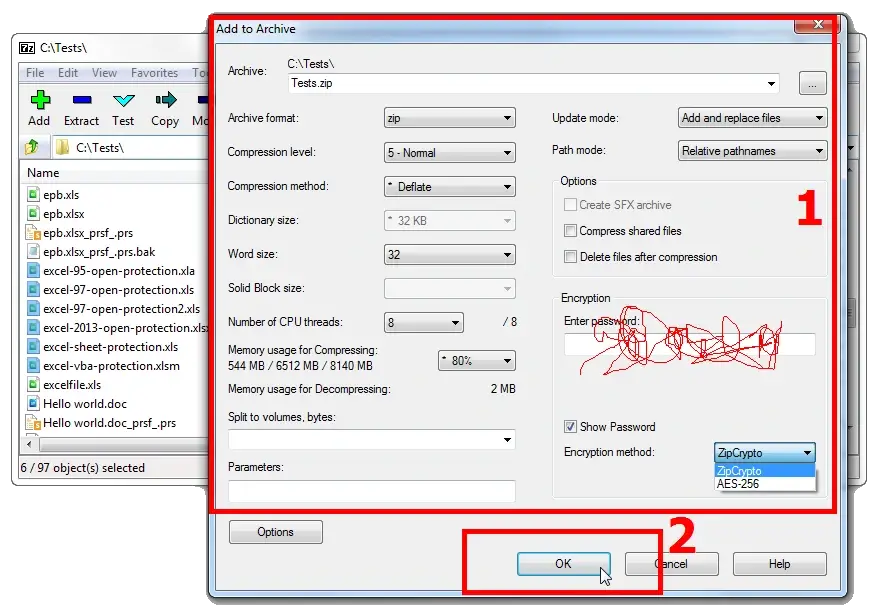
Click "OK", and there's your password-free Zip archive.
What to Keep in Mind When Removing a Password
And that's basically it. But before you breathe easy and forget the password for good, keep a couple of things in mind:
- The password isn't "stripped" somewhere inside the file. The old, encrypted archive hasn't gone anywhere. It's still sitting on your drive until you delete it yourself. By hand.
- The new archive came out with NO protection, and anyone can open it. Before you leave an archive like that lying around, take a second: are you sure these files no longer need a password?
- Don't rush to delete the original. First open the new archive, confirm it unpacks and all the files you need are there. Only then say goodbye to the old one.
One of the common slip-ups: typing a password into the archive creation window out of habit. Leave the password field empty — getting rid of the password is the whole point. 😉
How to Recover an Archive Password If It's Lost
Right — opening a password-protected archive and removing the password turned out to be easy. It's all intuitive and simple.
Simple, that is, until the password gets lost… 😉
Archivers use flawlessly reliable protection and encryption algorithms, proven over the years and by plenty of researchers: deriving the encryption key from the password is deliberately hard, and the encryption algorithms have no "back doors."
And that word "deliberately" is the key here. A password doesn't turn into a key directly. It gets run through a special key derivation function (KDF) — and not once, but thousands (tens of thousands) of times in a row (key stretching). This is done on purpose: checking a single password costs you dearly. You can guess, right, what that does to brute-forcing billions of combinations? 😉
A Lost Password Can Only Be Recovered by Search (Brute Force)
If the archive password is lost, the only way to get your data back is to recover the password by trying every combination until the right one turns up. This approach is called a brute force attack.
Moving on.
The number of combinations you have to test depends on the password length and the character sets it's built from (uppercase, lowercase, digits, special characters). You can calculate it with this formula:
Number of combinations = number of characters password length
A couple of examples:
1. A 6-character password made of digits only. The full number of combinations to test: 10 (digits 0 through 9) 6 (password length) = 1,000,000
2. A 6-character password made of digits and lowercase Latin letters. Then the number of combinations to test is: (26+10)6 = 2,176,782,336
3. A 6-character password you know nothing about, so the entire character set has to be tested: 26 lowercase + 26 uppercase Latin letters + 10 digits + 33 special characters. Things get dramatically harder: (52+10+33)6 = 735,091,890,625
Snap! And suddenly it's not so simple anymore. Testing all that will clearly take a while… 😁
What Kind of Program You Need for Brute-Forcing a Password
To recover archive passwords efficiently, you'll need a program that can:
1. run through passwords at your computer's maximum speed
2. skillfully "trim" the obviously useless password variations
Let me tell you about a couple of programs from Passcovery: Accent RAR Password Recovery for RAR and Accent ZIP Password Recovery for Zip.
Here's what's great about them:
1. The programs are speed-optimized for different processor families and squeeze the most password checks per second (p/s) out of your hardware
2. They support GPU acceleration on NVIDIA, AMD, and Intel Arc graphics cards (with some limits, granted 1, 2)
3. They give you three attack types to pick from:
- brute force attack
- brute force attack with a positional mask
- dictionary attack
4. They offer advanced search range controls:
- a positional mask for the brute force attack
- dictionary merging and mutation for the dictionary attack
5. They let you build and run attack scenarios of varying complexity
In short: password recovery tools for archives, exactly the way they ought to be! 👍 – ★★★★★
The installers are built for Windows, signed by Passcovery, and carry no threats whatsoever (VirusTotal rating — VirusTotal 0/93).
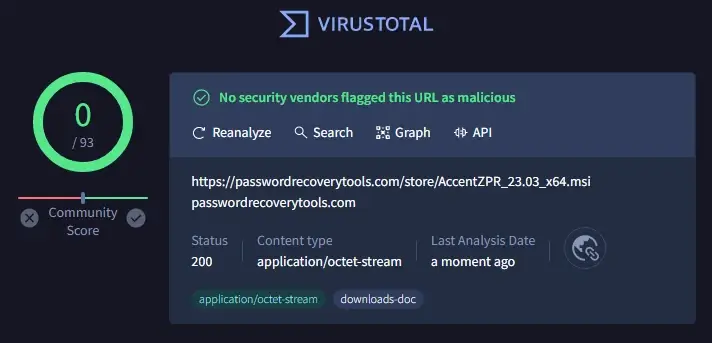
Download them, install them, run them. Let me show you how to recover archive passwords.
 |
Accent RAR Password Recovery for passwords to RAR archives |
|
 |
Accent ZIP Password Recovery for passwords to Zip archives with classic and AES-256 encryption |
Recovering an Archive Password Step by Step
In my example, I'll use a Zip archive in Accent ZIP Password Recovery. All Passcovery programs share one interface; the only difference is the supported formats. So recovering a lost RAR password works exactly the same way.
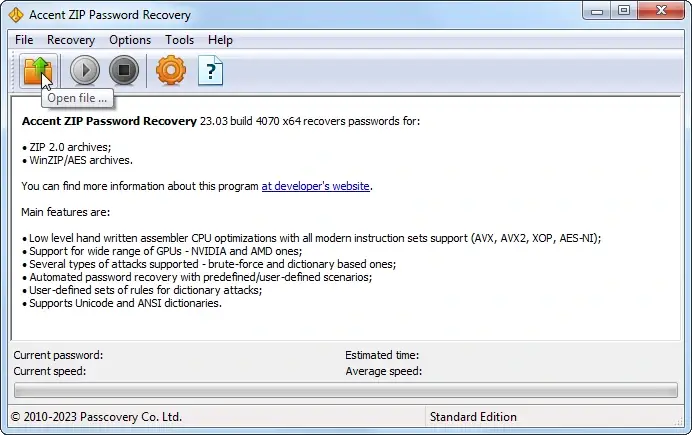
1. So, you've started the program. Open your password-protected archive in it. Everything's the usual Windows way: the menu, the taskbar icon, or hotkeys ("Ctrl+O"):
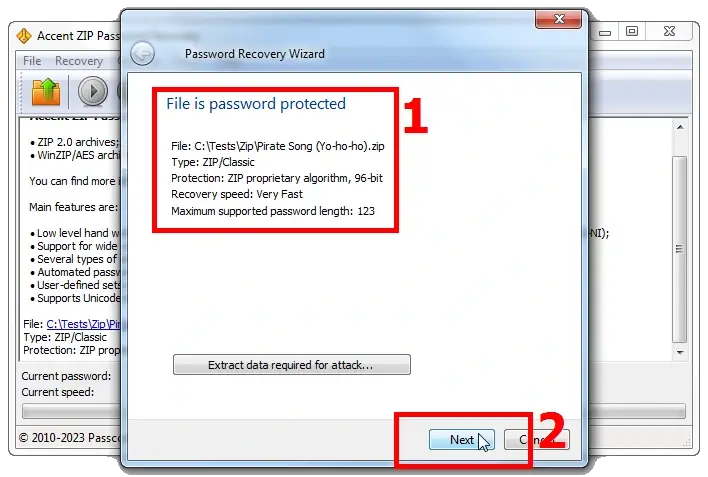
2. The program tells you about the protection it detected and gives a rough estimate of the brute force speed for it. Speed is measured in passwords per second (p/s), and that's exactly what decides whether you'll crack the password over a coffee break or over a vacation:
3. Next, pick one of the three attack types for the forgotten password:
- brute force attack (this one has a simple mask)
- extended mask attack (you can define character sets for each position in the password)
- dictionary attack (you can combine up to four dictionaries and modify them with your own rules)
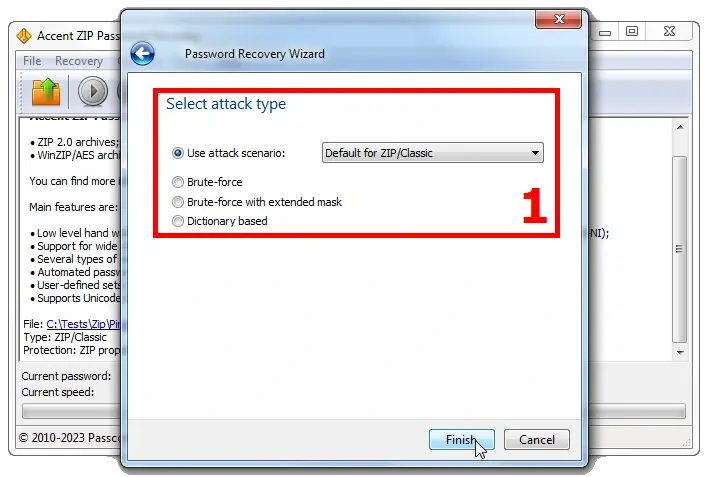
Brute Force Attack (Simple Mask)
Plain as a coin, straight as a rail, long as the life of the Universe [the Universe?.. 😜], but a guaranteed winner — the brute force attack:
Set the parameters for password generation, and the program will build passwords from them and test them in search of the lost one:
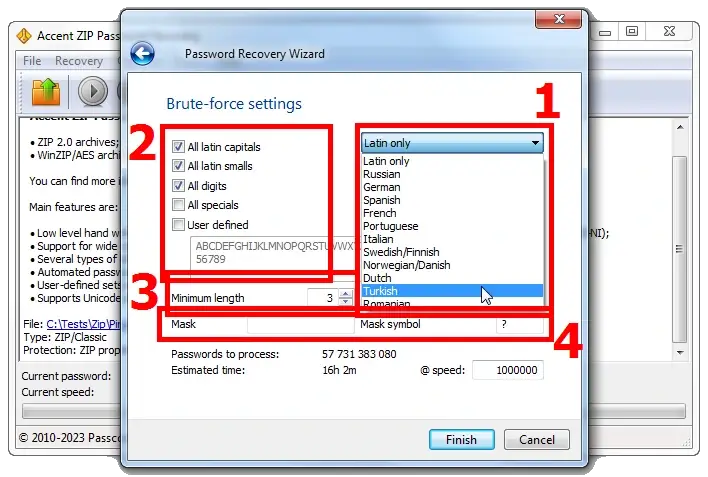
For the brute force attack, you can (and should) set:
- the language alphabet
- the set of characters in play (uppercase and lowercase letters, digits, special characters); you can edit the set by hand (the "User defined" option)
- the minimum and maximum password length (you haven't forgotten the formula for counting combinations, have you? 😜)
- a simple mask (hide the unknown parts of the password under the "Mask symbol", and every character from your defined set gets tested in each masked spot)
The program will show the estimated number of combinations to test and the time it'll take to check ALL of them. The speed is pulled from previous password search sessions on archives.
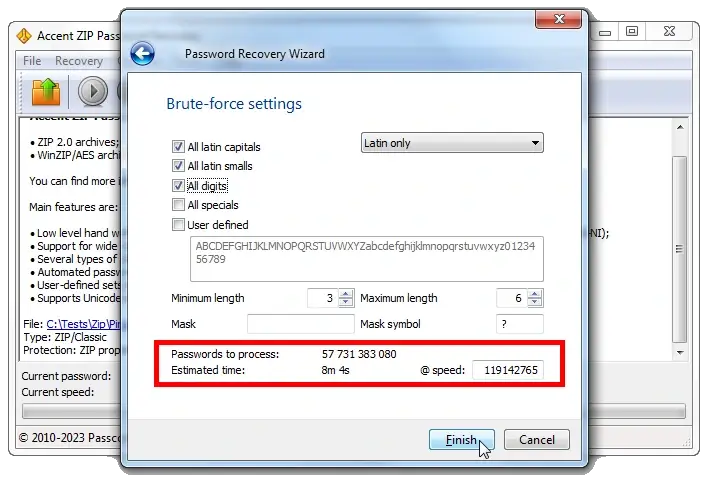
Brute Force Attack with an Extended (Positional) Mask
A more advanced method is the brute force attack with an extended (positional) mask.
What if you have a rough idea of the password's structure, and you know different parts of it can use different character sets?
Here's the most basic example: the password starts with an uppercase letter and ends with two digits (something like Peace24).
Testing the full character set (uppercase, lowercase, plus digits) in every position would be 3,521,614,606,208 generated passwords. But if you only test uppercase letters in the first position, digits in the last two, and lowercase letters in the middle — that's just 1,188,137,600 options.
That's 2,964 times fewer! In other words, almost three thousand times faster!
You might not even have time to brew a cup of coffee… 😉 (see item 4 below)
The mask description window in Passcovery programs can't exactly brag about a friendly interface, unfortunately. But once you get the hang of it, you can trim redundant tests like a pro and save a ton of time.
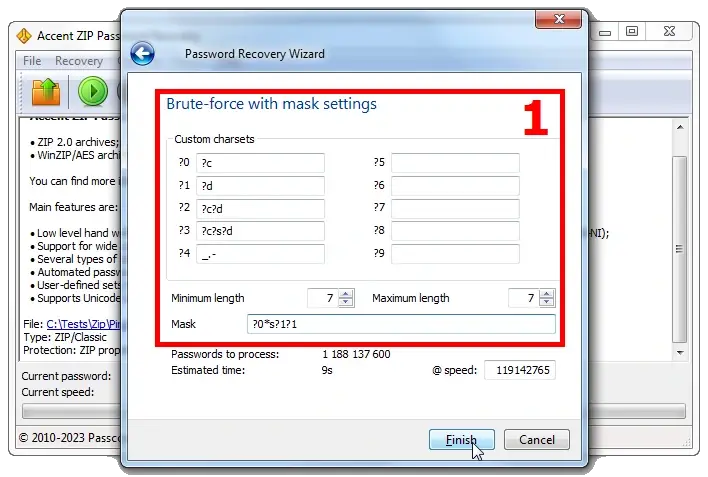
The Passcovery knowledge base has a dedicated article with examples of the positional mask in action. Read it, study it, and reach out to support to build a mask for your specific case.
Dictionary Attack
The dictionary attack is the first thing I recommend when you know nothing about the lost password.
The web is full of all kinds of dictionaries: popular passwords, passwords from leaks, passwords in different languages, and so on. And human nature being what it is, there's always room for foolishness (and/or carelessness) — so no matter how strong the protection, the password might just turn out to be "1234"… 😁
For the dictionary attack, Accent ZIP Password Recovery for Zip passwords (and Accent RAR Password Recovery for RAR passwords) lets you pick up to three dictionaries by default and the mutation complexity set by the developer:
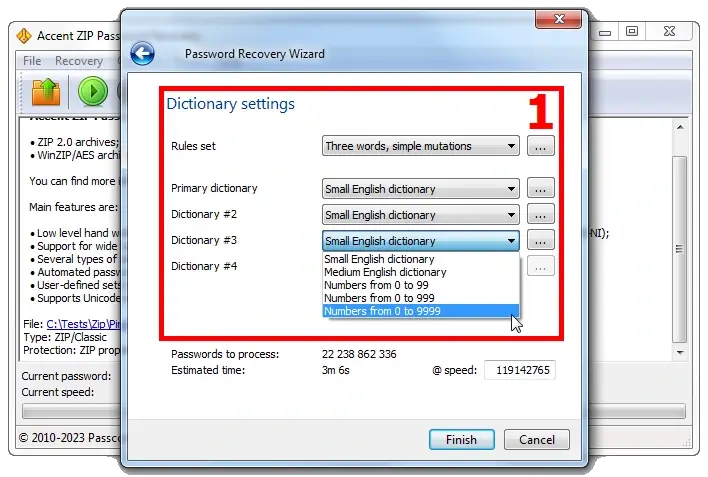
But what matters more in Passcovery programs is the ability to create your own dictionary mutations. A mega-handy feature when you have a hunch the password is some compound phrase built from likely blocks.
In that case, you can set rules here for combining up to four dictionaries with the "blocks" you want, then mutating them by your defined rules. For visualizing the merging and mutation process, there's the "Rule Editor":
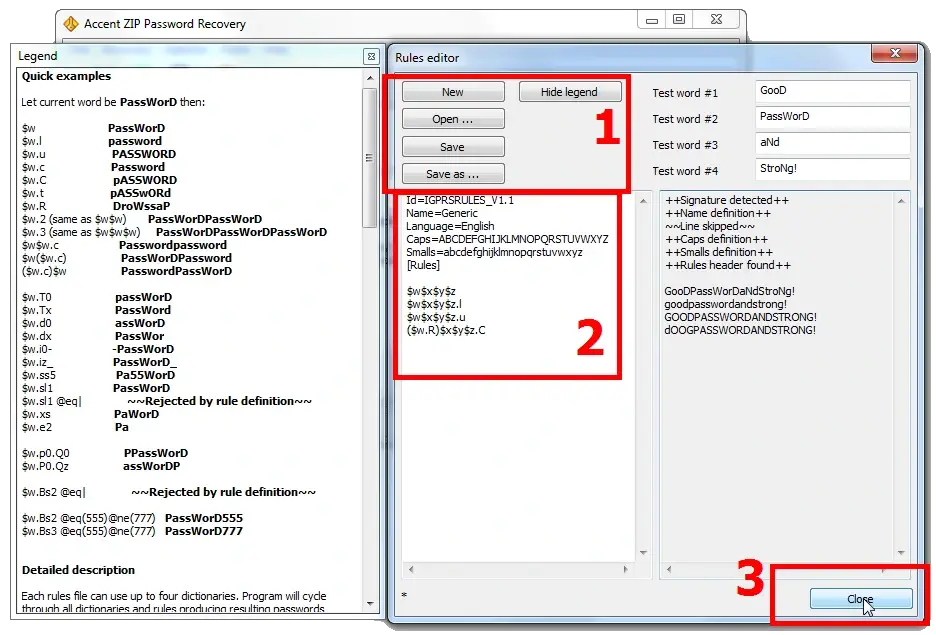
After that, the rules and dictionaries just get linked in during the dictionary attack setup. Here's a step-by-step example of how to do it (it covers an Apple iOS backup in Passcovery Suite, but the interfaces are identical — remember?).
4. Well, that's about it. You've set up the parameters for attacking the forgotten password, so off you go — hit "Finish" and start the search. The program adjusts its speed and recalculates the search time. Time to brew yourself a coffee…
The recovered password shows up styled like a hyperlink; click it to copy the password to the clipboard.
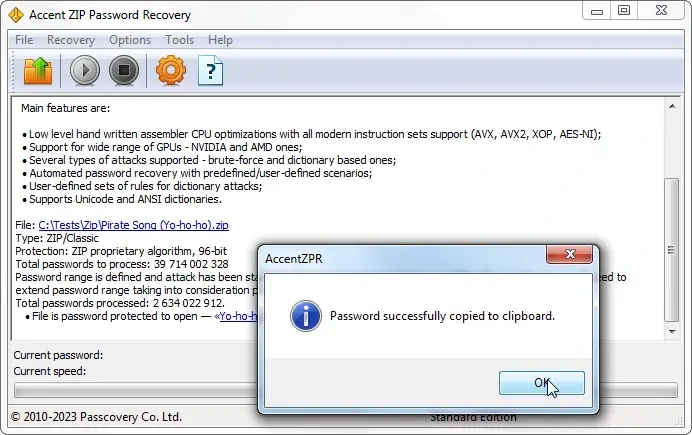
Password found — open the protected archive and remove the password from it, as recommended above.
When Recovery Won't Work: The Limits of the Method
Now, let's be honest. Password recovery isn't a magic button. Sometimes it works in a minute, and sometimes it doesn't work at all. It all comes down to that same combination search. And that search has its limits:
- Brute force is great when the password is short, or when you at least have a rough idea of its structure. But if you know nothing about it, and it's long (7-8 characters or more) and built from a bit of everything, the number of combinations becomes astronomical. Remember the example above: six characters already meant 735 billion combinations. Add a couple more, and you'll be searching until roughly the next Big Bang.
- Encryption decides a lot. Classic Zip on ZipCrypto gives in orders of magnitude faster. Modern AES-128/AES-256 encryption, which Zip, RAR, and 7z all lean on today, won't crack under full brute force in any reasonable time. The good news: you won't have to guess. The program detects the format and protection type, estimates the speed and search time — and you can see that even in the free demo.
- Shrinking the search is doable. That's where the positional mask comes in (if you roughly know the password's structure) and the dictionary attack (if the password is some word or phrase). These are what turn "until the Big Bang" into something workable.
GPU acceleration noticeably speeds up the search: the count runs into the hundreds of thousands, millions, billions (hello, classic Zip encryption) of checks per second (p/s). The exact numbers, of course, depend on the archive format and the graphics card model. But even GPU power doesn't make brute force all-powerful. One ceiling is shared by all hardware: that very KDF with key stretching, which makes checking each candidate so time-consuming. The other ceiling is the graphics cards themselves: sometimes the way an algorithm is implemented parallelizes poorly on a GPU, so acceleration drops off or doesn't work at all (there are separate articles on this: 1, 2). So the best strategy isn't brute force head-on — it's narrowing the search as much as you can before you even start. 😉
About the Author

Denis Gladysh, co-owner and head of Passcovery, a maker of high-speed, GPU-accelerated password recovery software for popular file formats. Denis wrote the first versions of Accent OFFICE Password Recovery back in 1999.


Frequently Asked Questions About Archive Password Protection
Are there backdoors in RAR and ZIP archive protection?
Picture this: you've got a door at home with an "unpickable" lock — or so the manufacturer claims. You lock it every time, confident that only you can get in. But it turns out the lock has a flaw: some master key, or a hidden sequence of moves that opens the door just as easily as your own key would. Those hidden ways of bypassing protection are what we call backdoors.
Backdoors get built in on purpose by the manufacturer, or they show up by accident — from a design flaw. There are two ways into a house: brute force (angle grinder, saw, drill) — the door gets destroyed — or through a backdoor — fast and without a trace.

How does a dictionary attack work on archives?
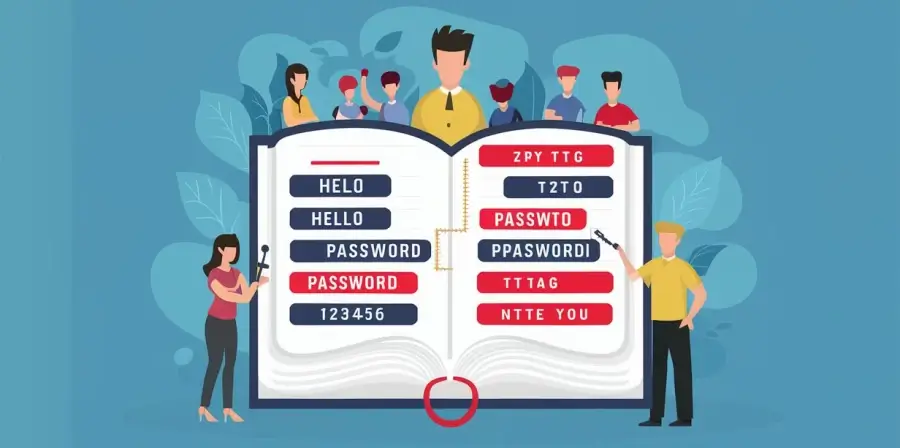
A dictionary attack runs through passwords from a ready-made list: words, phrases, and popular combinations from leaks. Brute force checks every possible character combination in sequence — that's slow. A dictionary attack tests only the likely candidates and works much faster.
The method is especially effective when the password is based on a real word, a name, or a typical pattern like "password123". The programs can test millions of dictionary entries per second, and if the password is on the list, the result can be nearly instant.
What is an archive password?
An archive password is a secret phrase the archiver uses to compute an encryption key. The password itself isn't stored in the file. When you create a protected archive, the program converts the password into a 256-bit key and encrypts all the data with it. Opening the archive is the reverse: you enter the password, the archiver recalculates the key from it and decrypts the contents.
Modern formats like RAR and ZIP with AES-256 encryption use strong algorithms for deriving the key from the password. Without the right password, decrypting the data is impossible.

What's the difference between 7-Zip and classic ZIP protection?
The main difference is in the encryption method. The classic ZIP format protects data with ZipCrypto, an algorithm from the early 1990s. It's compatible with practically every archiver, but it has known weaknesses — passwords on such archives are recovered significantly faster.
7-Zip gives you a choice: the same ZipCrypto (for compatibility) or AES-256, the modern encryption standard. The native .7z format always uses AES-256. The gap in strength is enormous: brute-forcing an AES-256 archive goes orders of magnitude slower than ZipCrypto.
If protecting your data matters more than compatibility, go with AES-256. ZipCrypto only makes sense when the archive has to be opened by programs that don't support AES.
How do I open a password-protected ZIP file?
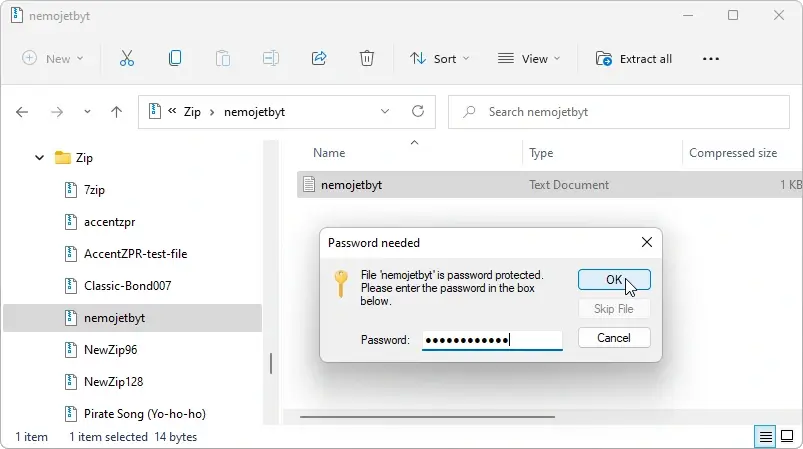
Open the ZIP file in an archiver — 7-Zip, WinZip, or any other. Select the files you need and start extracting. The program will ask for the password — enter it, and the archiver will decrypt and extract the data.
Through Windows File Explorer it's even easier: double-click the archive and open the file you want. The system itself will prompt you for the password before extraction.
How do I remove a password from a ZIP file?
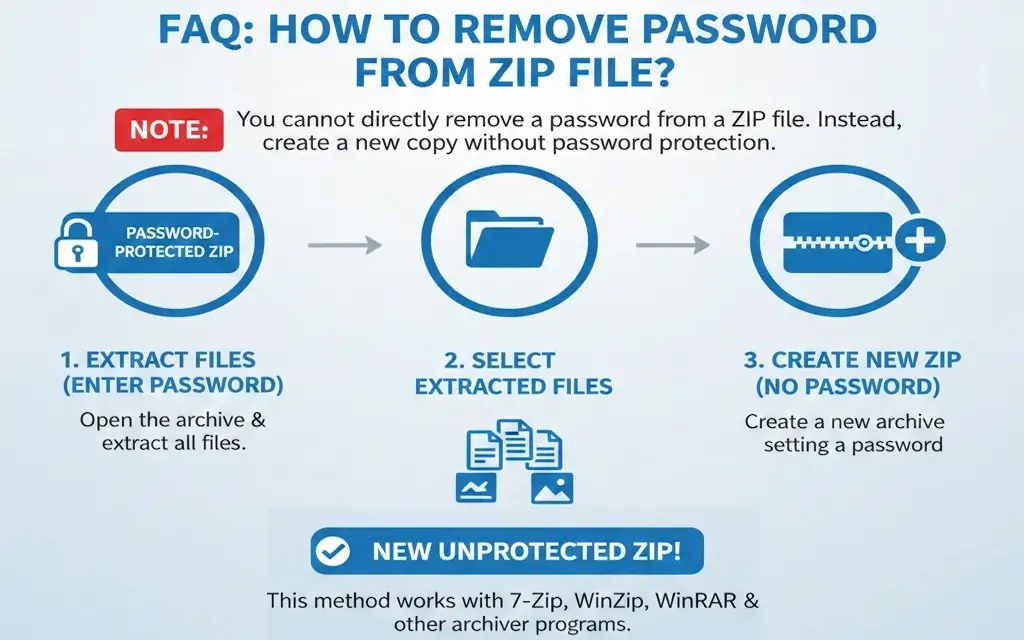
You can't remove a password from inside a ZIP file directly. You have to create a new archive from the decrypted data:
- Open the original archive and enter the password to extract all the files
- Create a new archive from the extracted data, without setting a password
It works in any archiver — 7-Zip, WinZip, WinRAR. After you've checked the new archive, don't forget to delete the old one.
Can you change the password on a .rar file?
You can't change a RAR archive's password without fully repacking it — the data is encrypted as a whole, and cryptography itself won't let you "swap" the key on the fly. WinRAR computes a 256-bit key from the password and encrypts all the archive's data with it. The key isn't stored in the file — it's recalculated from the entered password every single time. To re-encrypt the data with a new key, you first have to fully decrypt it with the old one.
Why can't it be simpler? A password-protected RAR archive is a jar of pickles with a screw-on lid where every lid has its own unique thread. Open it and take the contents out — sure, no problem. But screwing on a different lid won't work: the threads don't match. Want a new password? Move the files into a new jar and seal it with its own lid.
If the current password is forgotten, you'll have to recover it first. Accent RAR Password Recovery handles that by running through combinations with GPU acceleration on NVIDIA, AMD, and Intel graphics cards. Once you've recovered it, follow the steps below.
How to change the password on a RAR archive
Open the RAR file in WinRAR and enter the current password. Extract the contents to a separate folder on your drive. Select the files, click "Add," and set a new password in the archive creation window. WinRAR will recompress and re-encrypt the data, and out comes an archive with updated protection.
Easy to overlook:
- Delete the old archive once you've checked the new one, or two files with different passwords will cause confusion
- Save the new password somewhere safe. Recovering it again through brute force can take a good while
- Repacking large archives takes time: compression and AES-256 encryption both run from scratch