How to Activate Passcovery Programs Offline Without Internet Access
To activate offline, you'll need a computer with internet access. This can be any system—it doesn't have to be the one where you'll actually use the software.
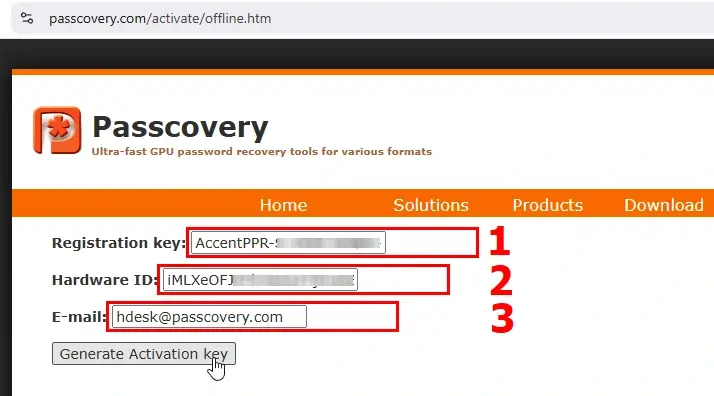
You can obtain an activation key on this page: https://passcovery.com/activate/offline.htm
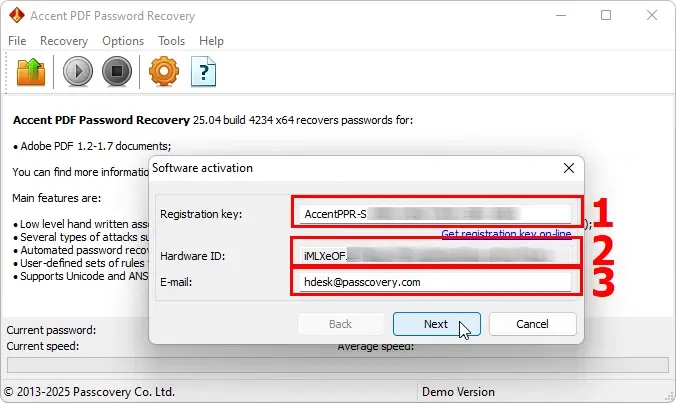
Enter your registration key, the Hardware ID of the system you need to activate (displayed in the software's registration window), and an email address where a copy of the activation key will be sent.
Transfer the received key to the offline system it was generated for.
Detailed instructions and a quick step-by-step guide (using Accent PDF Password Recovery as an example) are available here.
Step-by-Step Instructions
Step 1. Carefully copy the Hardware ID of the computer that needs activation:
Step 2. On the website, enter the data from your offline PC: your registration key, Hardware ID, and email address to receive a copy of the activation key:
Step 3. Click the "Generate Activation key" button. The key will appear on screen, and a copy will be sent to the email you provided:
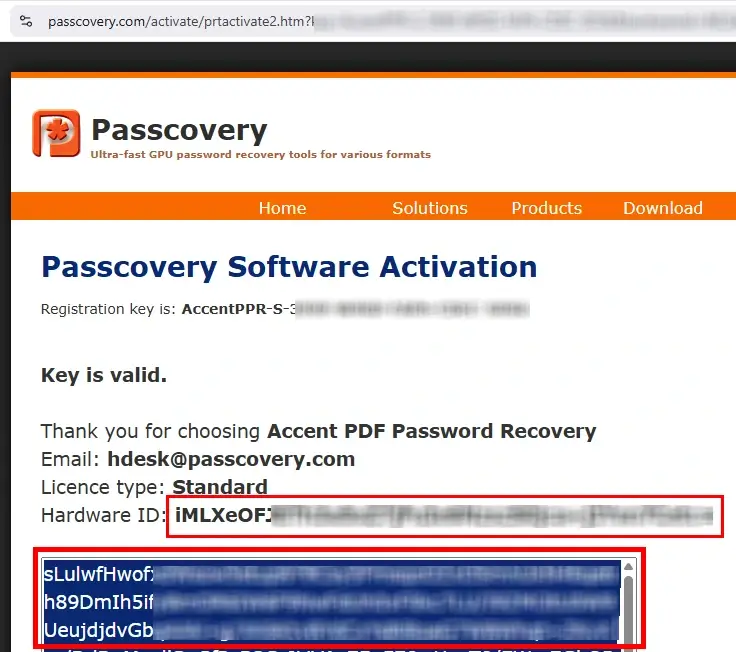
Step 4. Copy the received key to your offline computer. The registration and activation keys will be added to the Windows registry, and the software will be activated.
Please note: the activation key only works on the computer with the specified Hardware ID. Changes to your PC's configuration may alter the Hardware ID and require reactivation using the same process.
If you have any questions or run into issues, contact our online support system, and we'll be happy to help.
Frequently Asked Questions: Offline Activation
Failed offline activation typically happens for three reasons:
- Incorrect Hardware ID copy: make sure you've copied it exactly as shown in the program window. Even a single mistake will cause activation to fail.
- Wrong key used: you need the long activation key (also copied without errors) sent to your email, not the short registration key.
- Attempting activation on a different computer: the key only works on the device whose Hardware ID was used to generate the activation key.
If the issue persists, copy your Hardware ID again and request a new key on the offline activation page following these instructions.
Hardware ID is a unique computer identifier automatically generated by the program based on hardware components: motherboard, processor, and network adapter. It works like a digital fingerprint, binding the activation key to a specific PC.
Precision is critical: the activation key is generated using this Hardware ID. Even a single character error makes activation impossible. To avoid mistakes, always use copy and paste (Ctrl+C / Ctrl+V) instead of manual entry when transferring the Hardware ID to the activation page.
Any significant hardware changes, especially to the motherboard or processor, will modify the Hardware ID. This invalidates the current activation.
Minor changes like adding RAM or replacing a hard drive typically won't affect activation.
If the Hardware ID changes, the program will require reactivation. In this case, generate a new key on the offline activation page using the updated Hardware ID. Keep your original registration key – you'll need it to generate new activation keys.
Yes, licenses can be transferred, but you'll need to generate a new activation for the new computer. The license is tied to the registration key, not a specific activation.
On the new computer, install Passcovery, open the registration window to see that device's Hardware ID, then go to the offline activation page and generate a new activation key using your original registration key and the new computer's Hardware ID.
Each activation is bound to a specific PC, so the old activation won't work on the new computer.
Tip: we recommend using online activation directly from the program window. It's easier and reduces the risk of errors. Only use offline activation for PCs without internet access.
Offline activation remains valid through your license period and beyond, as long as the computer's Hardware ID stays the same. Passcovery licenses are annual subscriptions, and during that period the activation works indefinitely (we don't require internet connection or verification checks).
After the subscription expires, the software continues working in the last installed version, but you won't be able to obtain new activation keys. In other words, the program will keep functioning even a year after activation, but reactivation (for example, due to Hardware ID changes or using a different PC) will require renewing the license. Renewal costs 30% of the base price.
If the activation key is lost but you have the registration key, you'll need to reactivate the program.
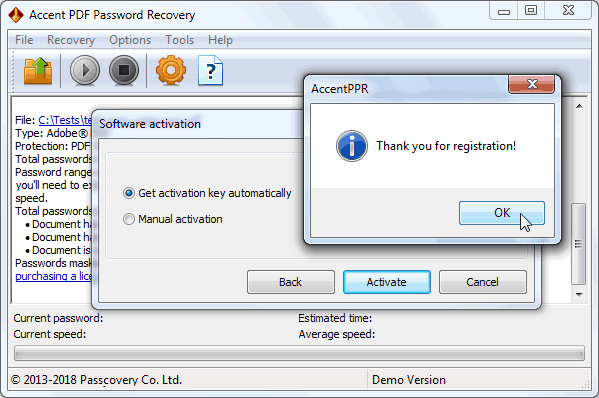
Online activation: open the Passcovery program window, enter the registration key and email address. The program will automatically send a request to the server, receive the activation key, and write it to the Windows registry. The program will restart as a registered version, and the activation key will also be sent to your email.
Offline activation: go to the offline activation page, enter the registration key, Hardware ID, and email. A new activation key will be generated and sent to you via email.
This process works because activation keys are reproducible and generated from the registration key and Hardware ID. Always save your registration key for quick and secure activation of Passcovery programs.
No. Once offline activation is complete, Passcovery works fully without an internet connection. The program doesn't communicate with activation servers or check the license online.
Offline activation is perfect for isolated systems or computers with limited network access. Internet will only be needed if you generate a new activation key – for instance, when changing hardware or transferring the license. This process can be done from any computer with internet access, not necessarily the one running Passcovery.