"You Guys Rock!" – Ann's Excel Password Recovery Story
AccessBack.com decrypted Ann's Excel file and restored access to her data in just a few hours. Here's what Ann wrote after receiving her file:
“Just want to thank you for being so responsive and turning this file around so quickly. I also want to let you know your GUI was excellent! Simple, straightforward and complete. The payment process was also perfect with several options to choose from and all links and connections working perfectly.
My short advice: DO NOT change anything!! Just sit back and stay focused on customer service :-) ...
Thank you again and all the greatest continued successes.
Cordially, Ann” – Ann E., United States
Why was Ann's case resolved so quickly? Her file was in Excel 97-2003 format with a short 40-bit encryption key (.xls). For files like these, we use decryption – meaning we find the encryption key without having to recover the lost password. The length and complexity of the password don't matter here.
Is your situation the same, or different? Let's figure it out.

Decryption vs. Recovery: What's the Difference?
Ann got her file back in minutes thanks to encryption key recovery. But if you have a modern Excel 2007-2024 file (.xlsx), the path is different: you'll need to recover the original password.
File decryption means finding the encryption key without knowing the password. This only works for Excel 97-2003 files (.xls) with a 40-bit key. We use rainbow tables – precomputed chains that map keys to data. The key space (total number of possible combinations) here is 240, about a trillion possibilities. Modern computers can brute-force this in minutes. Success is 100% guaranteed.
Password recovery is brute-force (trying every possible combination) for Excel 2007-2024 and Microsoft 365 files (.xlsx) with 128/256-bit AES encryption. The key space here is 2128 or 2256 – trillions upon trillions of times larger. Neither computing rainbow tables nor finding the key directly is possible – you have to try passwords one by one. Plus, Microsoft added hash iterations, which artificially slow down each password check, making brute-force even harder.
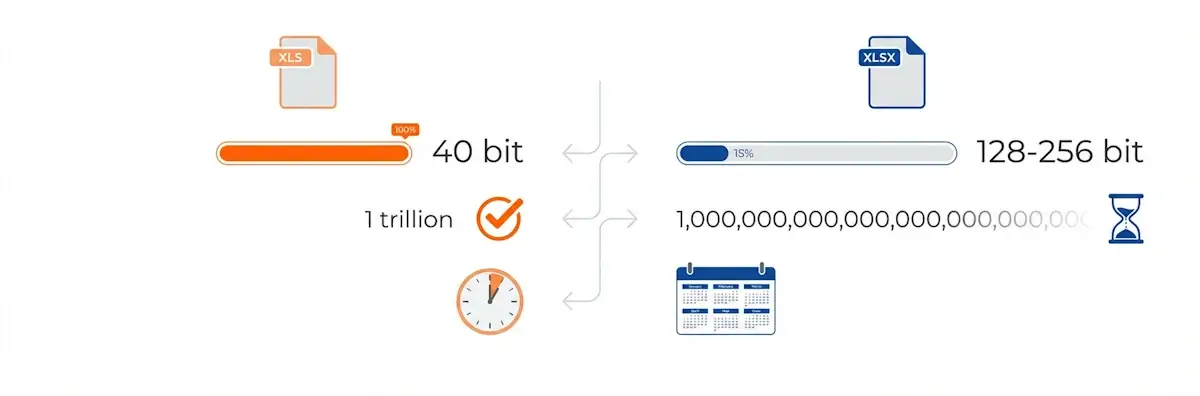
Decrypting .xls is like finding a book in a library with a catalog. Rainbow tables work like a card catalog: enter the code, and you get the shelf and row. Minutes later, the book is in your hands. Recovering a .xlsx password is like the same library, but the catalog burned down. You have to check spine after spine. In a small local library, you might finish in a day; at the Library of Congress, you'd better be prepared to search for years.
Which situation applies to you?
Figure out your case in 5 seconds:
| Your Situation | Your Path |
|---|---|
| .xls file (Excel 97-2003), forgotten "Password to Open" | Online decryption → 100% success within 24 hours |
| .xlsx file, forgotten "Password to Open," but you remember part of the password or its structure | GPU recovery with masks and dictionaries → speeds things up by orders of magnitude |
| Excel 6-2024 file, forgotten sheet protection, editing password, workbook protection, or VBA password | Free methods → instant removal → How to Remove Protection |
| Password is known, but you want to remove it | Identify your protection type → Remove the password |
For .xls files (Excel 97-2003), decryption without the password is guaranteed within 24 hours max. For .xlsx (2007+), password recovery via brute-force is required, and the time depends on complexity.
Three Scenarios: Choose Yours
Scenario 1: "I need the file right now"
Online decryption at AccessBack.com – the solution for .xls files (Excel 97-2003) with a "Password to Open." This is exactly the path Ann took.
How it works: upload your file → receive a screenshot of the data for verification → pay for the service → download the decrypted document. The entire process takes less than a day.
Why does it work? We use proprietary rainbow tables to find the 40-bit key. Password length and complexity don't matter – we're searching for the key, not the password itself. 100% success guaranteed.
Scenario 2: "I want to figure it out myself"
Sheet protection, VBA passwords, and write protection can be removed instantly – these are safeguards against accidental changes, not cryptographic encryption. Works for any version of Excel.
What you can remove for free: sheet protection, workbook structure protection, VBA module protection. Some of these can be bypassed in seconds: either with a VBA script (for older versions) or by renaming .xlsx → .zip and editing the XML.
If you want a ready-made tool, AccentEPR removes all these protection types instantly, without jumping through hoops or messing with archives.
Scenario 3: "My file is modern, and the password is complex"
.xlsx files (Excel 2007-2024) with a "Password to Open" require brute-force password recovery. You'll need software with GPU acceleration – like AccentOPR.
Let's be honest about timing: it all depends on what you remember about the password. If you know some characters, patterns, or structure, it might take just minutes. Is the password long and random? It won't be quick – expect days or even weeks, even with a powerful graphics card. AES encryption in modern Office is genuinely strong.
Real-world example: we found an 18-character password in 90 seconds. The user remembered the password was made up of several words: we built a dictionary and used a dictionary attack with mutations. → Detailed case study
Excel Password Types: What's Quick to Remove vs. What Takes Time
Not all Excel passwords are created equal. Some provide cryptographic protection, while others are just a "do not edit" flag. Here's a reference table:
| Password Type | What It Protects | Removal Speed |
|---|---|---|
| Password to Open (Excel 2-95) | File encryption, XOR | Instant |
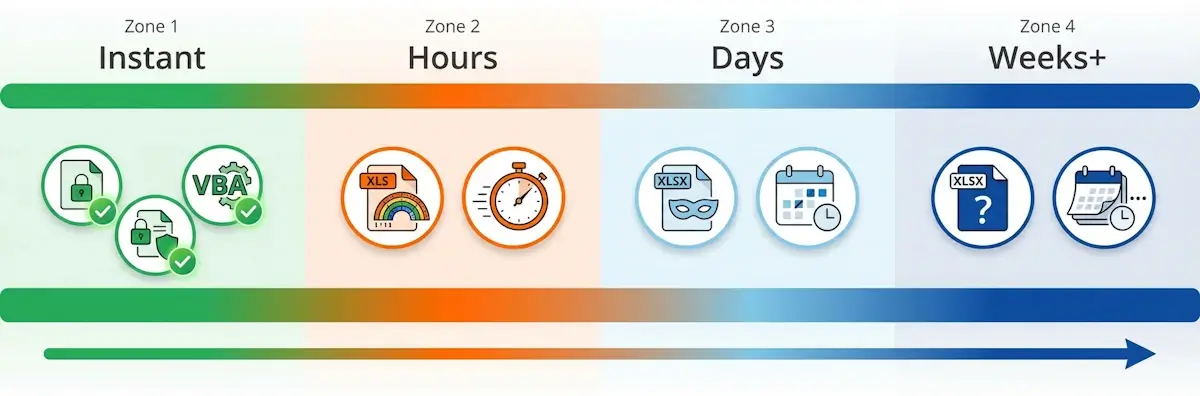
| Password to Open (Excel 97-2003) | File encryption, 40-bit RC4 | Minutes to hours (key decryption) |
| Password to Open (Excel 2007+) | File encryption, 128/256-bit AES | Minutes to weeks (password brute-force) |
| Sheet/Workbook Protection | Cell/structure editing | Instant |
| Write Reservation Password | Saving changes | Instant |
| VBA Password | Macro access | Instant |
All Excel passwords except "Password to Open" can be removed instantly. For 97-2003 files, decryption takes hours. For 2007+, the time depends on password complexity and your graphics card.
Expert Tip: How to Choose the Right Path
Denis Gladysh, CEO of Passcovery:
Do you have an .xls file (Excel 97-2003) and forgot the "Password to Open"?
→ Online decryption at AccessBack.com. 100% guaranteed, delivered within 24 hours. No software installation required.
Do you have an .xlsx file, but the issue is sheet protection, VBA, or write protection?
→ These can be removed instantly. Try free methods: a VBA script or the zip-archive method.
Do you have an .xlsx with a "Password to Open" and remember at least part of it?
→ GPU recovery with AccentOPR. Use a positional mask or dictionary attack. Remember the case with the 18-character password cracked in 90 seconds? That was a
dictionary attack with mutations.
Do you have an .xlsx with a "Password to Open" but remember nothing?
→ Honestly: this could take weeks. But try standard dictionaries first – people often use simple or common combinations. Start with a dictionary attack,
not a full brute-force.
Ann's story wrapped up in just a few hours – .xls decryption with a 100% guarantee. Sheet protection or VBA password? Removed instantly. Modern .xlsx with a password to open? It'll require GPU power and patience, but it's still solvable. Every type of Excel protection has its own path. Find yours – and take action.
Frequently Asked Questions
AccessBack.com uses HTTPS encryption, and files are deleted after 7 days. You see a screenshot of the decrypted data before payment to confirm success. The service has been operating since 2010.
If confidentiality is critical and you have concerns, use desktop software: AccentOPR or Passcovery Suite with the encryption key search feature. They run locally, and your files never leave your computer.
Excel 2007+ uses AES encryption with a 128/256-bit key instead of the 40-bit RC4 in Excel 97-2003. The key space has grown so large that brute-forcing the key is no longer possible.
The math: for a 40-bit key, there are 240 possibilities (about a trillion). Servers handle this in hours. For a 128-bit key: 2128. All the computers on Earth couldn't crack this in millions of years.
That's why rainbow tables for AES don't exist – they're impossible to compute or store. The only option is to recover the password itself: trying words, character combinations, using dictionaries and masks.
The time depends on password length and complexity. A simple password (up to 4 characters) takes minutes. A complex one (5+ random characters) can take days or weeks, even with a powerful graphics card.
What affects timing: password length, character set (digits only vs. full ASCII), and whether you use masks and dictionaries instead of brute-force.
Example GPU speed: an NVIDIA RTX 5090 graphics card checks approximately 78,000 passwords per second for Excel 2013-2024. Sounds fast, but with just 5 random characters (96 ASCII characters), that's over 8 billion combinations – and over a day of checking.
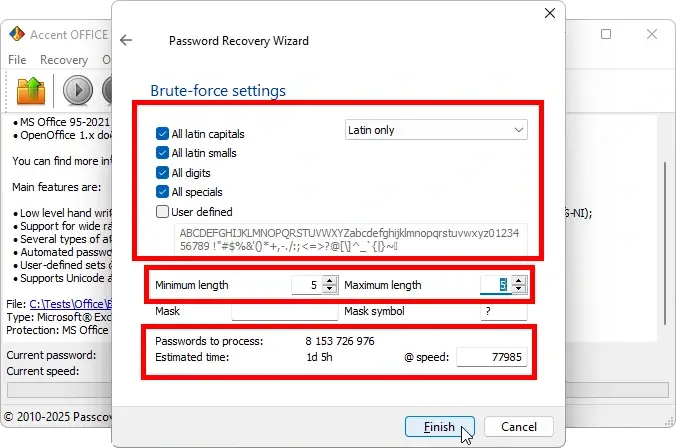
Tip: if you remember even part of the password, always use a positional mask. This cuts down the search by thousands of times. Know that the password started with a capital letter and ended with digits? That already makes things easier.
AccentOPR uses GPU acceleration, which is dozens of times faster than CPU. Plus, it supports positional masks and dictionary mutations. Free programs typically only work on the CPU.
GPU vs. CPU: a modern graphics card has thousands of computing cores compared to 8-16 in a processor. AccentOPR leverages this power for parallel password checking.
Attack flexibility: a rule editor for dictionaries (word combining, character substitution, adding numbers), positional masks ("first letter uppercase, then 4-6 lowercase, then 2 digits"). Free programs usually only support simple brute-force and basic masks.
When free tools are enough: for sheet protection, VBA passwords, write protection – any tool handles these instantly. For a strong "Password to Open" on .xlsx, you need GPU speed and flexible attack options.
Right-click the file → Properties. Extension .xls = Excel 97-2003 (guaranteed decryption). Extension .xlsx = Excel 2007-2024 (password recovery via brute-force).
On Windows: right-click the file → Properties → "General" tab → "Type of file" line. You'll see "Microsoft Excel 97-2003 Worksheet (.xls)" or "Microsoft Excel Worksheet (.xlsx)."
On macOS: right-click (or Ctrl+click) → "Get Info" → "Kind" line.
Visual hint: the .xls icon is usually green with a white X (old design), while .xlsx is green with a letter X (modern design). Though this depends on your system settings.
Next steps: if it's .xls, head to AccessBack.com for guaranteed decryption. If it's .xlsx, try password recovery utilities.
Sheet protection, VBA passwords, and write protection can be removed for free – and always instantly. "Password to Open" requires paid solutions for best results.
What's free and instant:
- VBA script to remove sheet protection (works for .xls and older .xlsx)
- Renaming .xlsx → .zip and editing the XML (for sheet protection)
- Demo versions of paid software will show if there are simple passwords
What requires paid solutions:
- Decrypting .xls with "Password to Open": requires rainbow tables or encryption key search (AccessBack.com or Passcovery Suite)
- Recovering "Password to Open" for .xlsx: requires GPU speed and search range configuration (AccentOPR, Passcovery Suite)
Detailed instructions for each method – from VBA scripts to working with zip archives – are available in the Excel protection removal guide.
Speed, simplicity, secure payment, and honesty – those are the four reasons for Ann's enthusiasm. Decryption within 24 hours, 5 steps requiring no technical knowledge, and a screenshot of the data BEFORE payment.
"Responsiveness and speed" – her file was decrypted in just a few hours. No waiting weeks or figuring out complicated software.
"The interface is excellent" – 5 steps: upload → enter email → receive screenshot → pay → download the decrypted file. No technical knowledge required.
"Payment was flawless" – cards, PayPal, e-wallets. Transactions are secure, processed through Invoicebox or PayProGlobal.
Most importantly – honesty. Ann saw a screenshot of her data before paying. She confirmed the decryption worked and that the right data was inside. Only then did she decide to pay. We could charge upfront – but we prefer to show results first.

Author: Denis Gladysh,
Co-owner and Head of Passcovery. Passcovery is a provider of high-speed
GPU-accelerated software solutions for recovering passwords for popular file formats. Denis is the author of the first versions of
Accent OFFICE Password Recovery, created in 1999.


cn: Passcovery,你们太厉害了!
jp: Passcovery、君たち最高だね!
de: Passcovery, ihr seid der Hammer!
ru: Пасковери, вы парни, жжёте!