How to Decrypt an Excel File Online When the Password Is Lost
Looking for an easy and tried-and-tested way to remove a forgotten Excel password? It's right here. You are about to learn how to decrypt an Excel file online without additional software or special technical skills.
In a word, it's about the online service AccessBack.com:
Read below to find out more about how to use it and its limitations.
Limitations In Decrypting Excel Files
On the darker side…
Decrypting Excel files is a sure-fire method of unlocking them. Its success does not depend on how long or string the password is. However it has several significant limitations:
1. File format and encryption key length.
Decryption of Excel files is possible only for Excel 97-2003 spreadsheet files (xls extension). Such files use a short 40-bit encryption key, which makes the decryption process
possible. However, in the case of later file formats, for example Excel 2007-2021 and higher (xlsx extension), it will be impossible to decrypt them due to a longer 128/256 bit encryption key.
In this case, the only option on the table would be a brute force attack, that is
recovering the password
by iterating through all possible combinations of characters.
2. Decryption cannot bring the password back.
When you decrypt Excel files, it is not the password itself that is searched for, but the encryption key. Therefore, once you have decrypted a file, the password will remain unknown.
What the decryption process does is it finding the encryption key, which makes the data accessible again without the need for a password.
And now let's move on to the bright side. Let me tell you about decrypting Excel files online with no muss, no fuss 💣
Deleting an Excel Password
If you no longer need a password to protect Excel files, or you have forgotten (or lost) it, then you can delete it.
There are two ways to do this:
1. Use a password:
you will need to open the file, enter the password and save this Excel file without password protection. If you have lost the password, then searching for it will take time.
See all how-tos and case studies here.
2. Decrypt the file without a password:
you will need to find the encryption key that protects the Excel file data and simply decrypt it. In this case you will not have to search for or use a password.
So the best solution would be to delete the password through decrypting the file.
It is way faster. It is more reliable. It is always successful!
Decrypting Excel Files Online
One of the effective ways to delete a password is to use the online service AccessBack.com, where everything is done in the browser without installing additional applications or plugins.
The online service is based on Passcovery own developments (the so-called rainbow tables) and effectively helps you restore access to password-protected Excel files in just a few simple steps.
No matter how complex or long a password is, AccessBack.com will delete it in a fast and secure way.
The process of decrypting Excel files online is simple, convenient and does not require specific skills.
To decrypt password-protected Excel files at AccessBack.com follow the instructions below:
1 Step: Go to AccessBack.com.
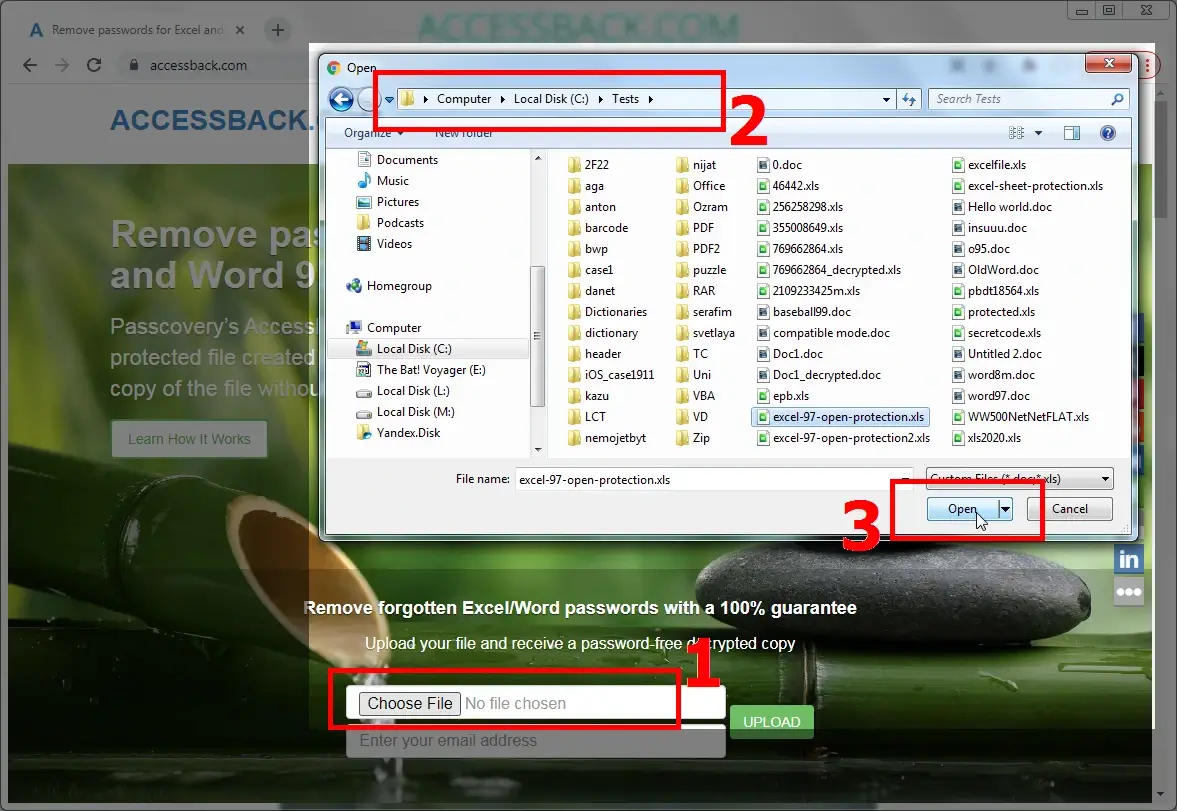
AccessBack.com2 Step: Upload an encrypted Excel file by clicking on the "Select File" button. Use Windows Explorer to locate and select the file (the "Open" button).
3 Step: In the file selection field below enter your email address. The service will the decryption report to your email.
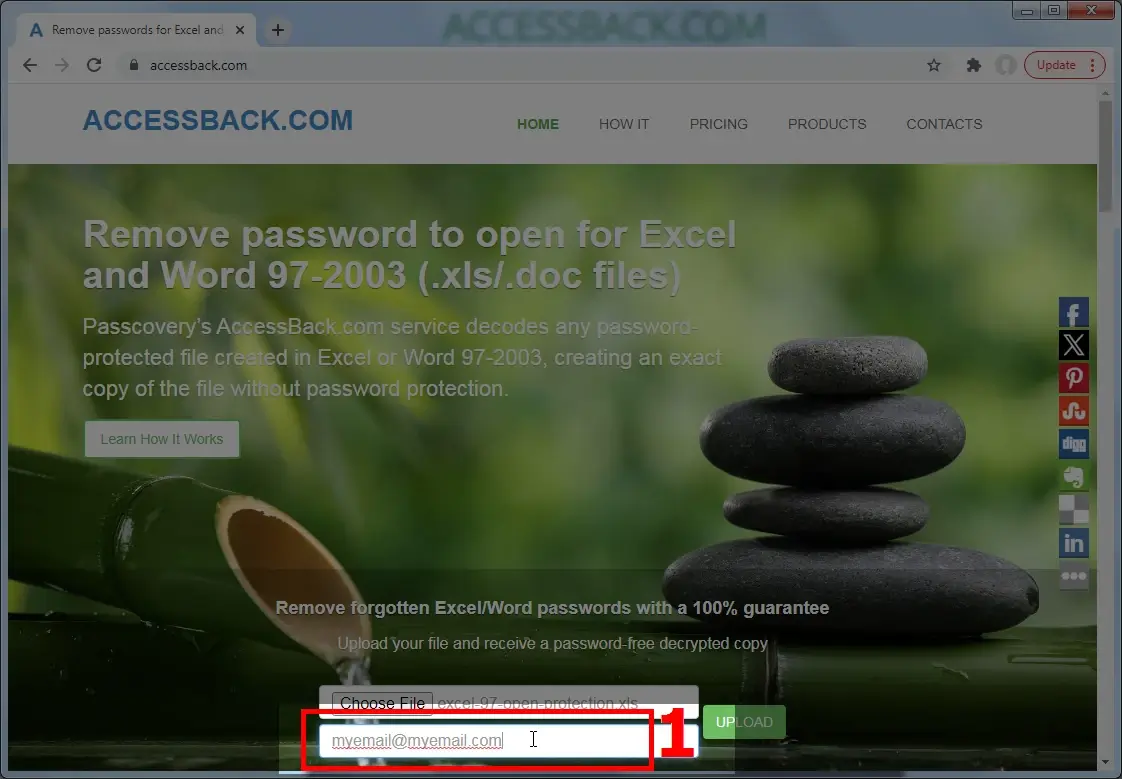
Make sure you enter the email address correctly. Otherwise, the link to your decrypted file will no reach you.
4 Step: Click on the "Upload" button to start the decryption process.
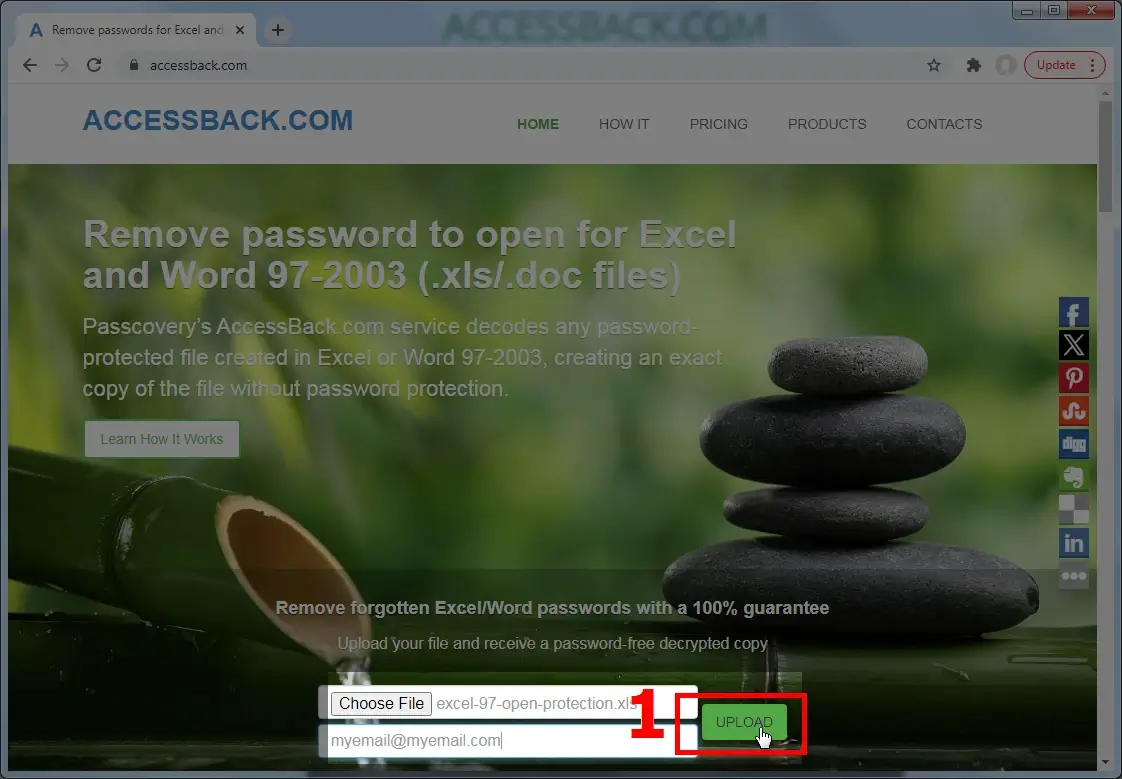
5 Step: Wait for the report. You will receive it at the email address that you entered in step 3. In the report file you will find a link to a screenshot of your unlocked Excel file.
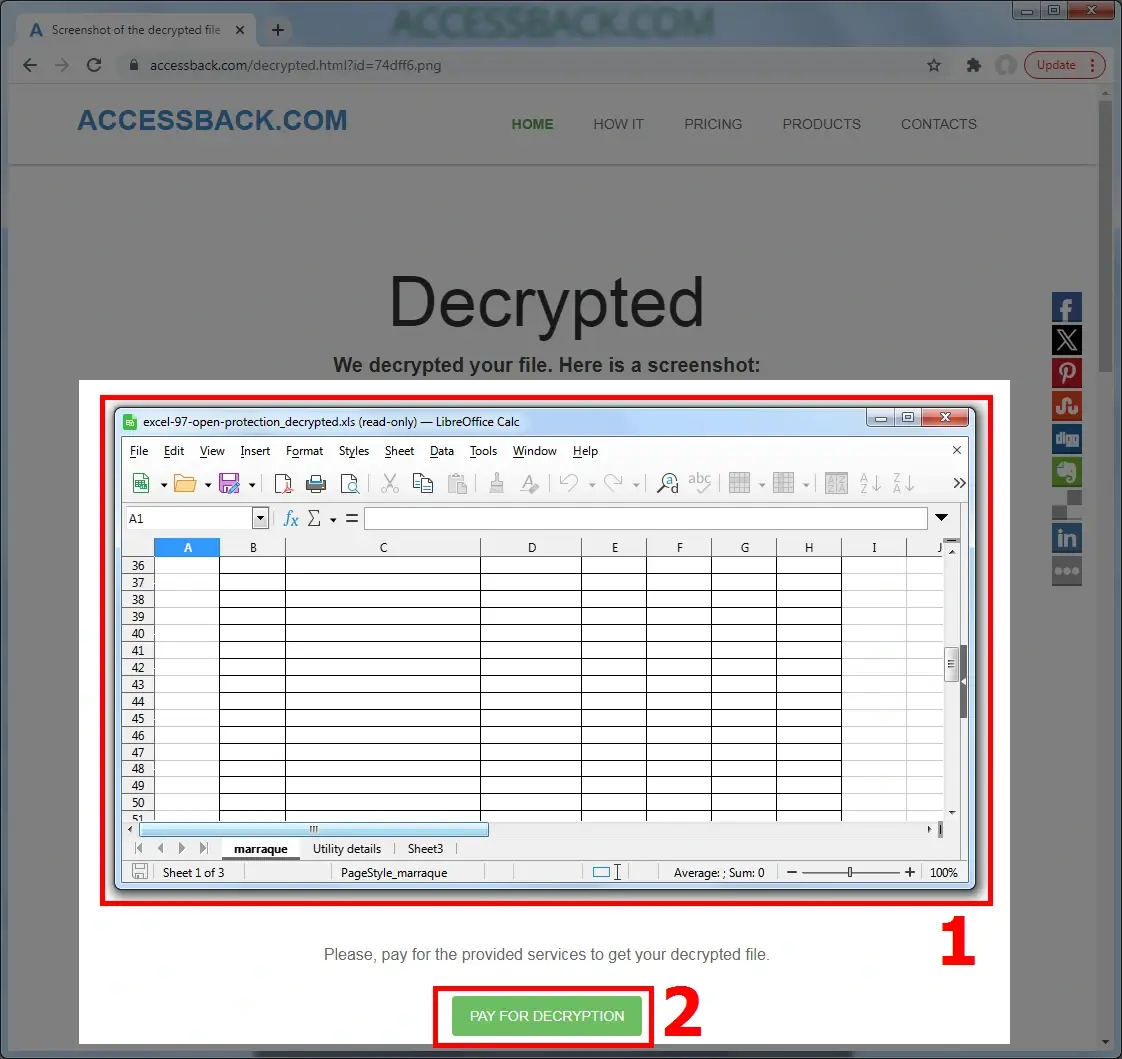
6 Step: Review the decrypted data. See if the file contains the information that's important for you.
7 Step: If you need an unlocked copy of your Excel file, pay for the service to get a link to the complete document fully unlocked.
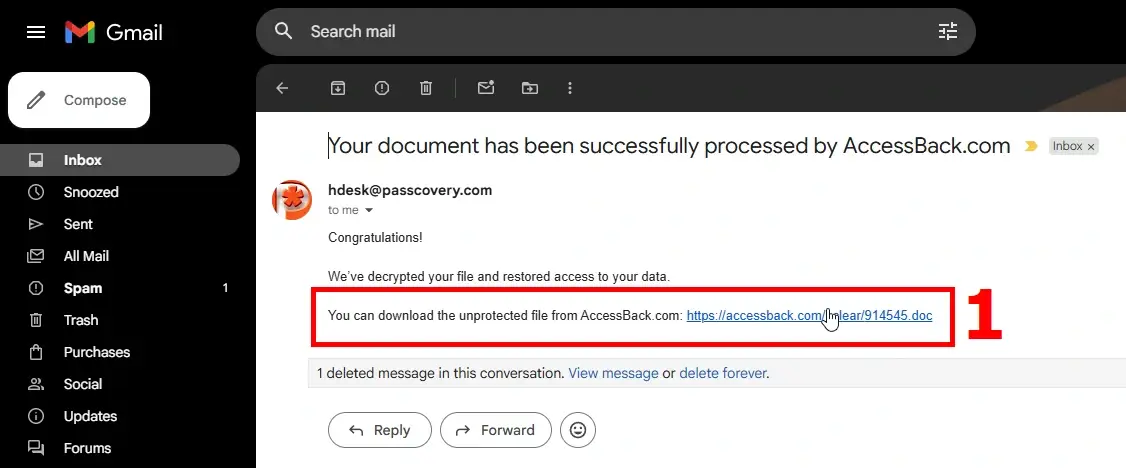
If you decide that you are not interested in the contents of the file and you do not need the decrypted document, then you do not need to pay. The file and the screenshot will be automatically deleted a week after uploading.
Following these simple steps, you can decrypt Excel files online and regain access to your data easily at AccessBack.com.
By the way, AccessBack.com can also handle Microsoft Word 97-2003 (doc files) and old Adobe PDF files with a short 40-bit encryption key.
 |
Author: Denis Gladysh, co-owner, and head of Passcovery – a provider of high-speed GPU-accelerated software solutions
for recovering passwords for popular file formats; author of the first versions of Accent OFFICE Password Recovery, created in 1999.


|
Three questions about removing password encryption
Yes, you can unlock password-protected Excel files online for free using AccessBack.com. The service offers a free preview before you commit to paying for the full unlocked file.
Free Preview Feature: After uploading your encrypted Excel file, AccessBack.com will decrypt it and send you a screenshot of your unlocked data via email. This allows you to verify that the file contains the information you need before making any payment.
The process is straightforward: upload your file, provide your email address, and wait for the decryption report. If the preview confirms that your important data is accessible, you can then pay to receive the complete unlocked Excel file. If you decide the file isn't needed, simply don't proceed with payment—the screenshot and file will be automatically deleted after one week.
This free-to-try approach ensures you only pay for results that matter to you, making it a risk-free solution for recovering access to locked Excel spreadsheets.
Decrypting an Excel 97-2003 password is possible because these older file formats (with the .xls extension) use a relatively weak 40-bit encryption key. This short key length makes it feasible to find the encryption key and unlock the file without knowing the actual password.
Why Excel 97-2003 specifically? The technical answer lies in the encryption strength:
- Excel 97-2003 (.xls): 40-bit encryption key → Can be decrypted
- Excel 2007+ (.xlsx): 128-bit or 256-bit encryption key → Cannot be decrypted with current methods
The decryption process searches for the encryption key rather than the password itself. Once the key is found, the file data becomes accessible again. This is why decryption is both faster and more reliable than password recovery—it doesn't matter how complex or long the original password was.
For newer Excel formats (2007-2021 and higher), the longer encryption keys make decryption practically impossible. In those cases, the only option is attempting to recover the original password through brute force methods using specialized software.
Absolutely! Online services like AccessBack.com allow you to recover access to password-protected Excel files entirely through your web browser, with no software installation required.
Key advantages of the online approach:
- Universal compatibility: Works on any device with a browser—Windows, Mac, Linux, or even mobile devices
- No technical skills needed: Simply upload the file and let the service handle the decryption
- No system resources used: The decryption happens on remote servers, not your computer
- Corporate-friendly: Ideal for users who don't have administrator rights to install software on work computers
Important note: While online decryption works perfectly for Excel 97-2003 files (.xls), newer Excel formats require desktop software for password recovery due to their stronger encryption.
The entire process is browser-based: you upload your encrypted Excel file, receive an email with the decryption results, and download your unlocked file—all without downloading, installing, or configuring any applications. This makes online decryption the most convenient option for users who need quick access without the complexity of software setup.
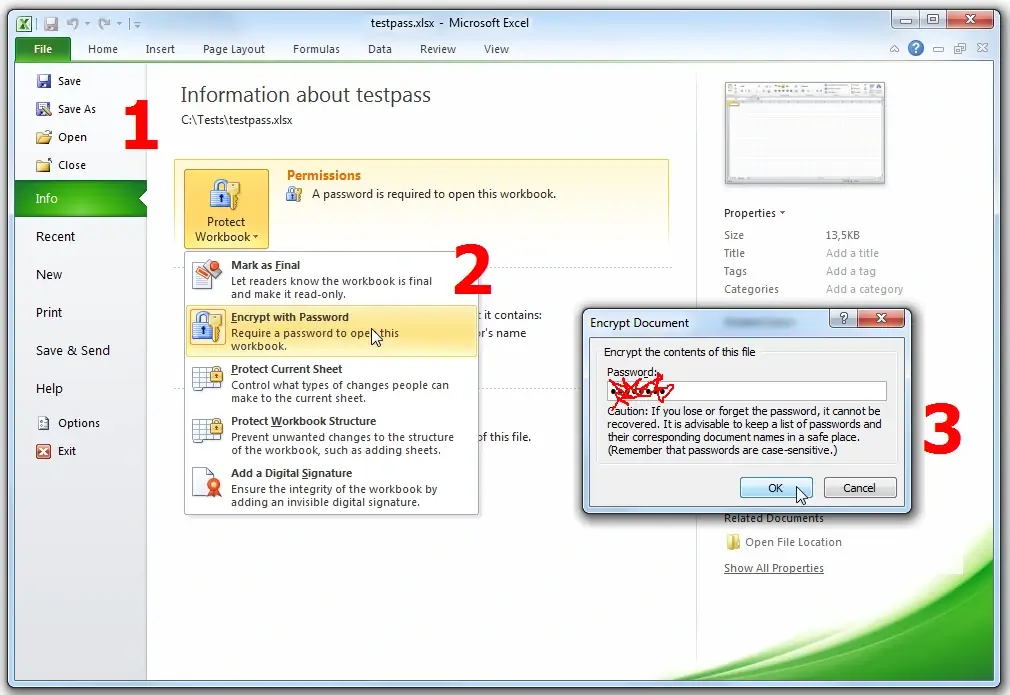
When you no longer need the password in the document, you had better delete it so that it doesn't get lost. Here's how to do it in Microsoft Excel:
Open the password-protected file in Excel and enter the password. Then go to the menu File → Info → Protect Workbook → Encrypt with Password. In the window that appears, erase the password that is hidden behind asterisks, click OK to confirm the delete password action. Save the file (Ctrl+S). You have deleted the password and encryption.
AccessBack.com is an online service where you can safely decrypt Excel and Word 97-2003 files (xls/doc files) when the password is lost.
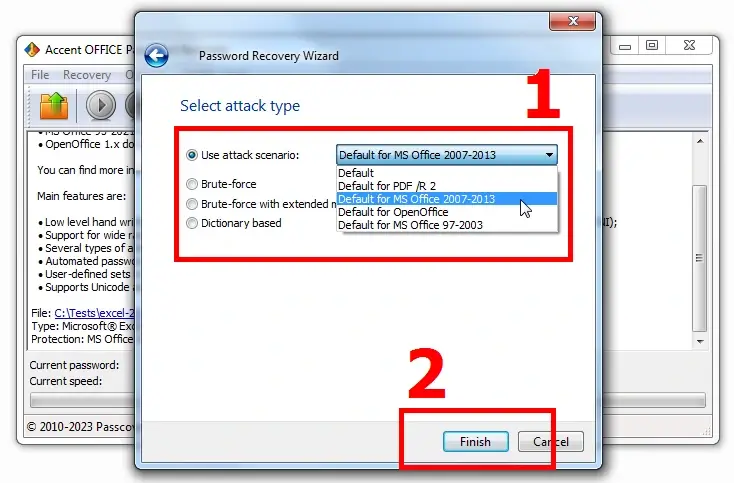
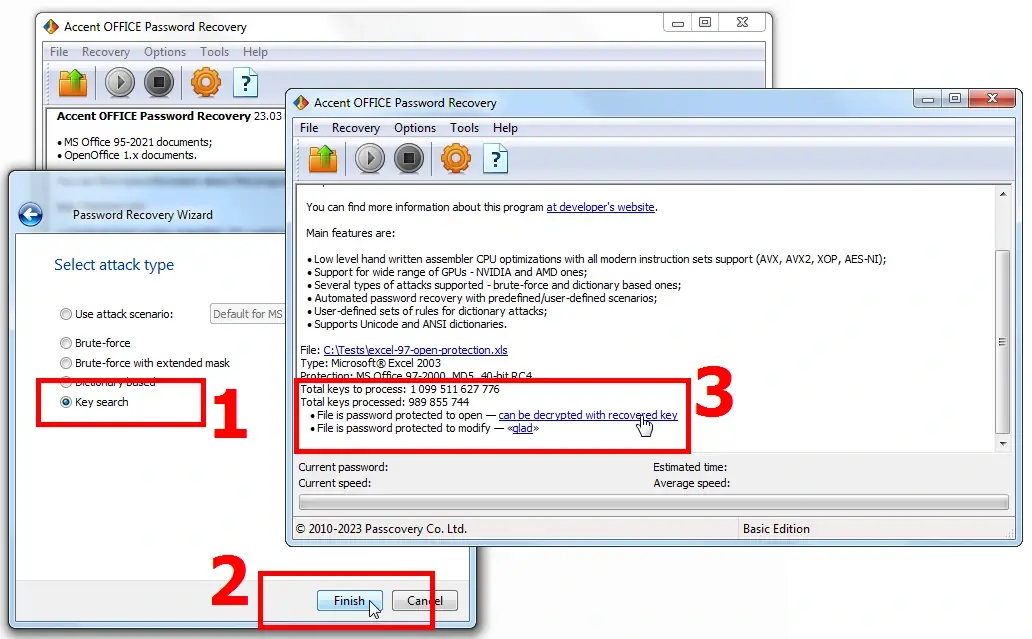
And if you don't want to (or can't) upload your encrypted files to the website, then Accent OFFICE Password Recovery is your choice. All you need to do is install and run the program, open your password-protected Excel file with it and select the encryption key search option ("Key search"). AccentOPR will find the original key and decrypt the Excel file without sing the password:
When you have lost the password for an Excel 2007-2021 file, you won't be able to simply decrypt the file without a password because the encryption key is too long. Solution: to recover the password by iterating through possible or likely combinations with the help of a professional Windows tool - Accent OFFICE Password Recovery by Passcovery.
And here's why AccentOPR fits the task best:
- supporting Microsoft Excel/Word/PowerPoint/Access (and LibreOffice/OpenOffice)
- speed-tweaked for maximum performance
- explosive GPU acceleration on AMD and NVIDIA graphics cards
- multiple password attacks to recover lost passwords
- advanced range manipulation options (positional mask, dictionary mutation, attack scenarios)
- instant recovery or removal of passwords to save changes (Excel page passwords, password to modify, VBA password, etc.)
A brief how-to guide is available immediately after installing the program.