How to Unlock an Excel File, Whether You Know the Password or Lost It
An Excel password unlocker is a program for recovering lost Microsoft Excel passwords — and a good one needs a few must-have features:
- support for every version of Microsoft Excel
- instant recovery or removal of simple protection passwords
- high-speed search for strong "Password to Open" protection
- GPU acceleration on NVIDIA, AMD and Intel Arc graphics cards
- flexible search range controls
Meet Accent OFFICE Password Recovery — a Windows program that handles any type of Microsoft Excel 6.0-2024 password protection.
Password Protection in Microsoft Excel: Strong vs. Weak
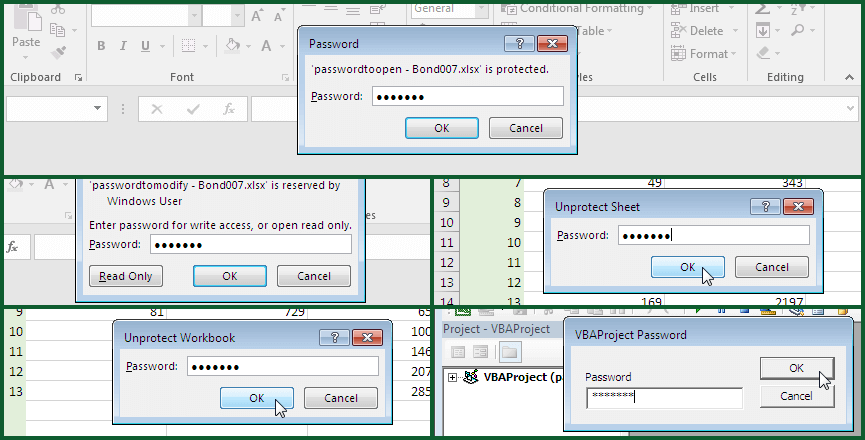
Microsoft Excel offers several ways to lock a file: strong protection against unauthorized access ("Password to Open") and weak protection against accidental changes (every other type of password protection).
- Protection against unauthorized access (strong protection):
- Password to Open
- Protection against accidental changes (weak protection):
- Password to Modify
- Excel sheet protection password
- Workbook structure password
- VBA macro password
The "Password to Open" Encrypts the File: It Can't Be Removed, Only Recovered
Once you set a "Password to Open", all the data in the Excel file gets encrypted, and unlocking the file without the password is impossible. Cracking it (in other words, searching for or recovering it) takes time and a dedicated Excel password recovery program. How long the search takes depends on the Excel format and the complexity of the password itself.
Modify-Protection Passwords Don't Encrypt Your Data and Are Removed Instantly
Every other password type leaves the data in your Excel file unencrypted. It only locks certain actions. You can still open the file and work with the data — the password is only needed to make (or save) changes. Any weak protection password can be recovered or removed instantly, in every version of Excel.
Password protection in Excel is genuinely handy. But sooner or later you may stop needing it. That's when passwords get in the way, get on your nerves — and get lost.
No problem. Let's unlock that Excel file and clear out the passwords.
- How to Unlock an Excel File When You Know the Password (Excel 2016-2024 Interface)
- How to Unlock an Excel File When You've Lost the Password
How to Unlock an Excel File When You Know the Password (Excel 2016-2024 Interface)
When you know the password, unlocking an Excel file works much like locking it: enter the password, delete it, and save the file without it.
Here's how it works in Excel 2016:
- Remove the "Password to Open" When You Know It
- Remove the Password to Modify When You Know It
- Unprotect an Excel Sheet When You Know the Password
- Unprotect the Excel Workbook Structure When You Know the Password
- Remove the VBA Macro Password When You Know It
Remove the "Password to Open" When You Know It
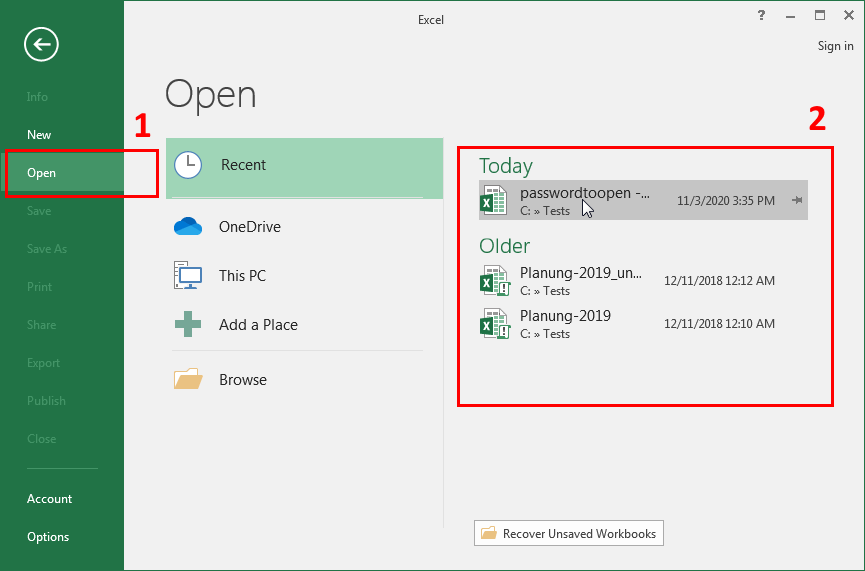
1. Start Excel, go to "Open", find the file you need and click it
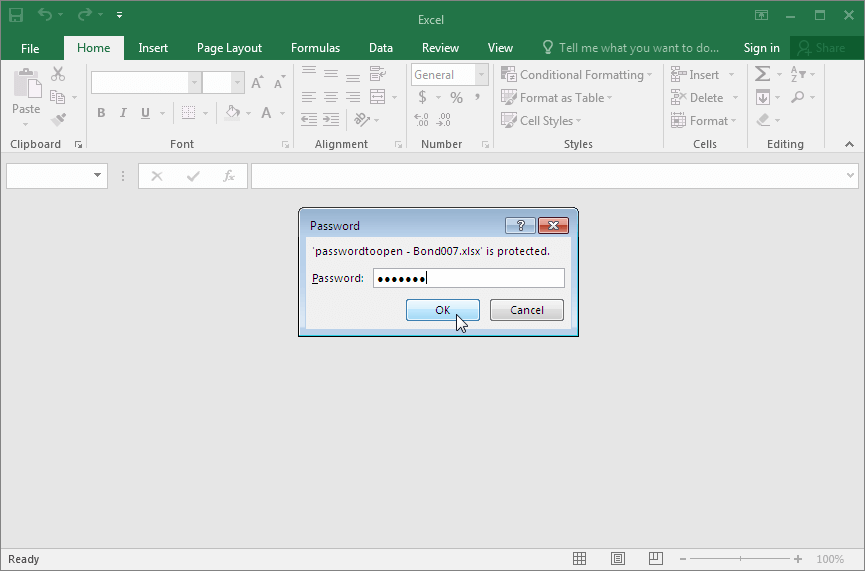
2. Enter the password and open the Excel file (lost the password? recover it with these instructions)
3. Go to "File" → "Info", open the "Protect Workbook" menu and select "Encrypt with Password"
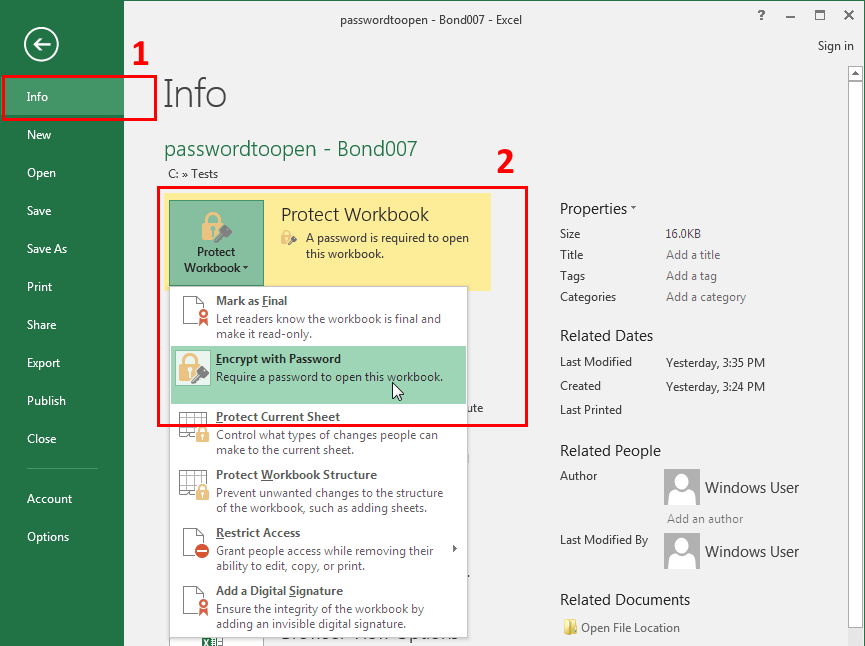
4. In the window that opens, delete the password you set earlier, click "OK" and save the file.
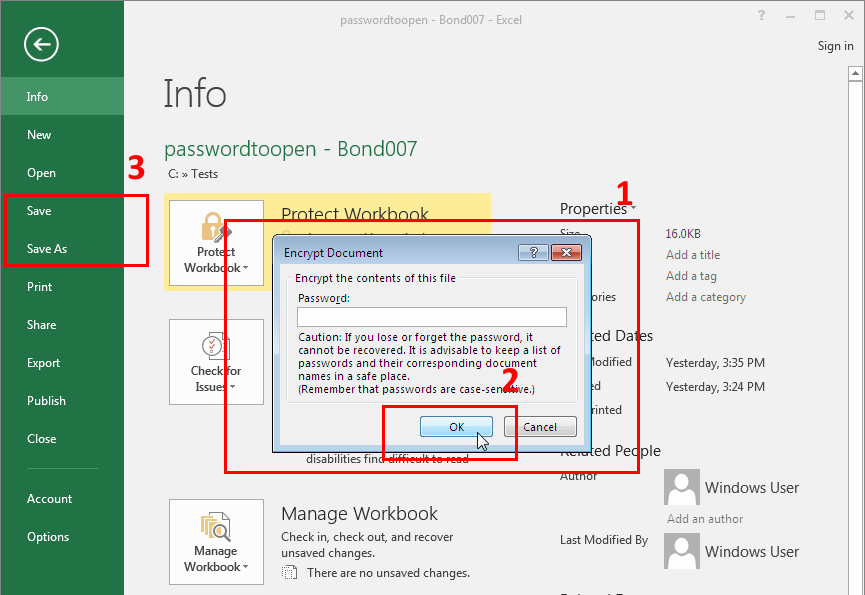
That's it. The "Password to Open" is gone, and your data is decrypted. The next time you open the file — no password required.
Remove the Password to Modify When You Know It
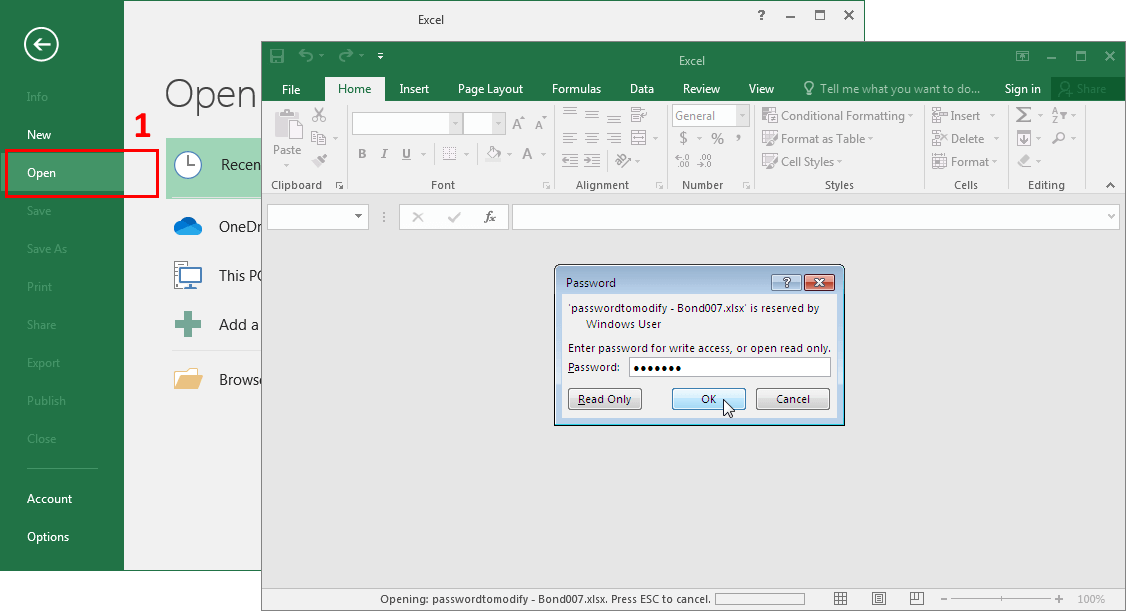
1. Start Excel, find the file you need, click it, enter the "Password to Modify" and open the Excel file
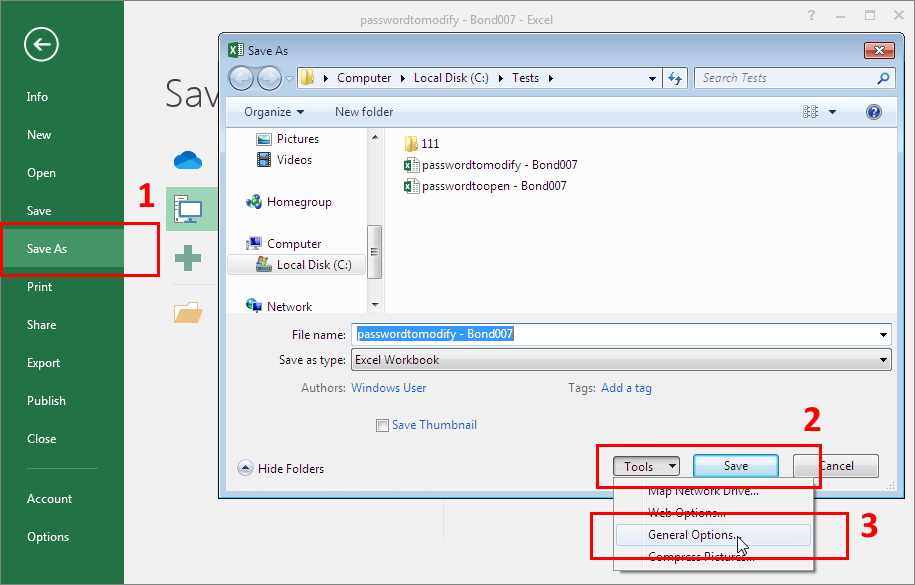
2. Go to the "File" menu, open the "Save As" dialog, click the "Tools" menu in the save settings and select "General Options…"
3. In the window that appears, delete the "Password to Modify", click "OK" and save the file
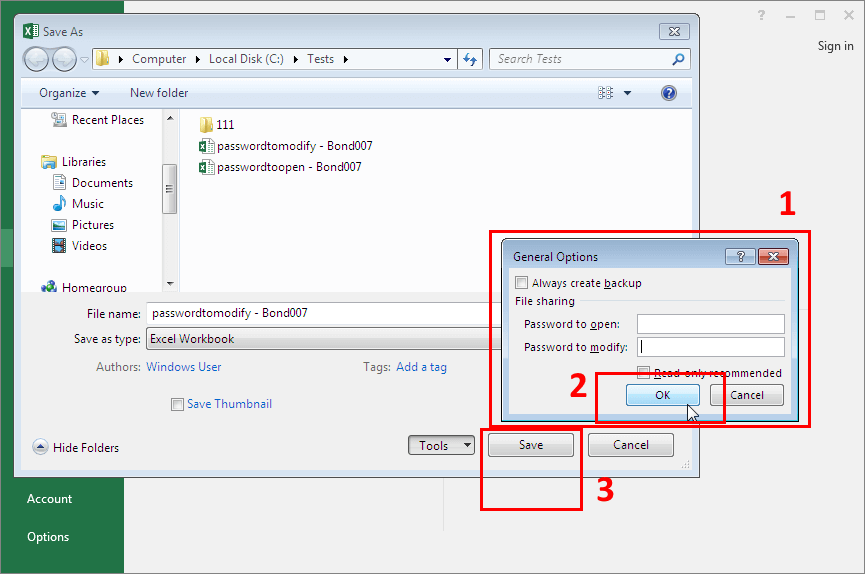
And that's the "Password to Modify" taken care of.
Alternative: Removing the "Password to Open" via the "General Options" Window
This same options window gives you another way to remove the "Password to Open": just delete it here the exact same way. You can also change both passwords right in this window.
Unprotect an Excel Sheet When You Know the Password
1. Open the Excel file, pick the sheet you need, right-click its name and select "Unprotect Sheet…" from the context menu
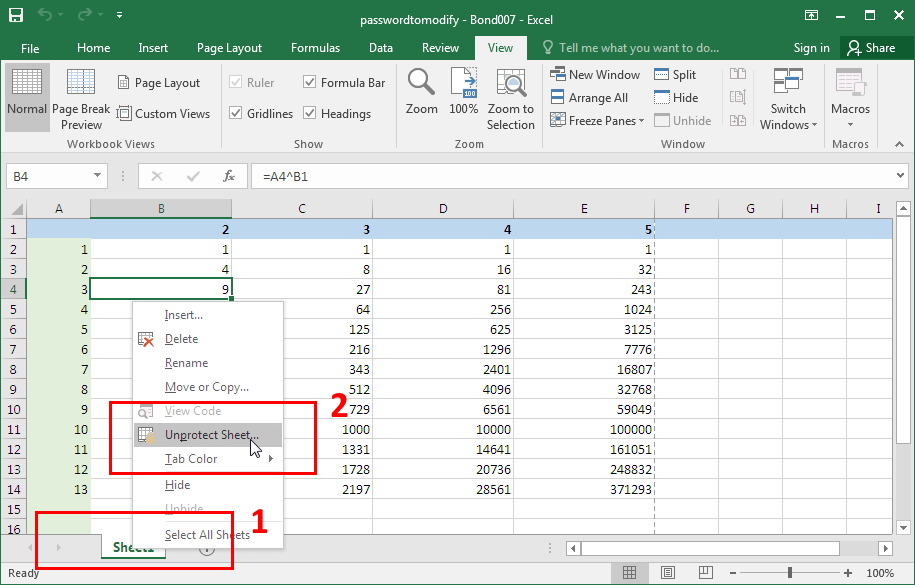
2. In the window that appears, delete the sheet protection password, click "OK" and save the file
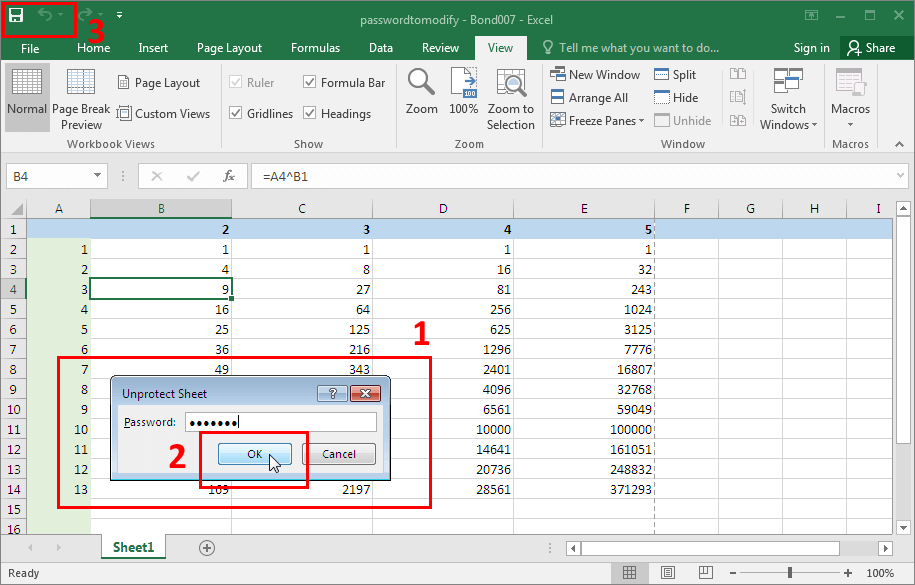
And just like that — the Excel sheet password is gone.
Unprotect the Excel Workbook Structure When You Know the Password
1. Open the Excel file you need, go to the "Review" tab and click the "Protect Workbook" button
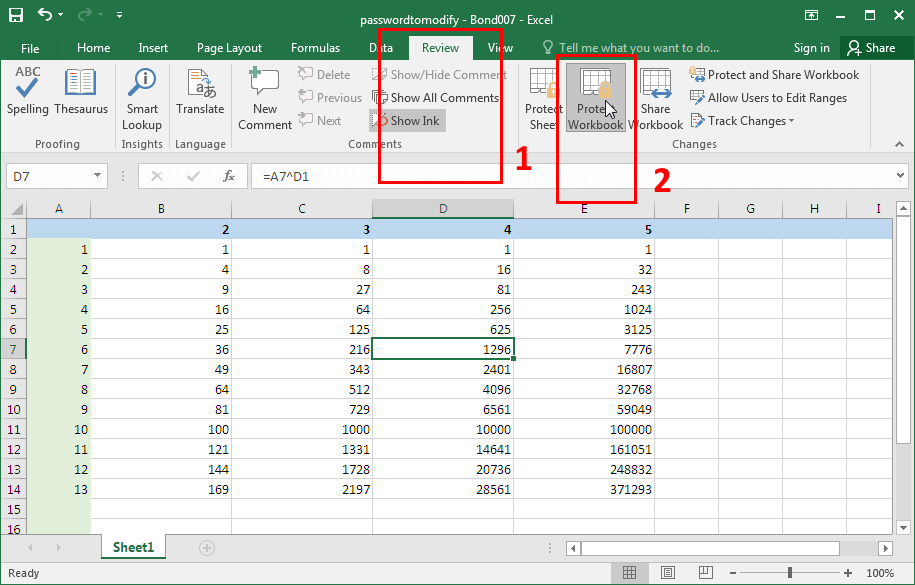
2. Enter the workbook password in the window that appears and click "OK" — the Excel workbook structure is now unlocked.
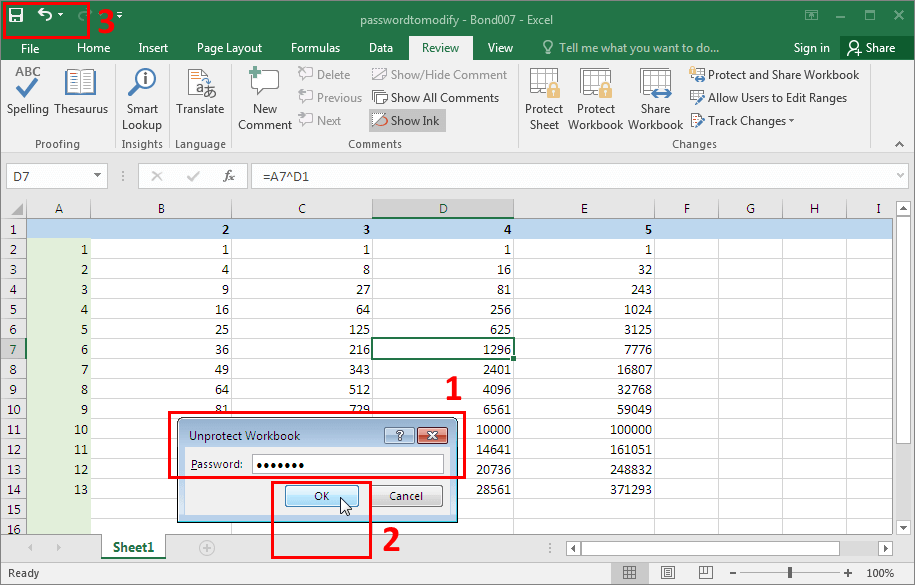
Alternative: Unprotecting a Sheet via the "Review" Tab
In that same "Review" tab, right next to the "Protect Workbook" button, you'll find "Protect Sheet…". That's one more way to protect or unprotect an Excel sheet.
Remove the VBA Macro Password When You Know It
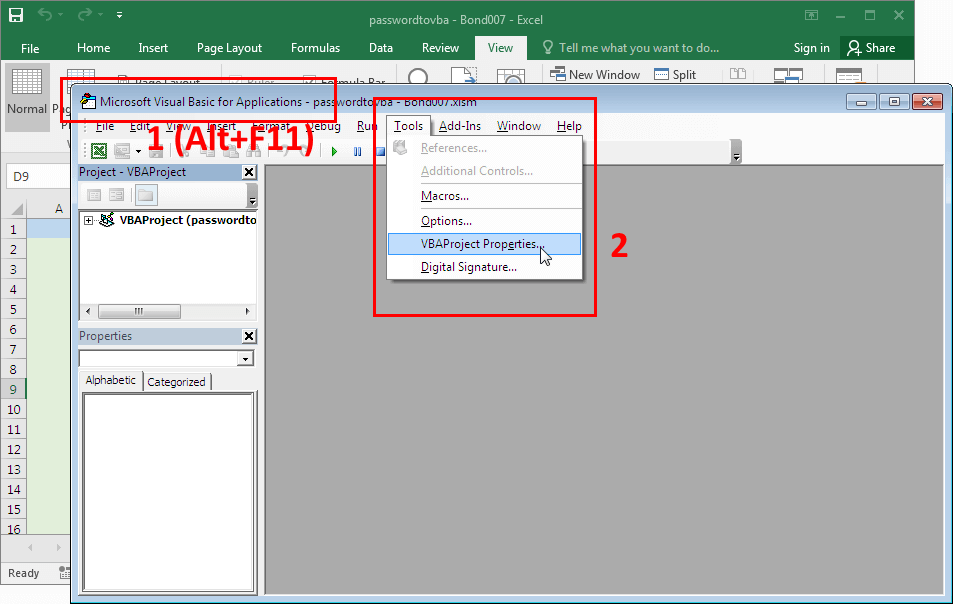
1. Open the Excel file with VBA macros as you normally would and press "Alt+F11". This launches the VBA code editor. In the editor's "Tools" menu, open "VBAProject Properties…"
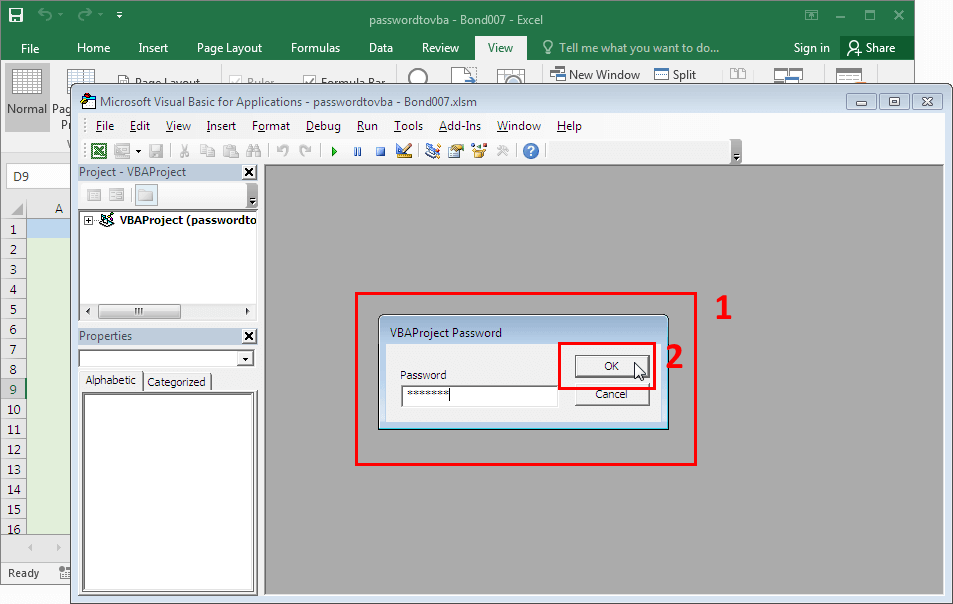
2. The editor will ask for the VBA password before opening the project data. Enter it and click "OK"
3. The VBA project properties window will pop up. Go to the "Protection" tab, uncheck "Lock project for viewing", delete the VBA password from the "Password" and "Confirm password" fields, click "OK" and save the file.
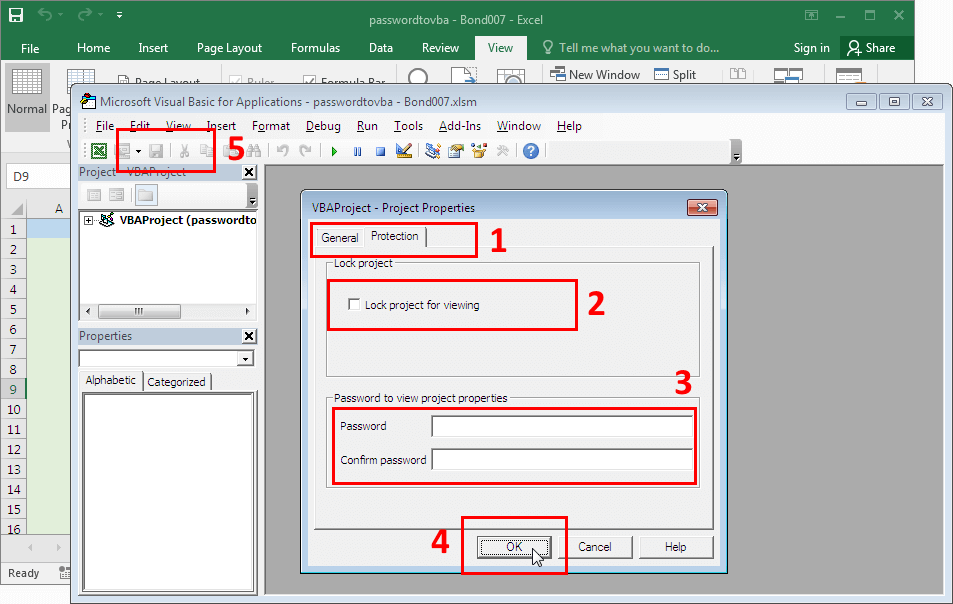
The VBA macro password is now removed, and the unprotected VBA code is saved in your Excel file.
How to Unlock an Excel File When You've Lost the Password
Recovering a Lost Excel Password: How It Works
When the password is lost, you'll need an Excel password unlocker — a program that searches for (recovers) or removes passwords. One like Accent OFFICE Password Recovery, for example.
The idea is simple: the program finds or removes weak protection passwords instantly (depending on the Excel format), while the "Password to Open" can't be deleted — it has to be recovered by running through possible combinations. Once it's found, all that's left is to enter it and delete it following the steps in "How to Unlock an Excel File When You Know the Password".
 |
Accent OFFICE Password Recovery for Microsoft Office and OpenOffice/LibreOffice files, all versions |
That said, for worksheet protection there's also a free, no-software route: remove it with a VBA script or via the ZIP archive.
Recovery Speed: Weak Passwords Instantly, the "Password to Open" by Brute Force
Accent OFFICE Password Recovery recovers or removes simple protection passwords instantly, in every version of Excel. Strong protection passwords it always searches at your computer's maximum speed.
Guaranteed Decryption — Excel 97-2003 Only (40-Bit Key)
The 100% success rate applies only to Excel 97-2003 xls files. In that format, the program searches for the 40-bit encryption key rather than the password itself, and that key is found every single time. For Excel 2007-2024 xlsx files there's no such guarantee: how long the "Password to Open" search takes depends on the password's complexity and the power of your graphics card.
What Accent OFFICE Password Recovery Offers for Excel 6.0-2024: GPU Acceleration and 3 Attack Types
- full support for Microsoft Excel 6.0-2024 (plus Access, PowerPoint, Word and LibreOffice/OpenOffice)
- instant recovery or removal of simple protection passwords (depending on the Excel format)
- top brute-force speed against strong passwords (ASM-optimized source code)
- GPU acceleration on NVIDIA/AMD/Intel Arc graphics cards for Excel 2007-2024 / Microsoft 365 xlsx files
- 100% successful decryption of Excel 97-2003 files (by finding the 40-bit encryption key)
- three password attack types (brute-force, mask and dictionary attacks)
- custom attack scenarios (chained sequences of multiple attacks)
- flexible search range controls (positional masks, dictionary merging and mutation)
- auto-saved attack status (resume right where you left off)
- a Windows GUI plus command-line support
How to Use the Program
Using this Excel password unlocker boils down to opening the password-protected file and, if needed, setting the search range for the "Password to Open". Every other password, Accent OFFICE Password Recovery recovers or removes instantly, no setup required.
See it in action:
Once Accent OFFICE Password Recovery finds the password, use it to unlock your Excel file by following these instructions:
How to Unlock an Excel File When You Know the Password (Excel 2016-2024 Interface)
What You Can't Do When Unlocking Excel: The Limits
The "Password to Open" Can't Be Deleted or Bypassed Without Recovering It
That's right — it can't. Setting a "Password to Open" encrypts all the data in the file, and no program will strip that password instantly in Excel 2007-2024. The only way to the encrypted data is recovering the password.
Recovery Time for a Strong Password Isn't Guaranteed
Search time depends on the Excel format, the length and complexity of the password itself, and the power of your graphics card. A long, complex password may never turn up within any reasonable time — even on the fastest machine. There's one exception: guaranteed decryption of Excel 97-2003 files via the 40-bit key, where no password search happens at all.
These Instructions Apply to Excel for Windows
Every step-by-step guide in this article describes the Excel 2016-2024 interface on Windows. In Excel Online and Excel for Mac, the menus are laid out differently, and some operations aren't available at all. Accent OFFICE Password Recovery also runs on Windows only.
The Short Version: How to Unlock an Excel File
- You know the password: enter it, delete it, save the file. Works for every type of Excel protection.
- You lost a weak protection password (sheet, workbook, modify, VBA): an Excel password unlocker will find or remove it instantly.
- You lost the "Password to Open": recovery is the only way. Your graphics card sets the speed; the password's complexity decides the outcome.
- The exception: Excel 97-2003 xls files decrypt every time, no password search needed.

Author: Denis Gladysh,
co-owner and head of
Passcovery,
a maker of high-speed, GPU-accelerated password recovery software for popular file formats.
Denis wrote the first versions of Accent OFFICE Password Recovery back in 1999.


Top Questions About Microsoft Excel Protection
If you've forgotten your Excel password, you'll need dedicated password recovery software. Here's the step-by-step process:
- Download and install a dedicated Excel password recovery tool, such as Accent OFFICE Password Recovery
- Open your password-protected Excel file in the recovery program
- Choose the right attack type (brute-force, mask or dictionary)
- Set up the search parameters and start the password recovery
- Once the password is found, use it to unlock your Excel file
Important: Simple protection passwords (Password to Modify, sheet, workbook and VBA passwords) are recovered instantly. For the strong "Password to Open" in Excel 2007-2024, recovery time depends on the password's complexity and may call for GPU acceleration to speed things up (graphics card ratings for password recovery).
Yes — in Excel 2007-2024 (xlsx files), password protection is extremely reliable when we're talking encryption with a password (the "Password to Open"). In earlier versions of Excel (xls files), that password can be found instantly (Excel 2-95), or you can decrypt the Excel file without it.
Every other kind of Excel password protection exists to guard data against accidental changes, and it isn't reliable. It can be unlocked instantly in any version of Excel.
Not at all. It happens instantly, every time.
Depending on your version of Microsoft Excel, the "Password to Modify" is either instantly recovered or instantly removed.
Not at all. The Excel VBA password is there to keep the VBA code safe from accidental changes, and it can be found or removed instantly in any version of Microsoft Excel.