How to Remove a PDF Password (Free & Paid Methods) — Plus Recover a Forgotten One
Password protection on a PDF is great when you need to lock down private information. But when you're actively using a file like that, typing the password every time gets old fast. And if the password suddenly goes missing, it turns into a nightmare.
Here are two free/paid ways to remove a PDF password and unlock the document. Plus a bonus: a program for quickly recovering forgotten PDF passwords.
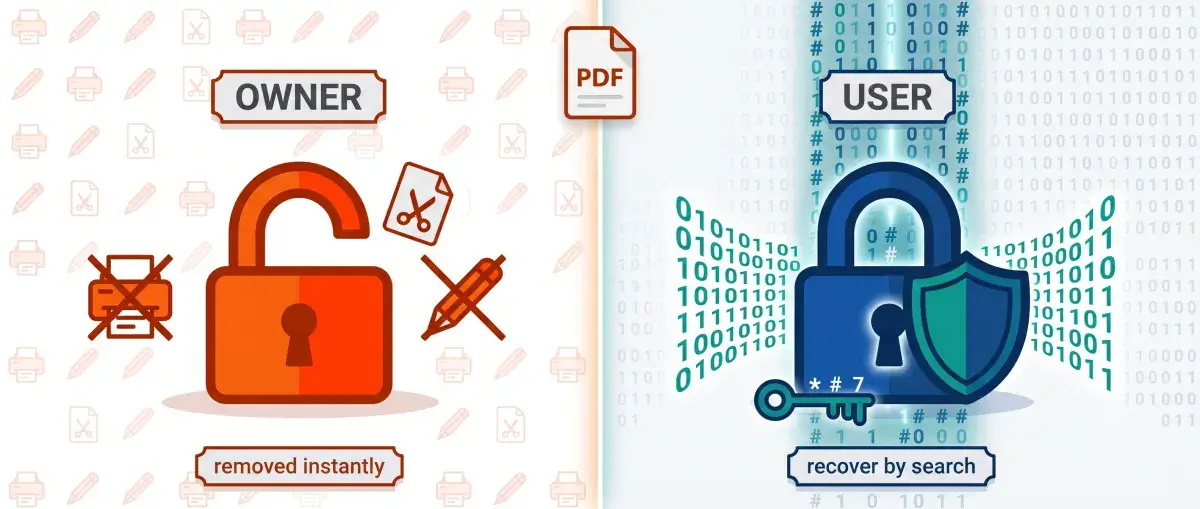
PDFs (especially ones downloaded from the Internet) are often protected, forcing you to enter a password every time you want to view them. That's a great option when you need to keep unauthorized users from doing things like printing the files.
But it's a pain for the file's rightful owner to forget or lose the password. In cases like that, you'll need techniques and tools that strip the password protection to get back into your PDF.
Know the Password or Forgot It? Pick Your Path
It all comes down to one question: do you remember the password or not? If you do, you can strip the protection in a couple of minutes. If you don't, you'll have to recover it. And that case we'll cover separately, step by step.
- You know the password. Strip the protection for free by printing to PDF, or officially, through Adobe Acrobat Pro.
- The password is forgotten or lost. Get ready to recover it by search. I'll show you how in the bonus.
What Kinds of Protection Do PDFs Use?
PDFs are protected with two types of passwords: one keeps you out of the file, the other limits what you can do inside it.
Permissions Password (owner password): Limits Editing and Printing
This protection partially restricts what you can do with the document. You can open and view the PDF without knowing the password. But without it, you can't edit, print, or copy the contents. The "permissions password" is set so that only the owner can change the document. This protection is weak: you'll see below how programs strip the "owner password" instantly.
Document Open Password (user password): Blocks Opening and Encrypts the File
This protection fully blocks access to the file and securely encrypts its contents. Without the correct password, the document won't open.
Why does a PDF password have two names? One is familiar, the other is formal. The familiar one goes without parentheses: it comes from Adobe Acrobat, the go-to PDF program, so everyone knows it. The formal one hides in parentheses: these are the terms from the PDF specification (the ISO 32000 standard) — user password and owner password. Different names, same password.
Okay, let's dig into two ways to get rid of a password you don't need.
First up is a handy trick that works on every operating system, in apps you almost certainly already have on your computer. Then we'll look at the official method, which needs a program from Adobe.
Both methods assume you know the "user password" for the encrypted PDF. If that's not your case, skip straight to the bonus 😉
Removing a PDF Password by Printing to PDF (only for openable files with no print restriction)
This might seem odd, even a little silly, but you can remove a PDF password easily in any PDF viewer. In the Google Chrome browser, for example. The program creates a copy of the open file, just without the password protection.
Naturally, this trick only works if the PDF has no print restrictions. But if the file is only encrypted with a "Document Open password," it can be printed normally. After you enter the password, of course.
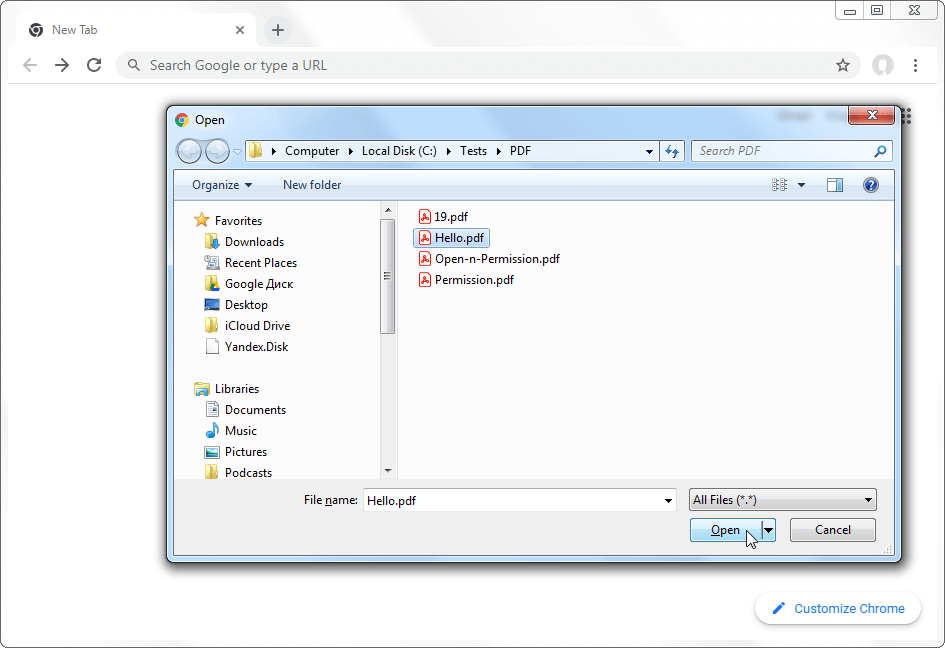
1. Open the locked PDF file. Press "Ctrl+O"
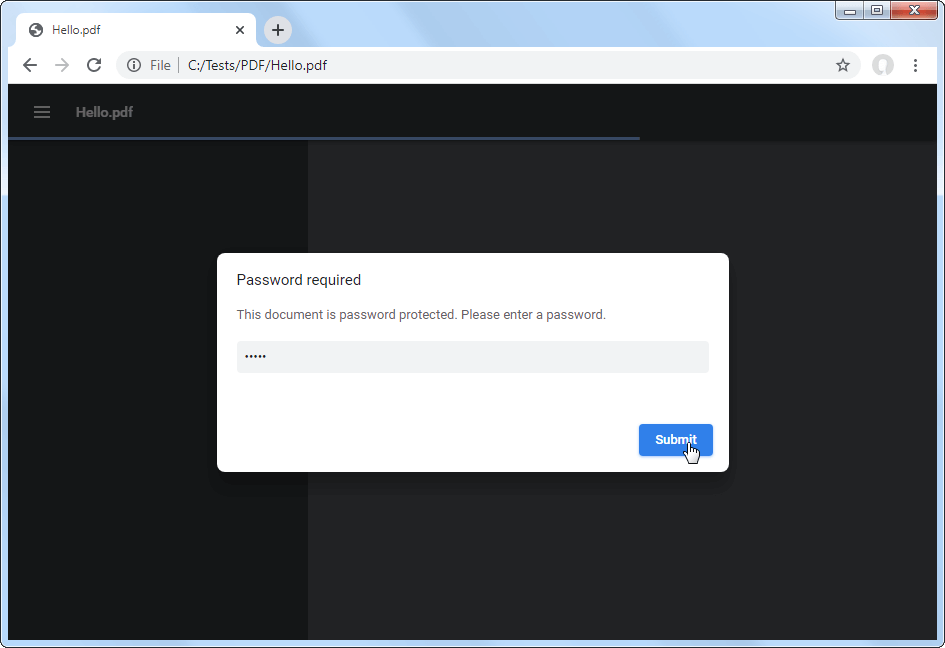
2. Enter the password to open the file
3. Bring up the print dialog. Press "Ctrl+P" or click the printer icon
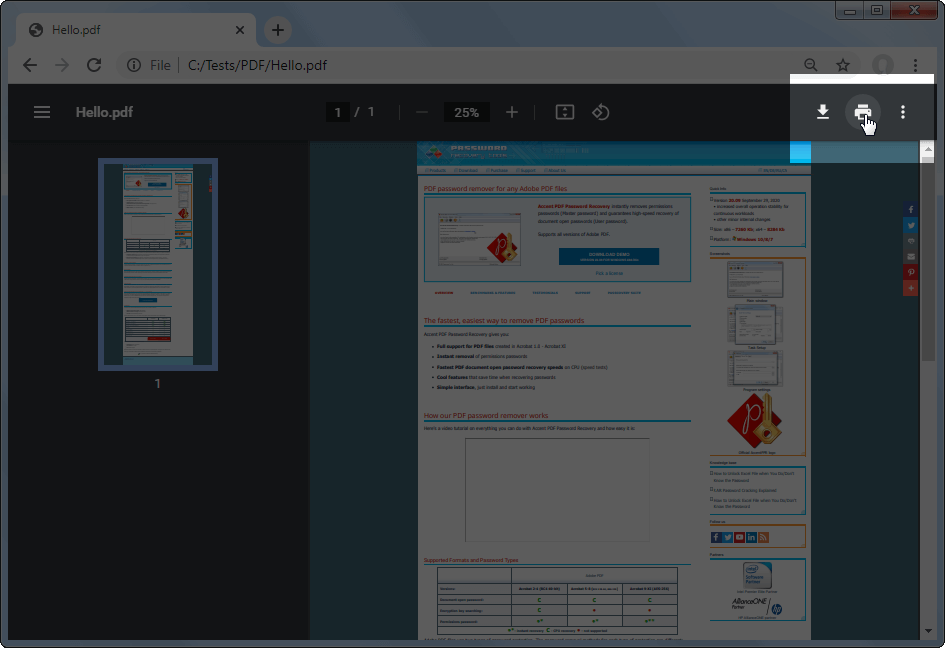
4. For the printer, choose "Save as PDF," click the "Print" button, and save the file with the name you want to a convenient spot on your PC
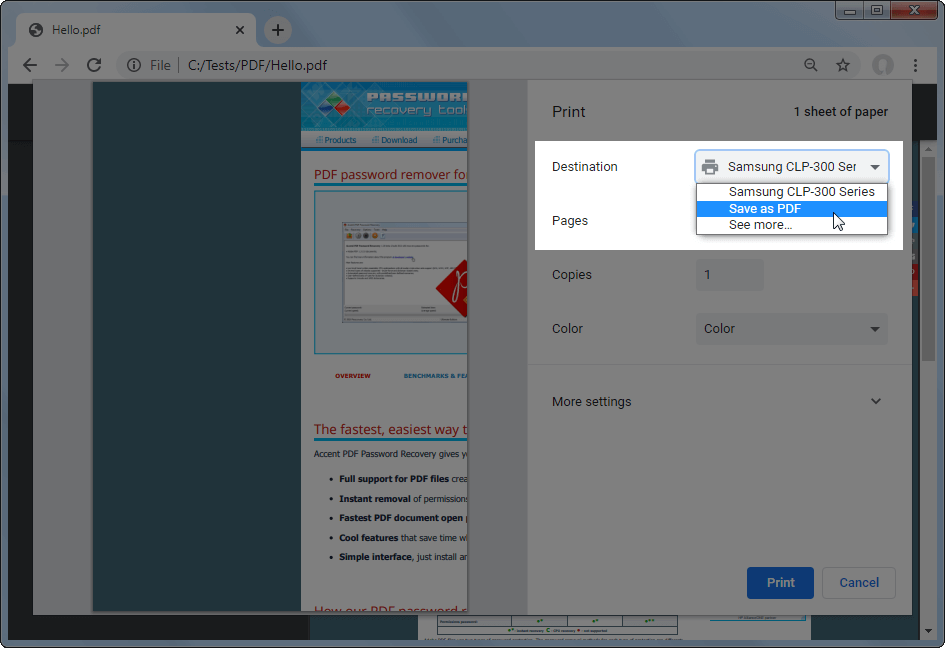
And there you go! You've got an exact copy of your PDF without a password.
This trick works in Chrome on any operating system. On Windows 10, you can repeat it in any other PDF viewer with a print function: Windows 10 already includes the "PDF printer" you need for it. On earlier Windows versions, you'd have to install that printer separately (or, you know, just use Google Chrome 😊)
It works much the same way on macOS. Just open your password-protected PDF in a browser and "print to PDF" using the built-in PDF printer. The new file will be exactly like the original, only without the password.
When Printing to PDF Won't Work
There are two possible snags. First: the file has a print restriction, so saving it via print won't work. Second: the "Document Open password" is forgotten or lost, and you can't open the file to even reach the print step. For a print restriction (if you remember the password), Adobe Acrobat Pro helps; for a forgotten password, recovery by search does.
Removing a PDF Password in Adobe Acrobat Pro (needs the Document Open password; works even with print restrictions)
Adobe, of course, has a program for setting, changing, and removing password protection. It's the paid Adobe Acrobat Pro app (subscription-based, with a trial version available). It's different from the free PDF viewer, Adobe Acrobat Reader, the one we're all used to and that's probably on every computer.
Adobe Acrobat Pro is a full-fledged PDF editor, and it works even with files that have print restrictions — the ones you can't pull the trick above on.
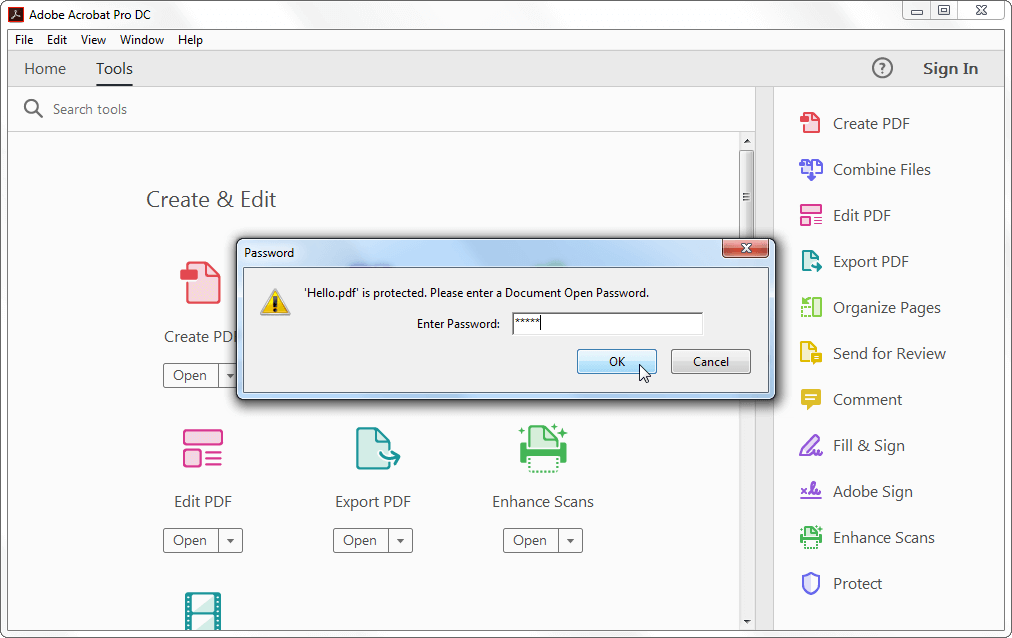
1. Launch Adobe Acrobat Pro and open your protected PDF. Enter the "Document Open password."
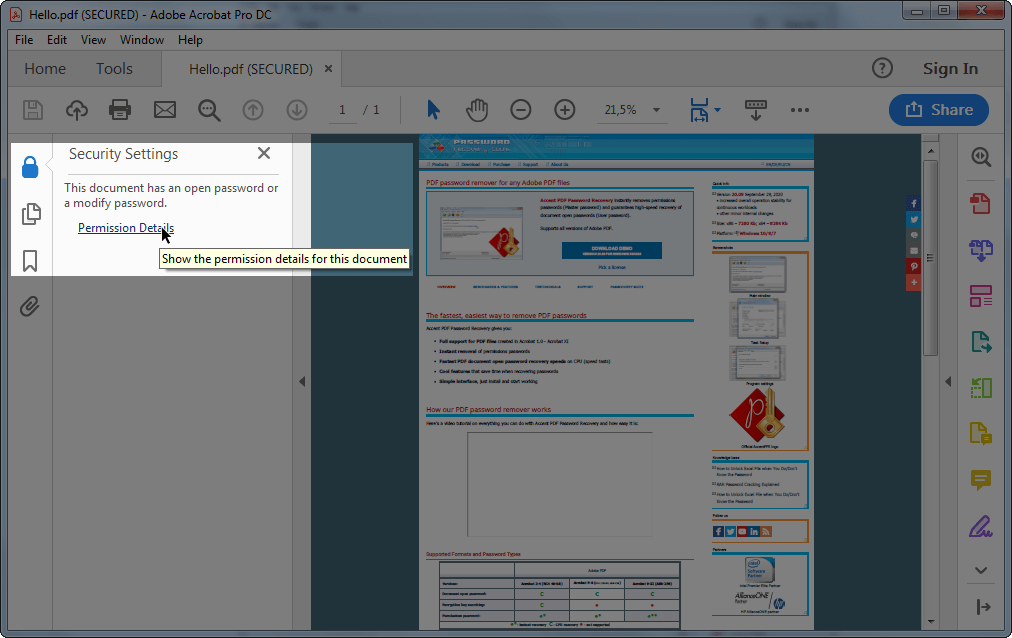
2. Click the lock on the toolbar to the left, then click "Permission Details."
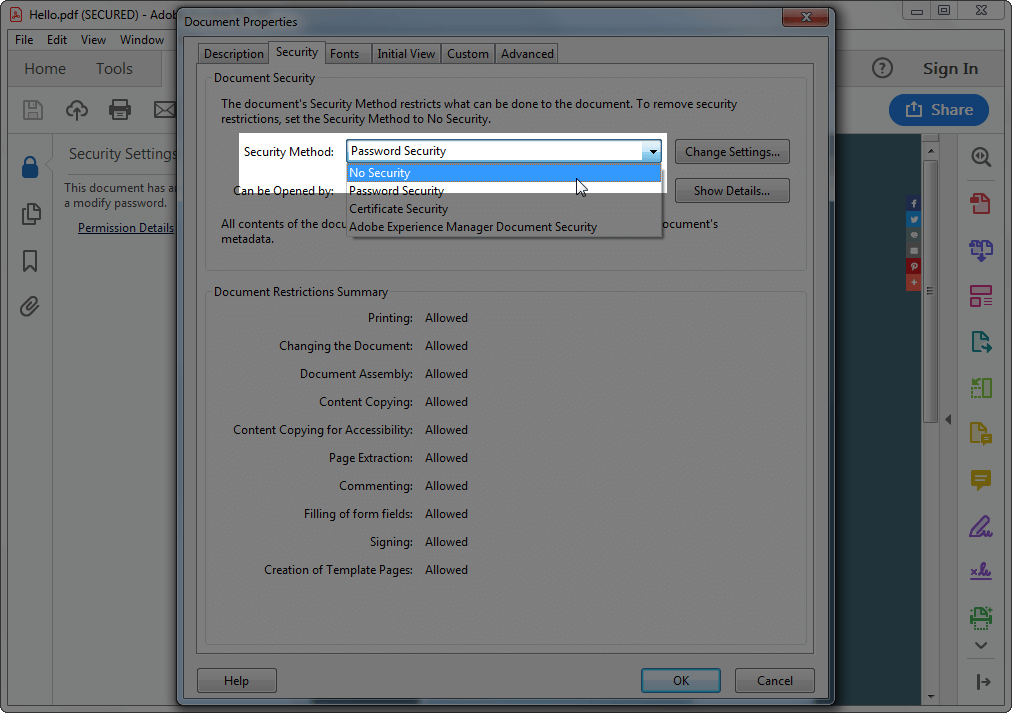
You can also do this through the menu: "File → Properties," then the "Security" tab.
3. In the "Security Method" dropdown, select "No Security," click "OK," and remove the PDF password.
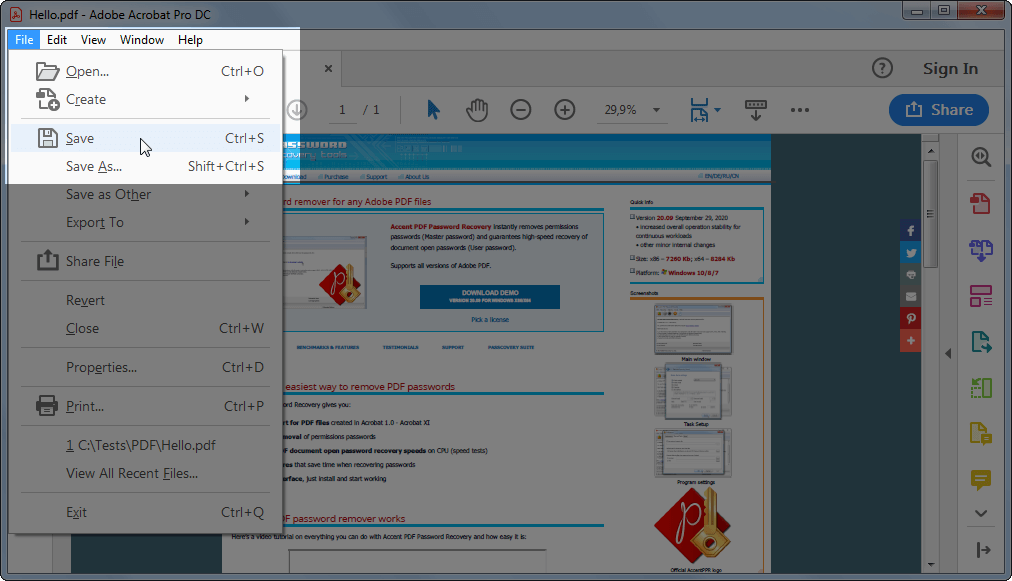
4. Click "Save" in the "File" menu to save the changes. Or just close Adobe Acrobat Pro and the program will offer to save the changes before closing. Do that, and there's your PDF without a password!
Adobe Acrobat Pro Won't Open a PDF Without Its Document Open Password
This method, like the one before it, only works when you know the "Document Open password." Without it, no dice. If you don't know it, there's no opening the PDF — not in Adobe Acrobat Pro, not in any other program. You'll have to find the password.
Recovering a Forgotten PDF Document Open Password in Accent PDF Password Recovery
Both tricks are great: nice and simple, when they work. But what if the "Document Open password" is lost, Adobe Acrobat Pro isn't available, and there's a print restriction on the PDF?
Use a dedicated program for recovering PDF passwords. I recommend Accent PDF Password Recovery.
It's a shareware Windows program that supports PDFs across versions and years. It always removes the "permissions password (owner password)" instantly and searches for the "Document Open password" as fast as your computer can go, offers three attack types for forgotten passwords, lets you fine-tune the search range, runs custom scenarios, and comes with a trial version.
Anyway, see for yourself:
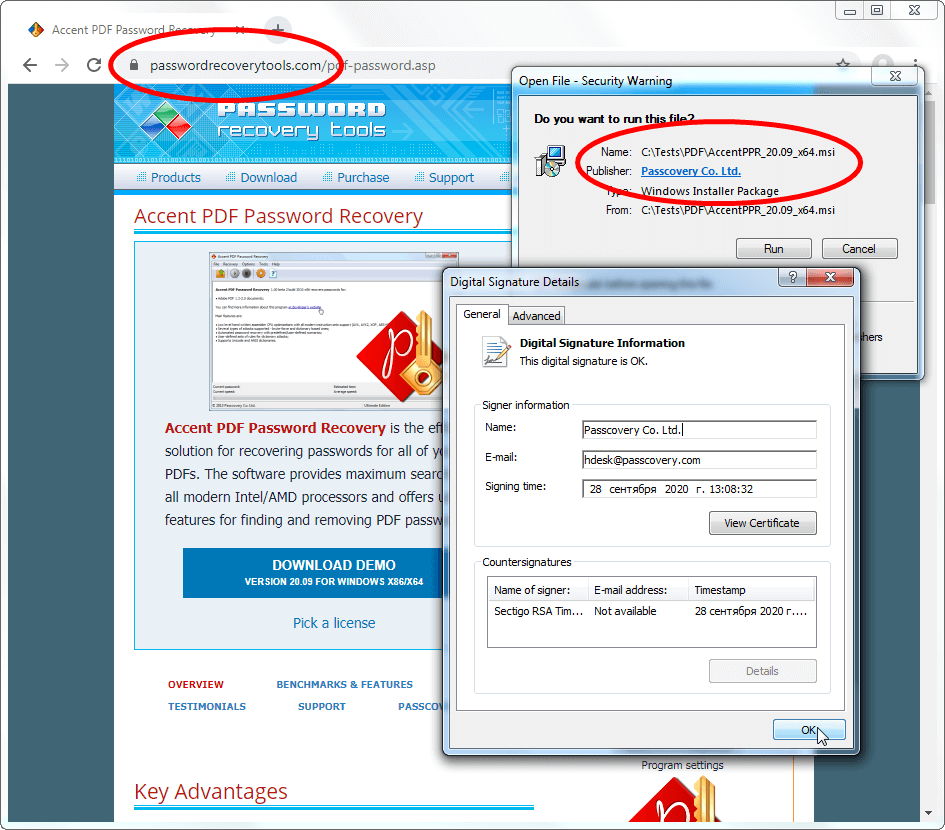
1. Install Accent PDF Password Recovery the usual Windows way. The author's site and the program distribution itself are digitally signed and completely safe.
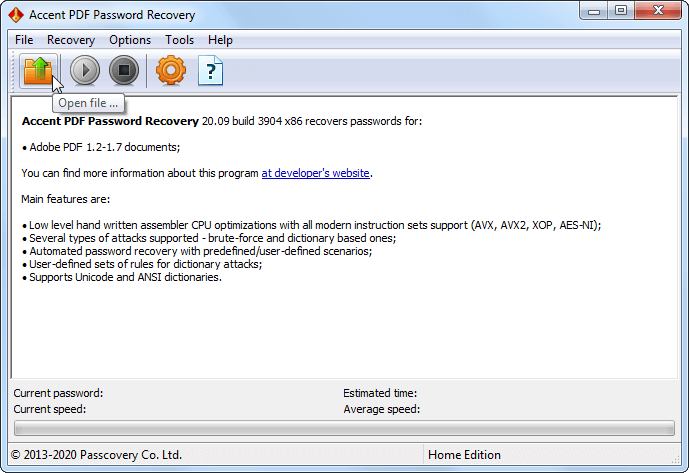
2. Run the program and open your locked PDF in it ("Ctrl+O" or the "File → Open" menu).
3. If the file has only a "permissions password (owner password)" set, Accent PDF Password Recovery can remove it instantly. Just click the "can be decrypted with recovered key" hyperlink and save an exact copy of the file.
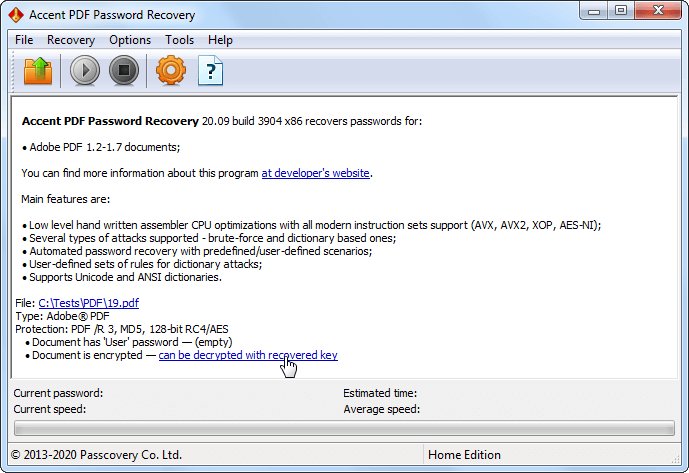
Copy text out of the file, print its contents, sign it, whatever you like — the saved copy won't have any restrictions anymore.
4. If a "Document Open password" is set, Accent PDF Password Recovery will tell you and show the file format. Move on to choosing a password attack.
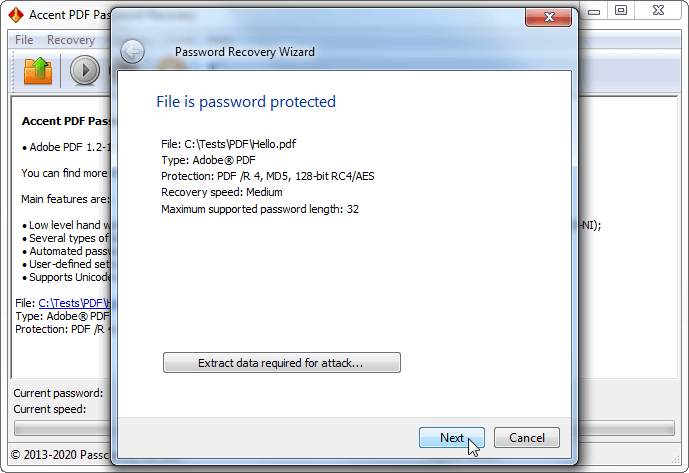
Removing a "Document Open password (user password)" instantly is impossible. You have to find it. That's done by trying and checking combinations until the program lands on the one true, correct password.
Depending on the complexity and the attack type (the way combinations are generated for testing), password recovery can drag on.
5. Pick one of the ready-made scenarios or one of the three attacks and start the search:
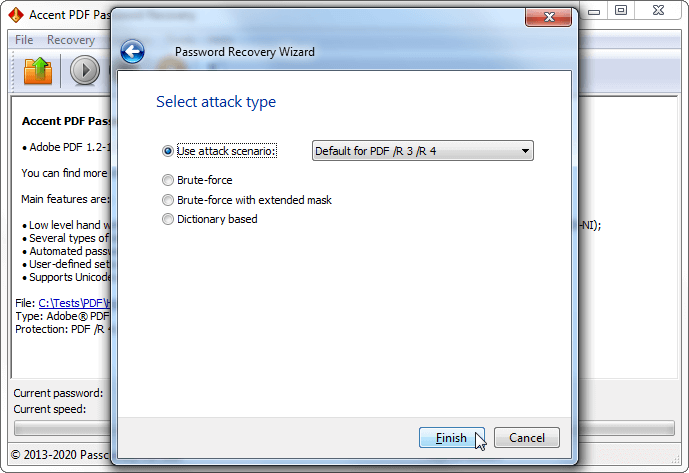
Brute-Force Attack
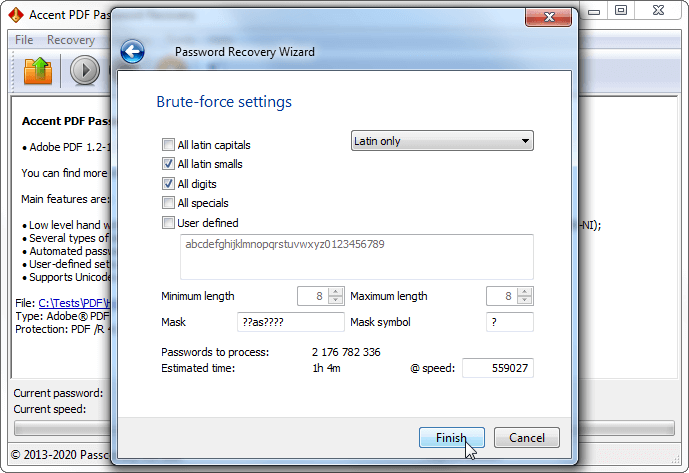
Here you set the minimum and maximum password length, the characters and alphabet for generating it, and a simple mask:
Brute-Force Attack with an Extended Mask
Here you build the alphabets you need and define character sets individually for each position in the password:
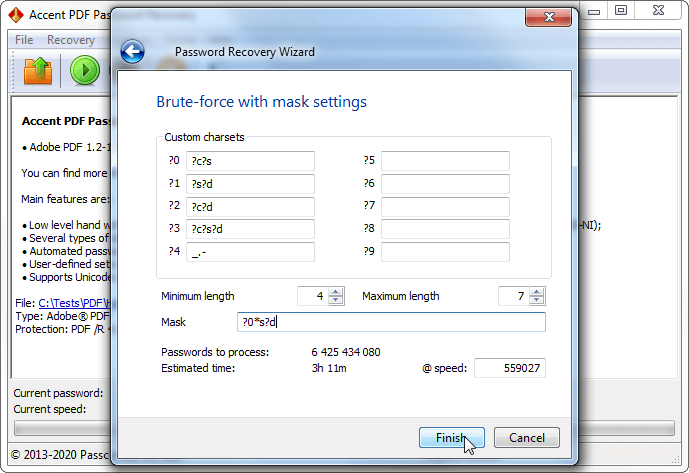
This is a very powerful feature. I'd recommend studying it through examples.
Dictionary Attack
Here you specify up to four dictionaries to check and define the rules for combining them with each other and changing their contents:
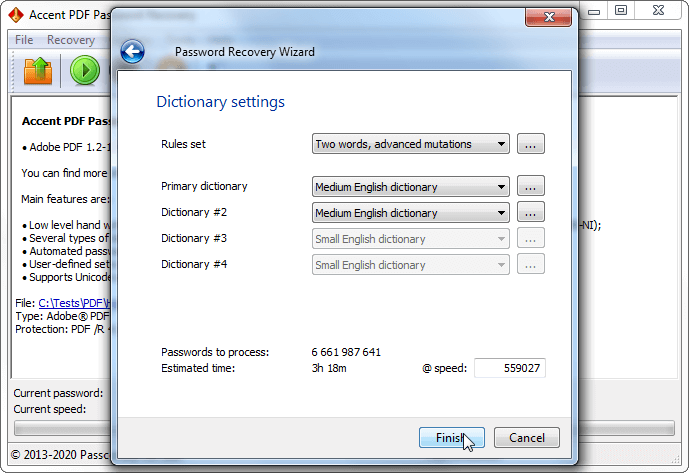
Another powerful feature, and here's an example of it in action.
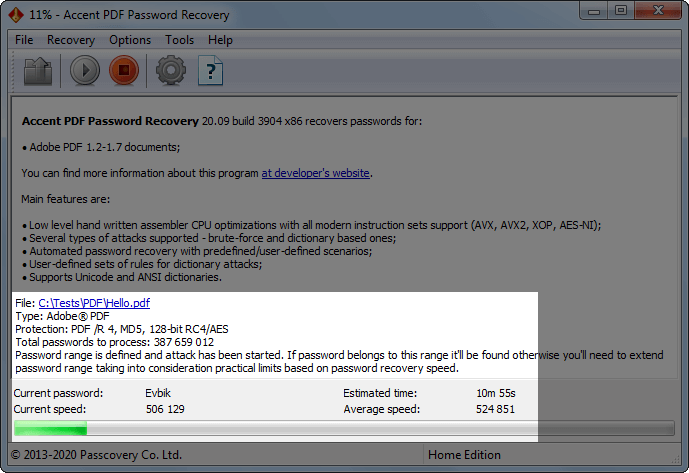
6. Accent PDF Password Recovery will start generating password combinations from your settings and running through them one by one, checking at your PC's top speed. Interim search results show up in the program window:
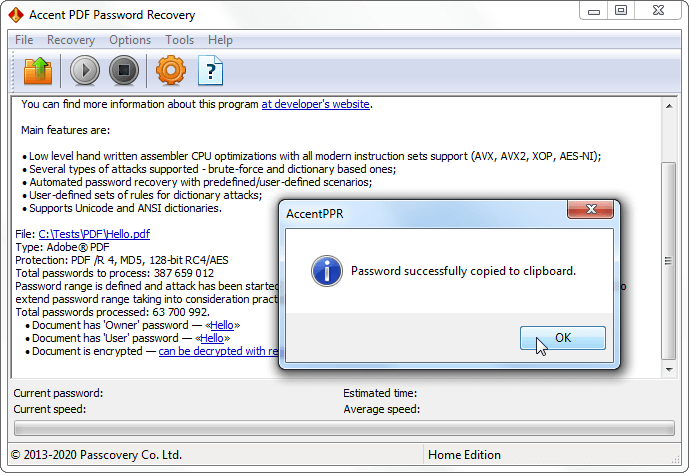
7. Once found, the password shows up as a hyperlink. Just click it to copy it to the clipboard and open your locked PDF:
Pros of Accent PDF Password Recovery
- support for all versions of the Adobe PDF format (1.0-1.7 EL8 with RC4, AES128, AES256 encryption)
- instant removal of the "permissions password (owner password)"
- maximum recovery speed for the "Document Open password (user password)"
- three password attack types plus scenarios for using them
- professional-grade control over the search range
- the ability to resume an attack from where it stopped
Cons of Accent PDF Password Recovery (paid; no macOS build)
- it's a paid product
- no macOS version
Print, Adobe, or Recovery: Comparing the Methods
The choice comes down to one question: do you know the password or not?
If you do, just strip the protection — it's a couple of minutes' work. Where there's no print restriction, a free print to PDF is enough. Where there is one, Adobe Acrobat Pro saves the day.
If the password is forgotten, there's nothing to strip yet. First you'll have to find it, meaning recover it by search. The method works, but it's slow, and on long passwords nobody promises a result.
| Your situation | Method | Cost |
|---|---|---|
| You know the password, no print restriction | Print to PDF (any OS) | free |
| You know the password, but printing is restricted | Adobe Acrobat Pro | paid |
| You forgot or lost the password | Accent PDF Password Recovery (search)* | paid, trial available |
| *Search doesn't guarantee a result on long random passwords: recovery can drag on for weeks or never finish at all. | ||
Use These Methods Only on PDFs You Own
You can remove a password from your own files, or ones you have a legal right to access: a forgotten password on a personal document, work files with your employer's permission, inherited PDFs when the author is no longer reachable. Stripping protection from someone else's file without asking is treated by law as unauthorized access, and whoever does it answers for it.
A password on a PDF protects your data for as long as you need it. And when the protection gets in the way, or you just don't need it anymore, you can take it off. Now you know how.
About the Author

Denis Gladysh, co-owner and head of Passcovery, a maker of high-speed, GPU-accelerated password recovery software for popular file formats. Denis wrote the first versions of Accent OFFICE Password Recovery back in 1999.


Frequently Asked Questions About Removing and Recovering a PDF Password
Can You Remove a PDF Password Without Knowing It?
You can, but only the "owner password." It doesn't encrypt the file — it just restricts printing, copying, and editing, so it comes off instantly.
The "Document Open password" is another story. It encrypts the whole document with the strong AES algorithm, and without the password the file simply won't open. Here your only option is a search with dedicated software. Accent PDF Password Recovery, for instance, strips the "owner password" right away and recovers the "Document Open password" with several effective methods: a mask, a dictionary, a full brute-force search. But encryption can outmatch the search: with every extra character in the password, your odds of cracking it shrink.
Are Online Services Safe for Removing PDF Passwords?
Depends on the file: for an ordinary PDF an online service is fine, for anything important you'd better not. When you upload a PDF to a service like that, the file goes off to someone else's server. For a routine how-to or a test document, that's no problem.
But a bank statement, a contract, or personal data is better handled only on your own computer, not scattered across the web. On top of that, online unlockers usually strip only the "owner password." A forgotten "Document Open password" won't come off that way: it's recovered by search, and that takes resources and time.
How Strong Is PDF Encryption, and Can It Be Cracked?
The strength depends both on the PDF format (the encryption algorithms in it) and on the password's complexity. The old RC4 encryption is weak and gets cracked relatively fast. Modern AES is strong: brute-forcing a long, random password against it is practically hopeless, even on powerful hardware.
The weak spot is always the same: the password itself. A short, dictionary-based one, or one with a known structure (a fit for a positional mask), gets cracked fast, while a long, random one holds out for a long time. The "owner password" is a special case: it doesn't encrypt the file, so it comes off instantly, no matter how complex it is.
How Long Does It Take to Recover a Forgotten PDF Password?
Anywhere from a couple of seconds to forever. The "owner password" comes off instantly. The "Document Open password" has to be cracked, and here success depends on the password's length and randomness.
If the password is simple, or you remember its rough structure, a recovery program will find it fairly fast. With a long, random password it's a lottery: the search can drag on for days or weeks, and nobody guarantees a result.
How Do I Remove the Password from a PDF Bank Statement?
The same way as any other PDF, just more safely on your own computer, locally. This is your confidential data, after all — it has no business on online services. Banks usually set a "Document Open password" to a predictable template: part of an account number or a date of birth (which, by the way, is a great fit for a dictionary attack). Open the statement with that password and re-save it without protection: by printing to PDF or through Adobe Acrobat Pro.
If the password is forgotten, you have two routes: request a new statement from the bank, or recover it by search. And since the bank builds the password from a template, a mask or dictionary search in PDF password recovery programs (AccentPPR, for example) often finds it fast.