How to Set, Remove, and Recover a Zip Archive Password in WinZip
Password protection in WinZip comes in two encryption methods. The method you pick decides what you end up with: strong cryptographic protection or compatibility with other archivers.
- WinZip AES — the AES encryption standard with a 128- or 256-bit key
- Zip 2.0 (ZipCrypto in other archivers) — classic encryption with a 96-bit key
AES was adopted by the U.S. National Institute of Standards and Technology (NIST) as a federal standard, and for important data WinZip recommends exactly that. The developer itself calls Zip 2.0 relatively weak: it doesn't guarantee protection against dedicated password recovery programs. On the other hand, almost every Zip archiver can open Zip 2.0, while AES is supported by only some of them.
The encryption method is up to you. By default, WinZip encrypts archives with 256-bit AES.

How to Set a Password on a Zip Archive in WinZip
You set a Zip password before the archive is built. Turn encryption on before you add any files, and WinZip will ask for the password when you add them.
Launch WinZip and, in the Files pane, go to the folder with the files you need:
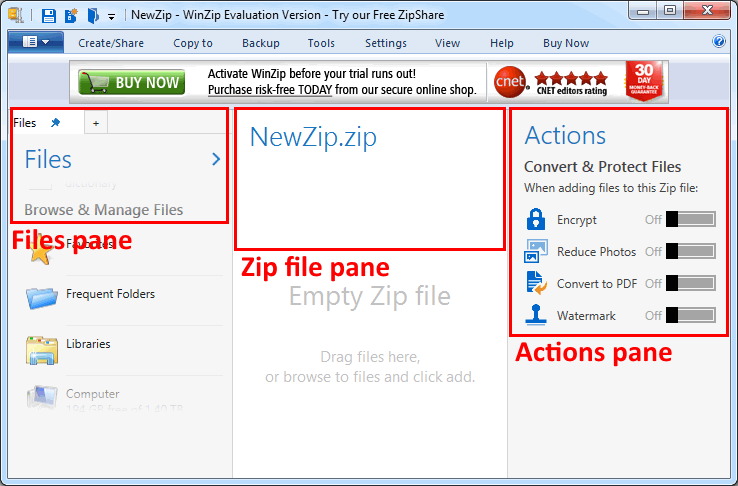
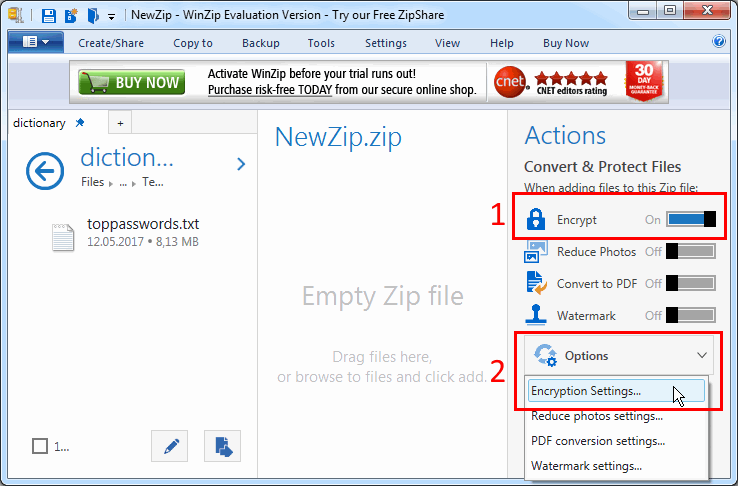
In the Actions pane, flip the Encrypt switch to On and open Options → Encryption Settings:
Pick a method: 256-bit AES or 128-bit AES for strength, Legacy (Zip 2.0) for compatibility. Then click Save:
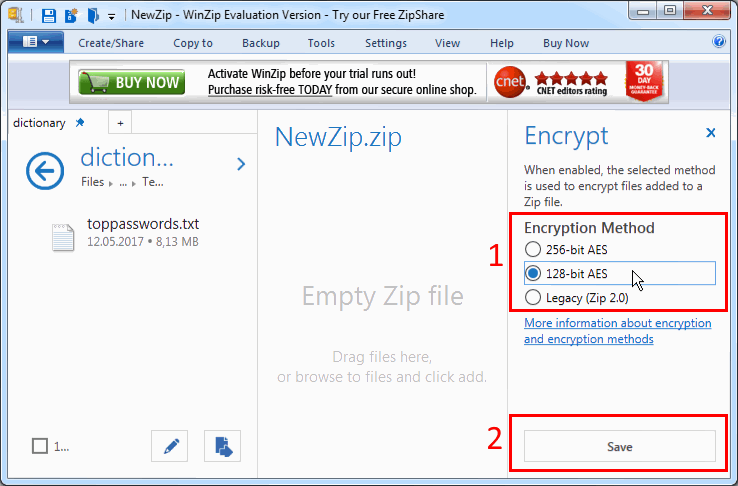
The method you choose is remembered for all your future archives until you change it.
Now select your files and folders, drag them into the center archive pane, and enter a password. You type it a second time to catch typos:
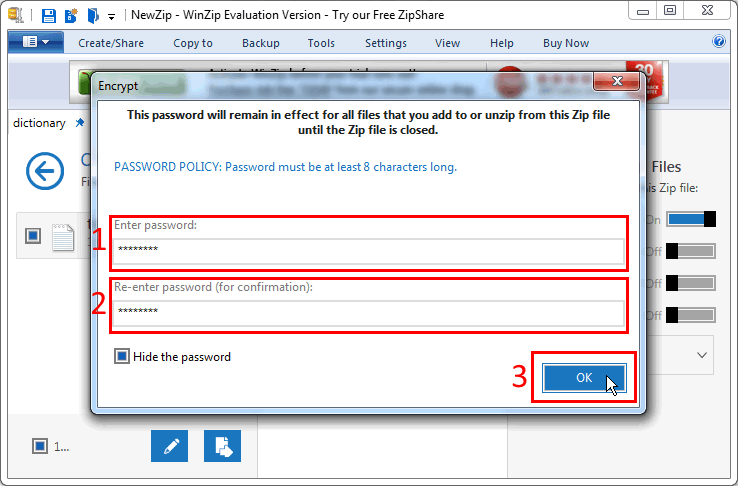
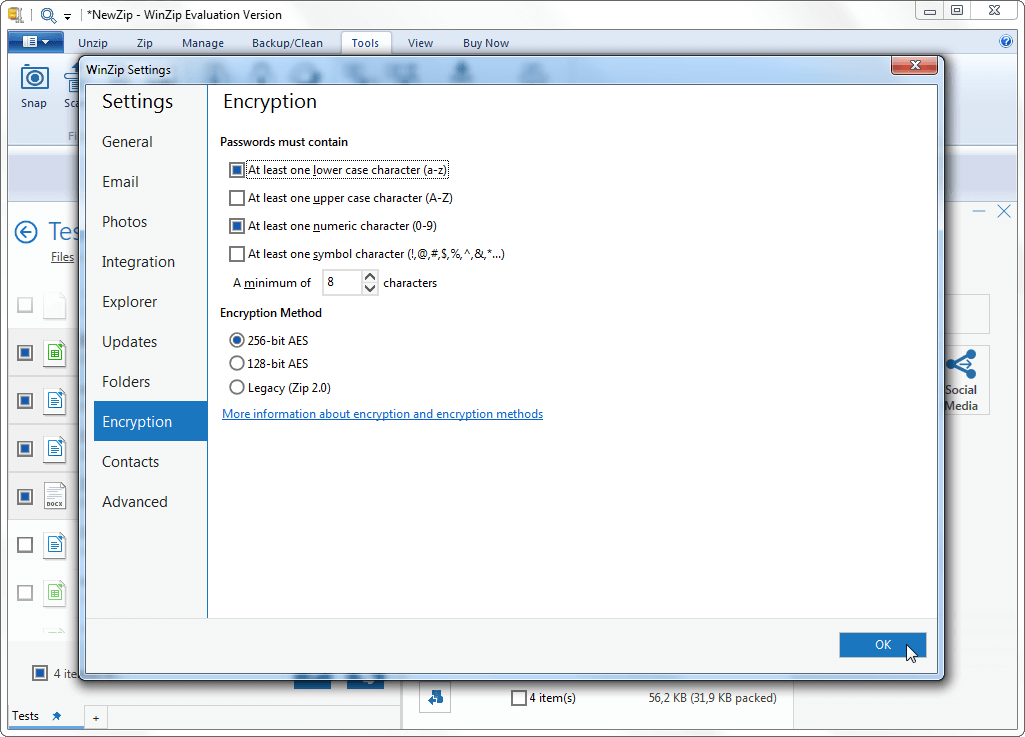
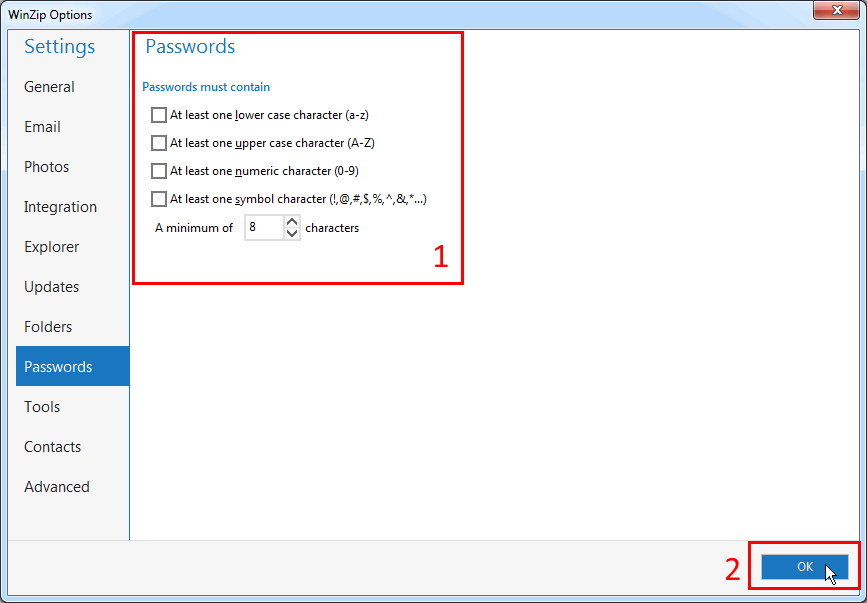
WinZip keeps an eye on protection strength and may reject a password that's too simple. Password requirements are set in the program's options: Settings → WinZip Options → Passwords.
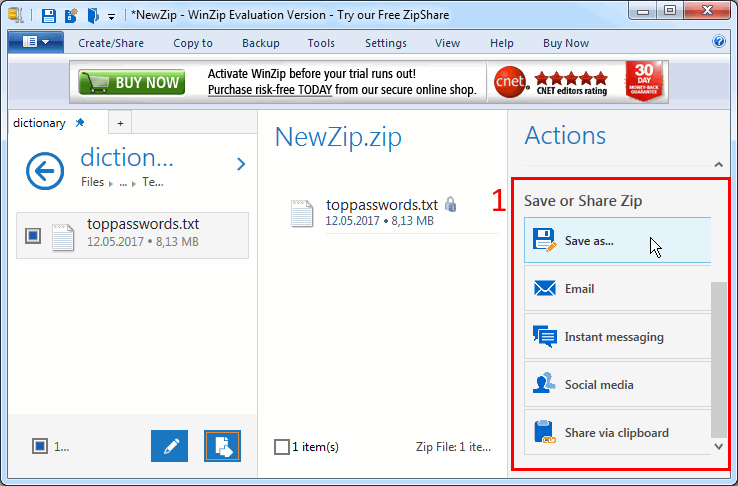
Save the finished archive or send it from the Save or Share Zip block: to disk, by email, through a messaging app, or on social media.
Write the password down: without it, the data in the archive is out of reach, and recovering it may not be easy.
How to Encrypt a Zip Archive from File Explorer with WinZip
You can build an encrypted Zip archive right from Windows File Explorer, using the WinZip item in the context menu. The name, folder, compression, and encryption are all set in one window.
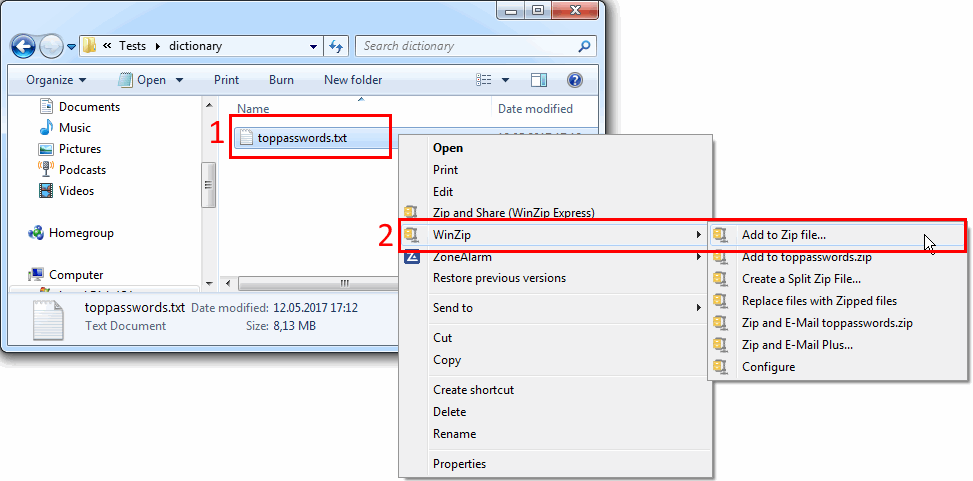
In File Explorer, select the files or folder, right-click, and choose WinZip → Add to Zip file…:
In the Add Files window, set the archive's name and location and the compression type, and check Encrypt files (you can pick the encryption algorithm right there, too):
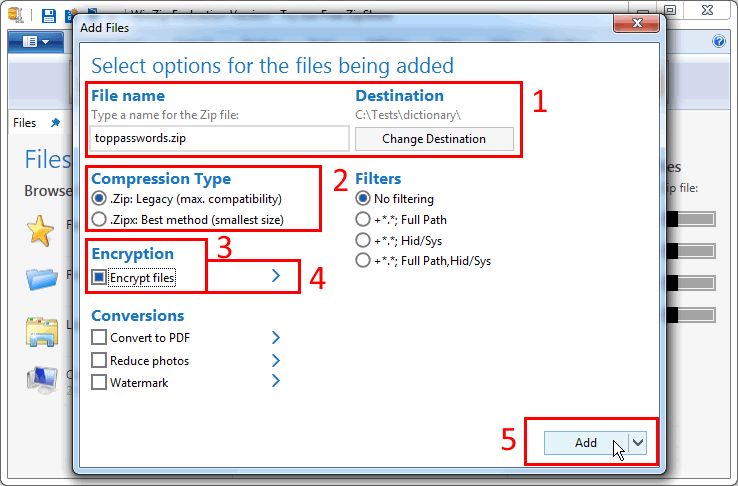
Click Add, and the Zip archive is created. Simple as that!
How to Add Files to an Encrypted Zip Archive
You add files to an encrypted Zip archive in two moves: first put them in the archive, then encrypt all the archive's files at once. In the standard WinZip view (the Actions pane on the right), it goes like this:
- open the archive in WinZip and drag the new files into the center pane
- in the Actions pane, turn on Encrypt, click Options, and choose Apply to all files in the Zip
- enter the password: WinZip encrypts all the files, and re-encrypts any that were already encrypted
The context menu item Add to recently used Zip file doesn't open the Add window, so you can't encrypt files as you add them this way: do it afterward, using the steps above.
Two more ways to encrypt an archive, plus the steps for the WinZip Classic view — in the official WinZip knowledge base.
How to Remove a Password from a Zip Archive When You Know It
WinZip can't remove a password from a finished Zip archive directly: you extract the archive with the password and rebuild it without encryption.
Zip encrypts the contents of the files after compression, while the archive itself stays an ordinary container. Think of a box of locked envelopes: the lock is on each envelope, not on the box. All that's left is to open the envelopes with the key and move the letters into a new box with no locks.
In WinZip, that's three steps:
- open the archive and extract all the files, entering the password
- create a new archive from them (the Encrypt switch in the Actions pane must be off)
- delete the old, password-protected archive
How to Recover a Zip Archive Password If You've Forgotten It
A forgotten Zip password is found by trying combinations — not by hand, but in password recovery software. A program like that checks one combination after another on its own until it finds the lost password.
How long the search takes depends on two things: search speed and range size. Speed is how many passwords per second the program checks; the range is how many candidates it has to run through.
Accent ZIP Password Recovery (AccentZPR), our Zip password recovery program, helps speed up the search and narrow the range:
- finds passwords for Zip files with WinZip AES and classic Zip 2.0 encryption
- speeds up on graphics cards from NVIDIA, AMD, and Intel Arc (GPU acceleration)
- narrows the search with masks, dictionaries, and attack scenarios
For Zip archives alone, AccentZPR is enough; for RAR, Office documents, PDF, and more, there's Passcovery Suite.
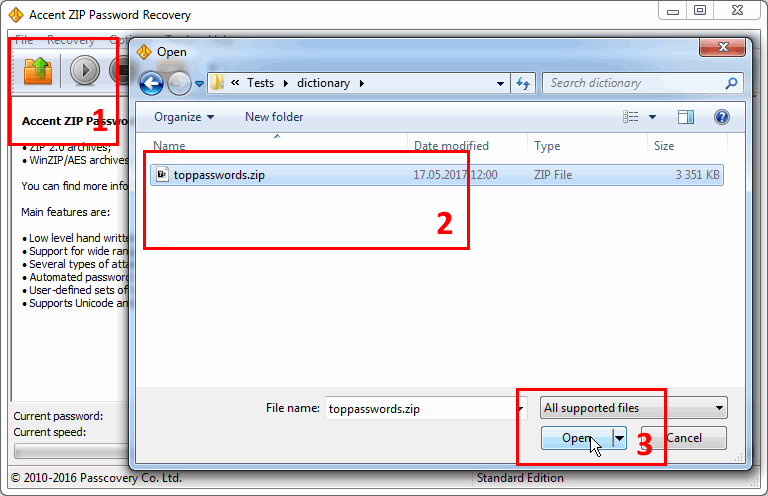
So, launch AccentZPR and open your password-protected Zip file with the toolbar button or through the File menu:
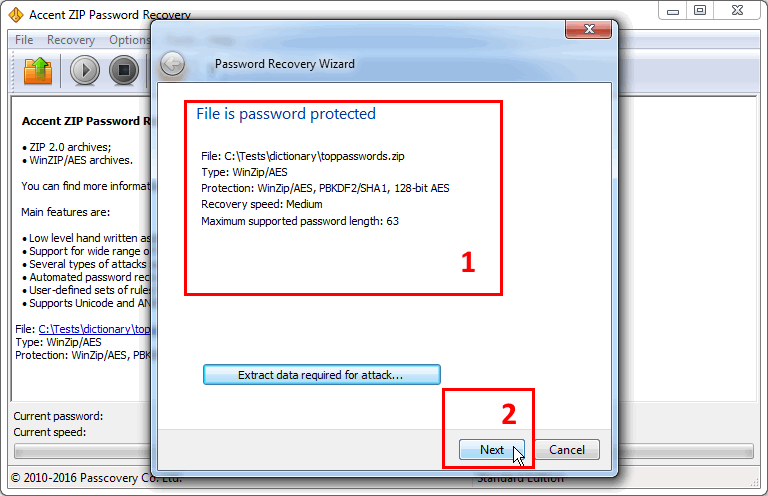
In the Password Recovery Wizard, check which format and encryption algorithm protect the archive, and click Next:
Choose a ready-made scenario or one of the three password attacks:
- brute-force attack — a direct search of every combination
- extended mask attack — a search with a positional mask, for when you know the password's structure
- dictionary attack — testing words from a dictionary and their variations
The easiest way to start is a ready-made scenario. For our archive, that's Default for WinZip/AES: don't change any settings, just click Finish:
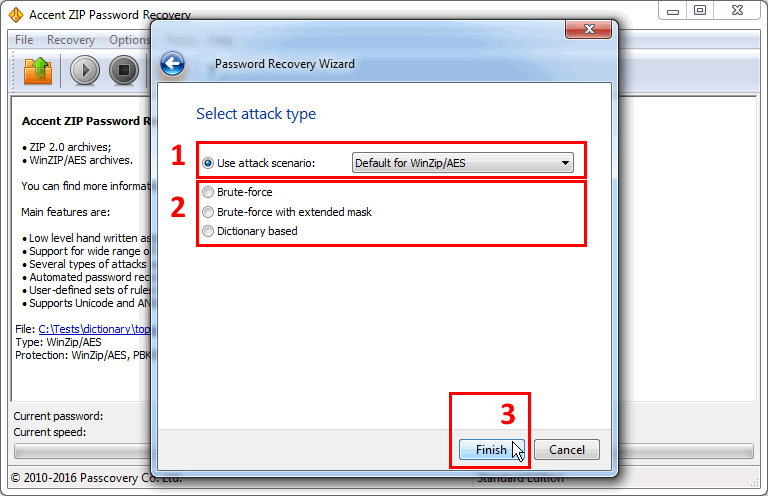
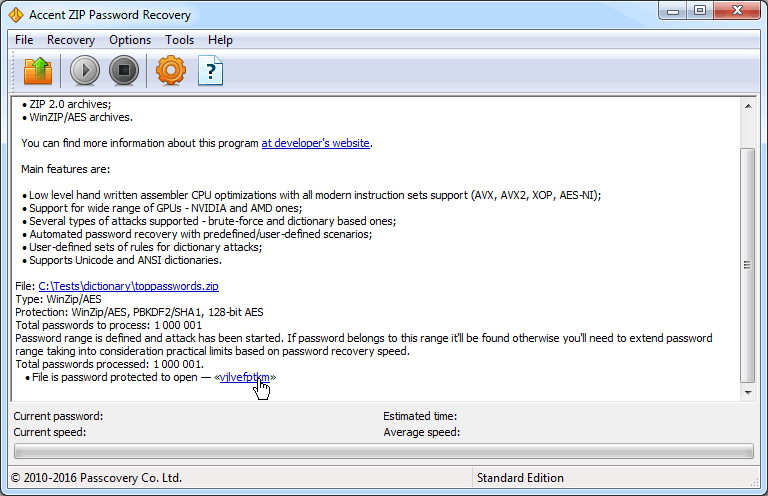
AccentZPR will start the search and report the password it finds — and if the password isn't found, it will offer to widen the search range:
Any detail you remember about the password narrows the search range. Three walkthroughs show how to turn it into an attack setting. The examples use other formats, but the principle and the interface are the same across all our programs:
- how to narrow the search if you remember how the password starts and ends
- why a long password made of familiar words falls in a minute and a half
- how to make the program run a whole chain of attacks without you
What to Remember About a Zip Archive Password
A Zip password in WinZip is set when you create the archive, removed only by rebuilding it, and recovered by search if forgotten. Two more details:
- Pick the encryption method in advance: AES for strength, Zip 2.0 for compatibility.
- The Add to recently used Zip file context menu item doesn't let you encrypt files as you add them.
About the Author

Denis Gladysh, co-owner and head of Passcovery, a maker of high-speed, GPU-accelerated password recovery software for popular file formats. Denis wrote the first versions of Accent OFFICE Password Recovery back in 1999.


Frequently Asked Questions About a Zip Password in WinZip
How Do I Add a Password to a Zip Archive in WinZip?
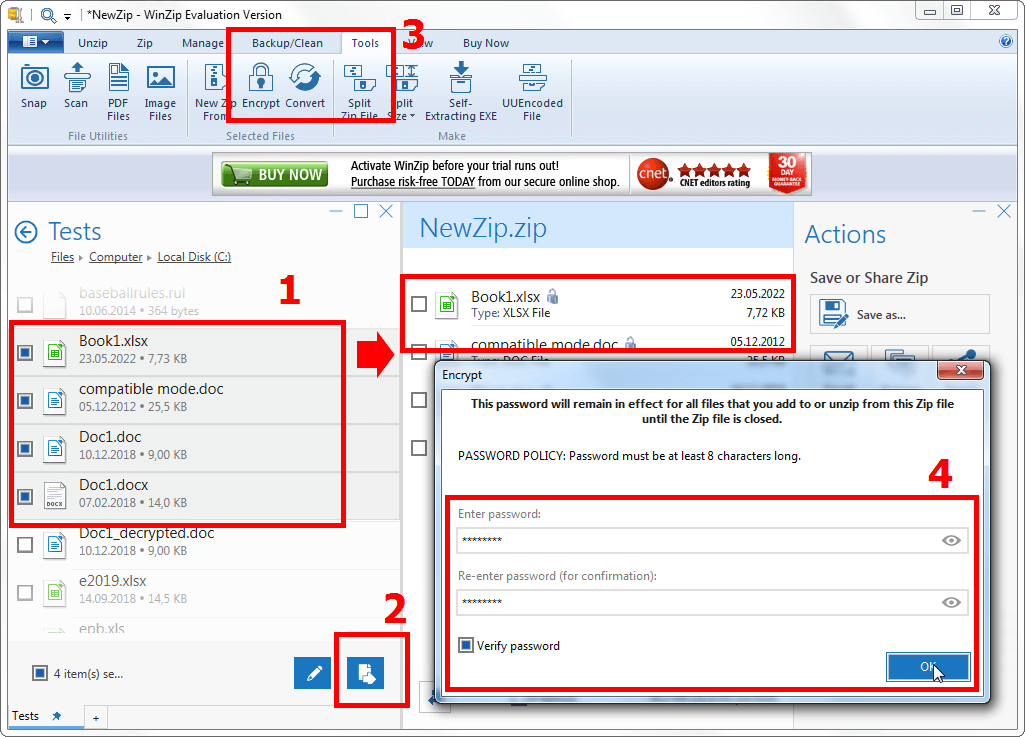
In WinZip 26, you add a password to a Zip archive with the Encrypt button on the Tools tab, in five steps:
- launch WinZip and select the files to archive in the left pane
- move them into the center NewZip.zip pane with the button at the bottom of the left pane
- on the Tools tab, click Encrypt
- enter the password twice
- click OK: the files get encrypted, and a lock icon appears next to them
What Is a Password Policy in WinZip?
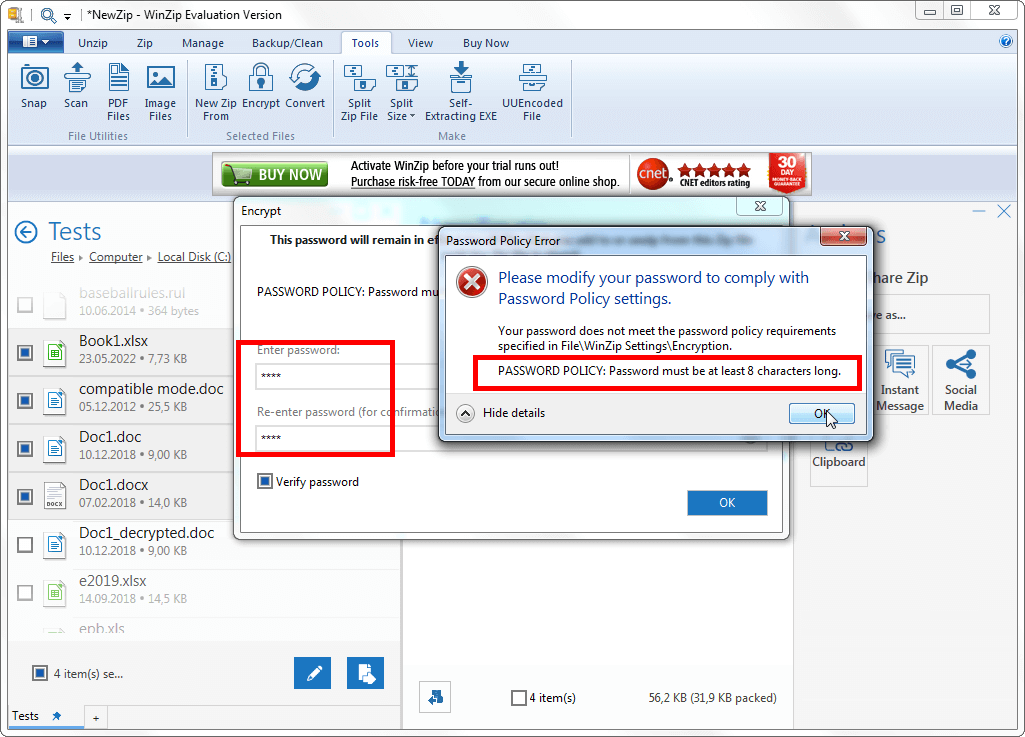
A password policy in WinZip (Password Policy) is a set of password requirements: minimum length and mandatory characters. The stricter the requirements, the more complex the password and the longer it takes to crack.
Four groups of characters can be made mandatory:
- lowercase letters (a-z)
- uppercase letters (A-Z)
- digits (0-9)
- special characters (!, @, #, $, and others)
WinZip won't accept a password that breaks the policy and shows a Password Policy Error window with the reason for the rejection.
How Do I Change the Password Policy in WinZip?
You change the password policy in WinZip Settings, on the Encryption page:
- launch WinZip
- open the File menu (the blue button to the left of the tabs) and choose WinZip Settings
- go to the Encryption page
- check the characters a password must contain
- set the minimum length in the A minimum of field
- if needed, change the encryption method there, too: 256-bit AES, 128-bit AES, or Legacy (Zip 2.0)
- click OK
From then on, WinZip checks every new password against the rules you set.